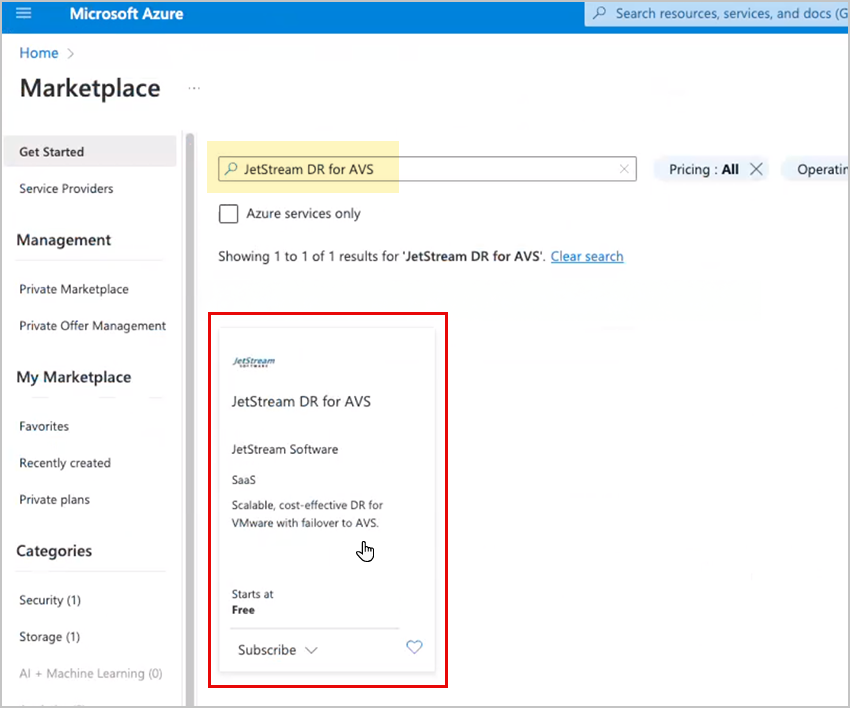
Navigate to Azure Marketplace, search for “JetStream DR for AVS” and select the offer.
Select JetStream DR for AVS in Azure Marketplace.
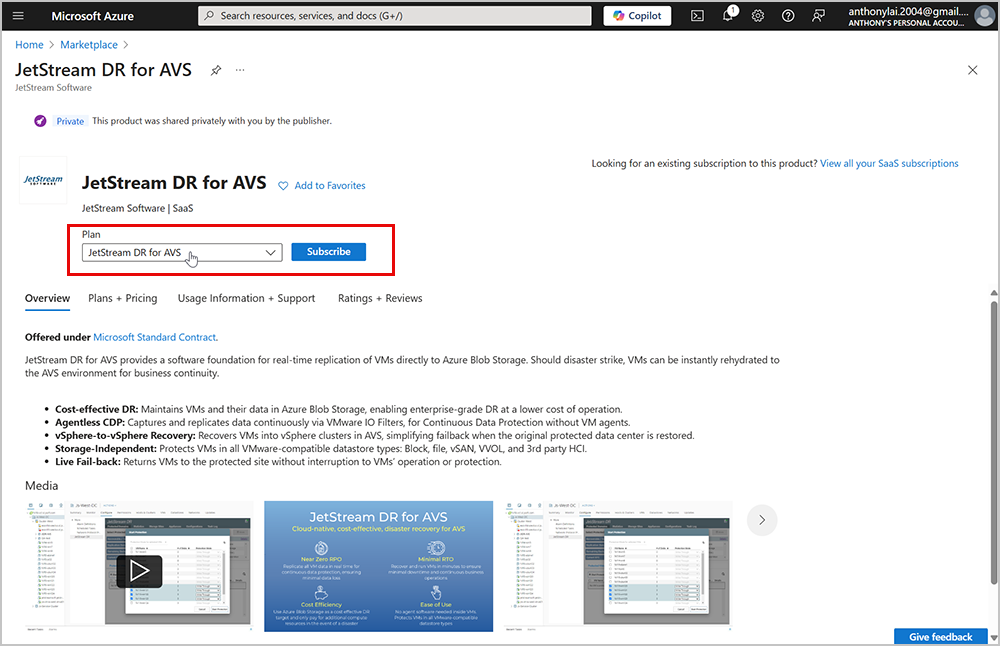
Subscribe to a JetStream DR for AVS plan.
Different plans may be available to you. Browse the full menu selection before making a choice.
Select a JetStream DR plan.
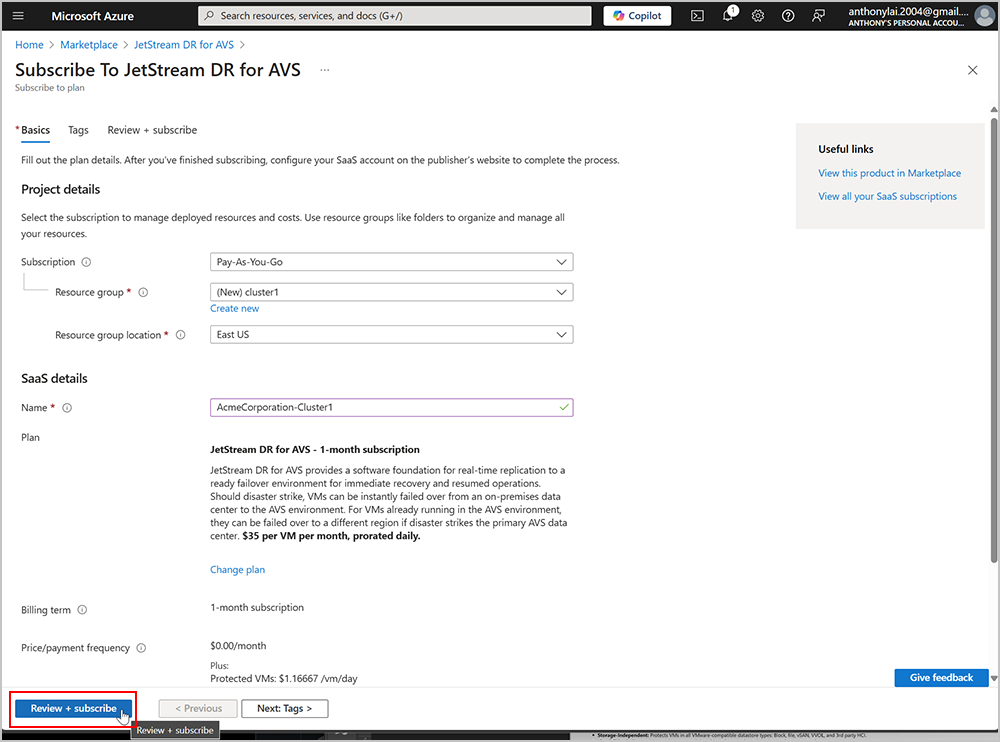
Enter details to complete the subscription then click the Review+subscribe button.
Subscribe to the plan.
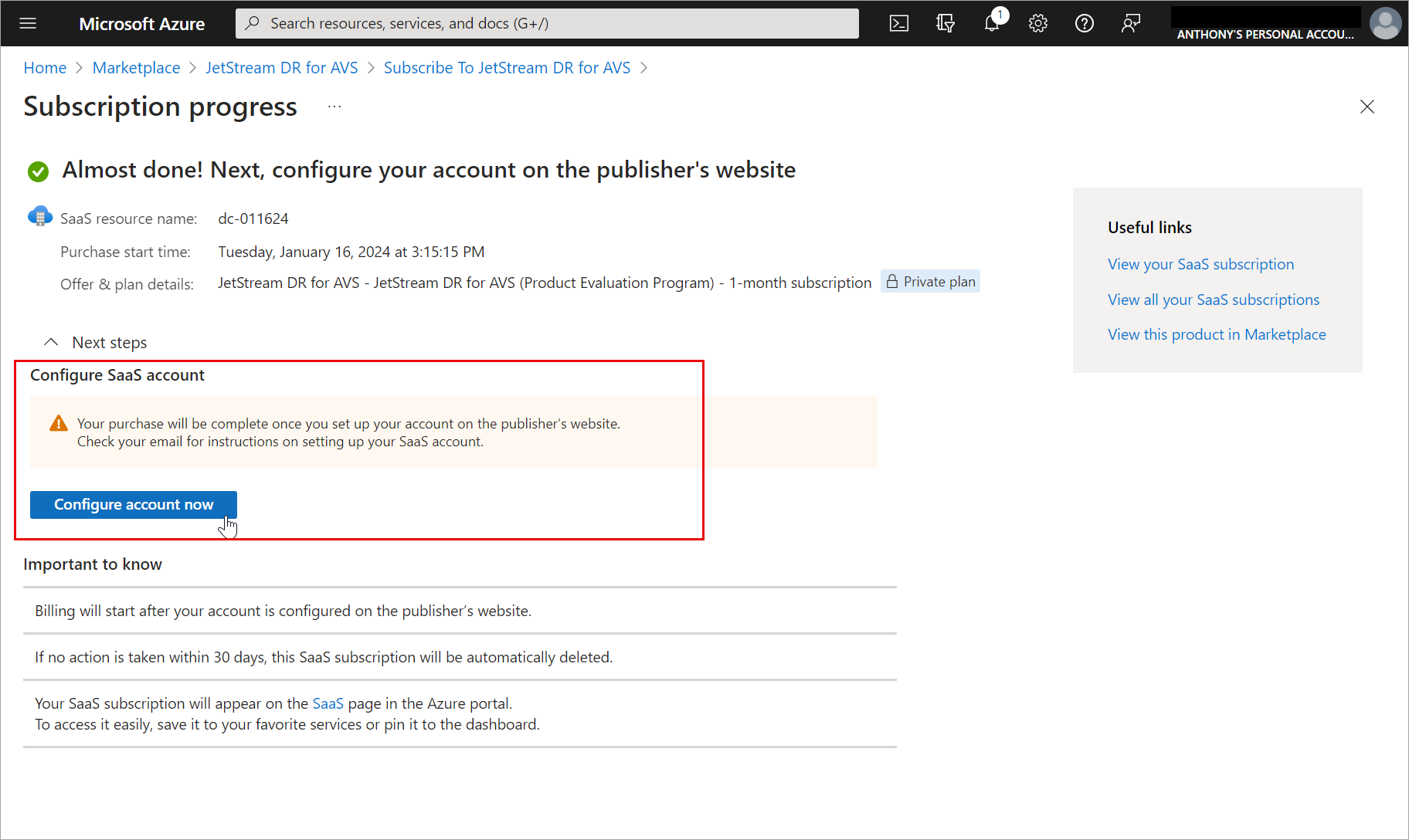
On the final step of the subscription process, click the Configure account now button.
Click the Configure account now button.
A JetStream DR for AVS subscription ID will be generated.
The subscription ID will be displayed on a summary screen.
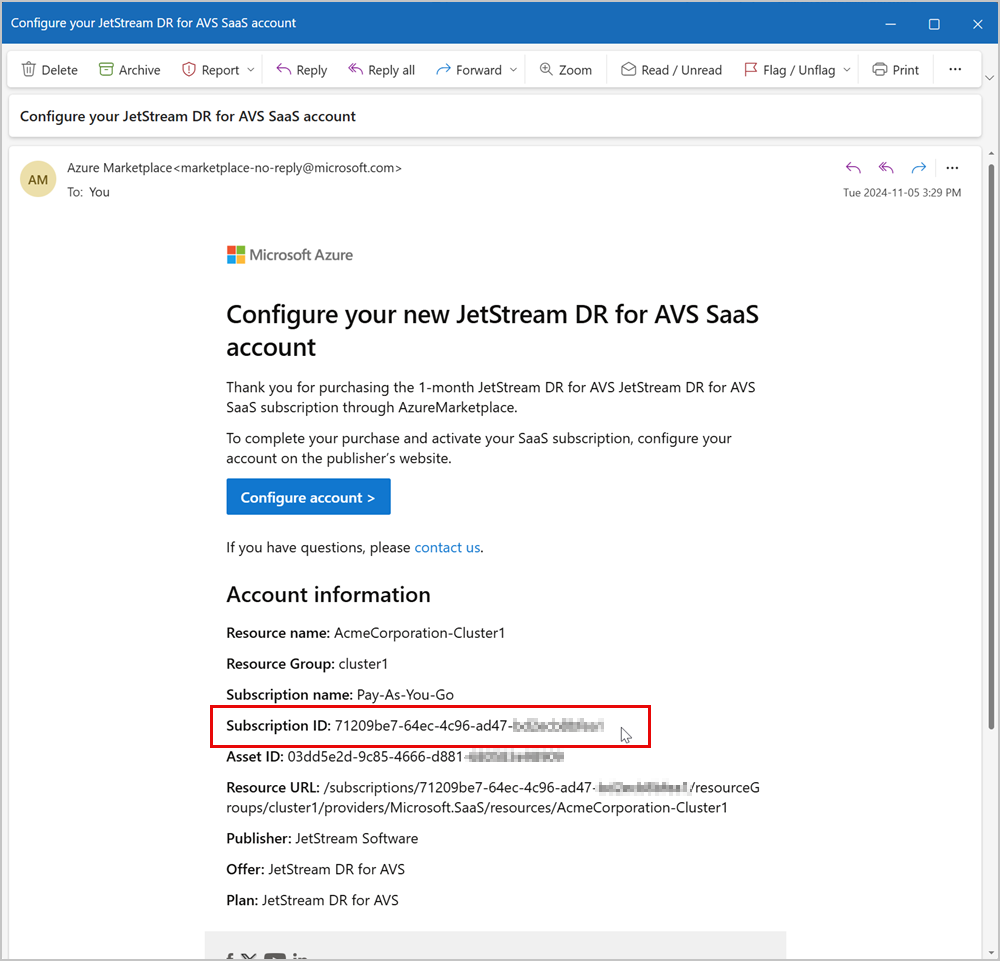
An email indicating the subscription ID will be sent to the registered contact.
Email indicating the JetStream DR for AVS Subscription ID.
Retrieve an Existing Subscription ID
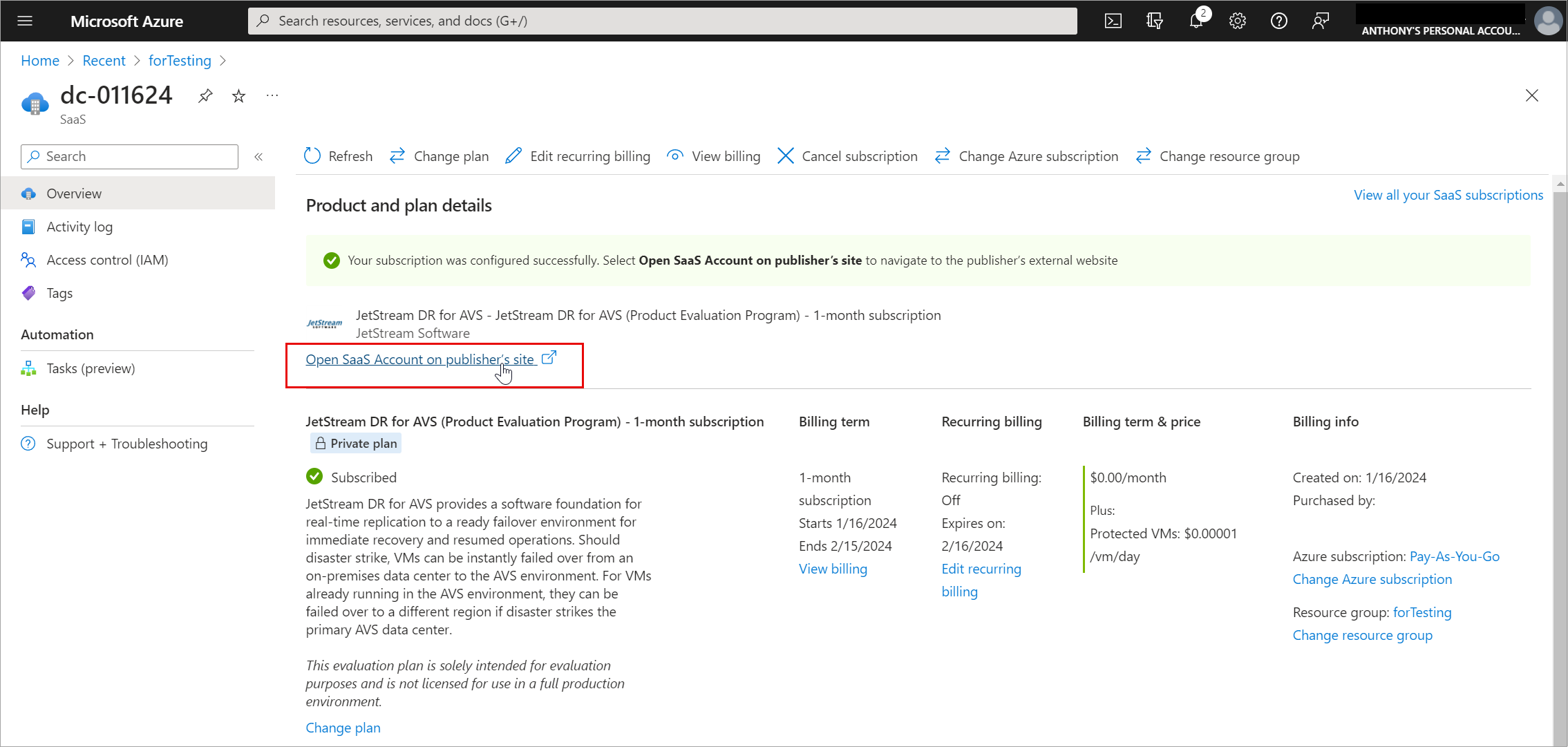
A link to retrieve the JetStream Subscription ID can be obtained by logging into Microsoft Azure and reviewing the details of your JetStream DR for AVS subscription.
From the Azure details screen, click the link “Open SaaS Account on publisher’s site” to re-open the screen displaying the registered JetStream DR subscription ID.
Retrieve an existing Subscription ID from Azure.
Review the Currently Applied Subscription ID
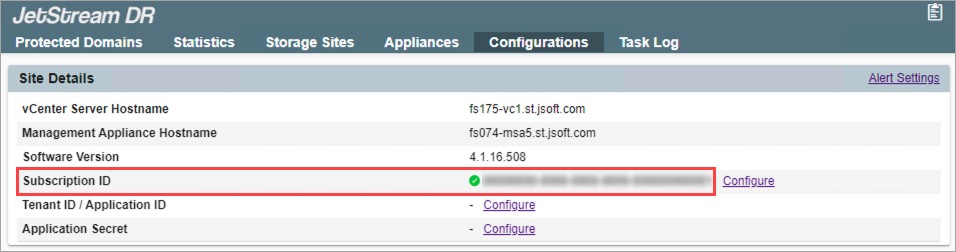
From the JetStream DR interface, navigate to the Configurations screen.
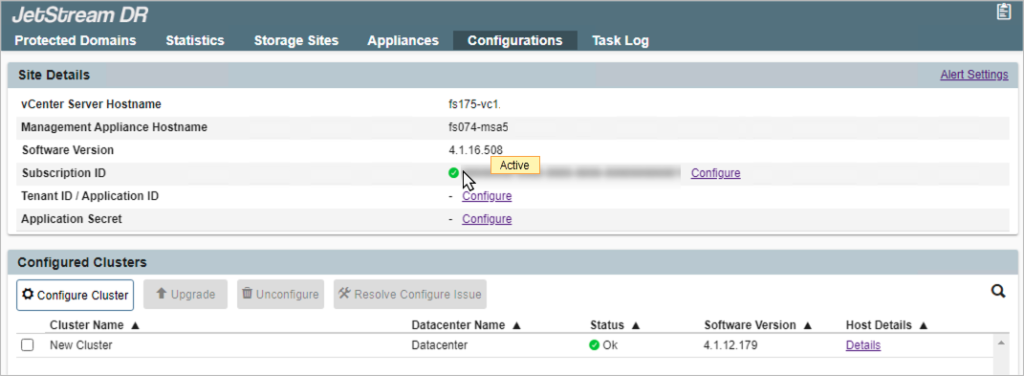
The Subscription ID is displayed under the Site Details section of the screen.
The Subscription ID appears under the Site Details section.
Apply a Different Subscription ID
From the JetStream DR interface, navigate to the Configurations screen.
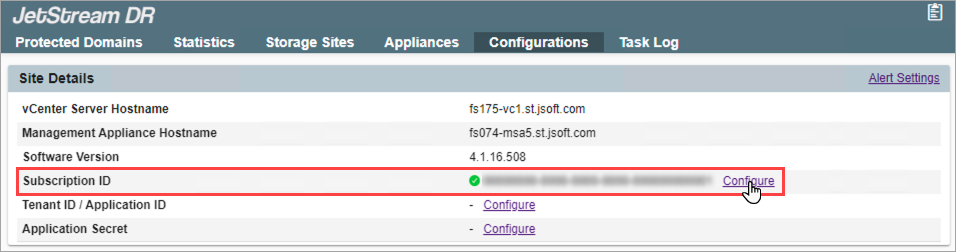
Locate the Subscription ID field under the Site Details section and click the Configure link.
Click the Subscription ID Configure link.
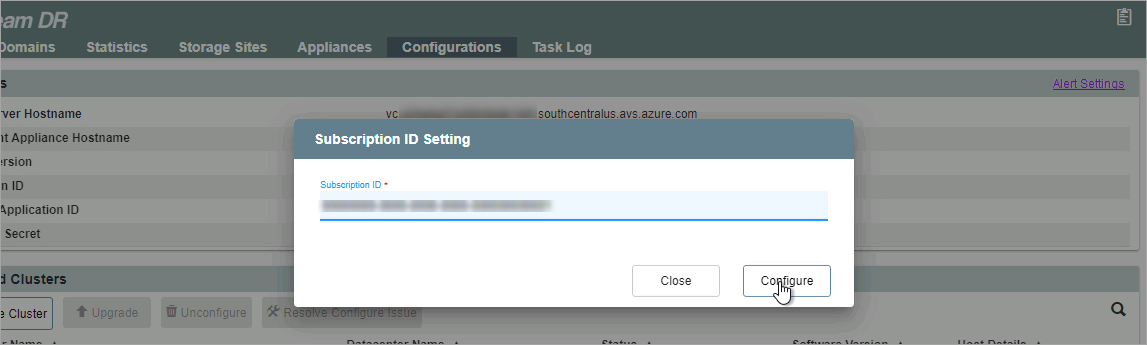
Enter the new Subscription ID number then click the Configure button.
Enter the new Subscription ID number.
After the new Subscription ID has been entered and validated, the JetStream UI will display the updated subscription ID and indicate “Active” status (which can be checked by mousing over the subscription ID number.)
JetStream DR for AVS Subscription ID is active.
If the MSA lacks internet connectivity, subscription status cannot be validated and a warning message may be reported.