Import Plan
Import Plan allows the .yml file of a Continuous Failover or Start Protection Plan to be imported into the system for execution.
- Click the Import Plan button.
- Specify a Plan Type then choose a .yml file to import.
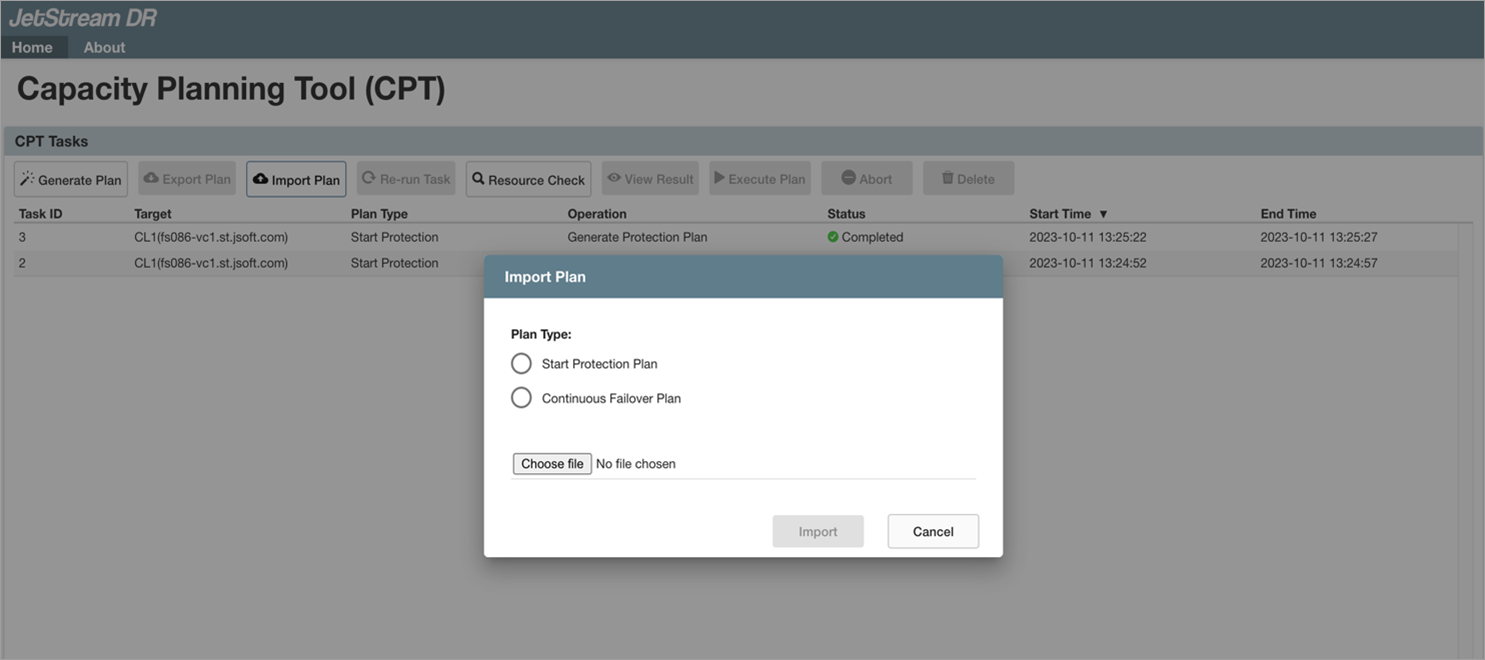
Figure 40: Import a .yml file for Start Protection or Continuous Failover.
Note: Continuous Failover ("CFO") and Start Protection Plan ("SPP") files can be imported.
- After a plan file has been imported, select its entry from the task list and click the View Results button to see details of the imported plan. In this example, a CFO file has been imported.
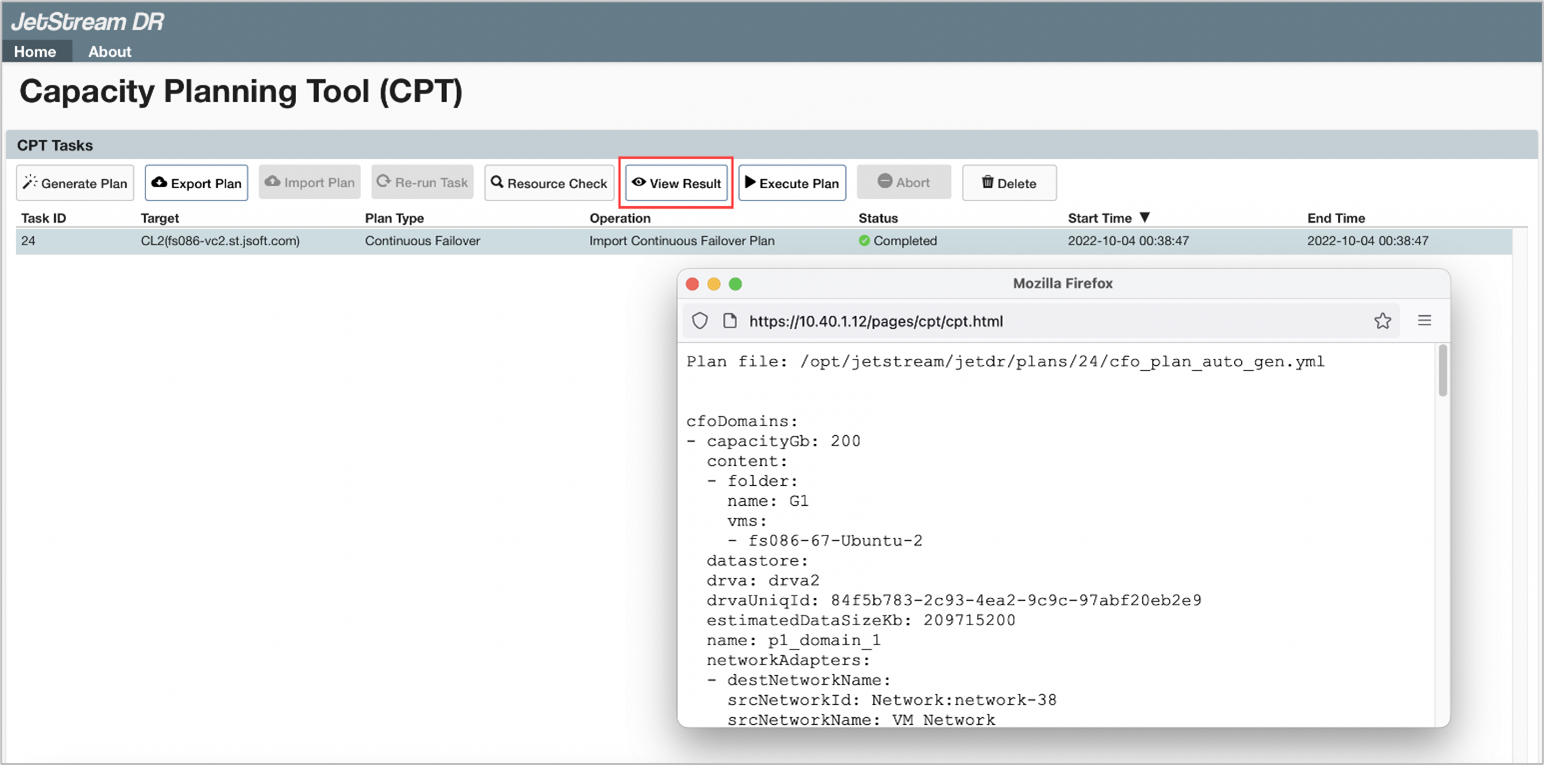
Figure 41: Viewing the results of an imported plan file.
- If the imported plan is correct, click the Execute Plan button.
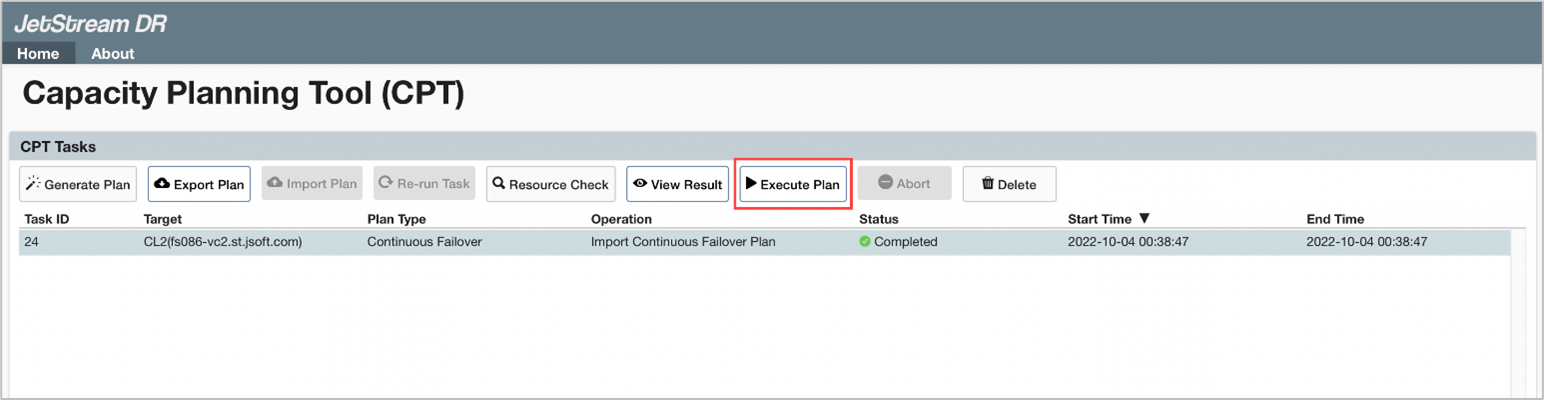
Figure 42: Execute the imported plan.
- Values from the imported plan will be used by default.
- Review and edit them as necessary by clicking any of the Edit links.
- Click the Save Plan button then click the Execute button to begin.
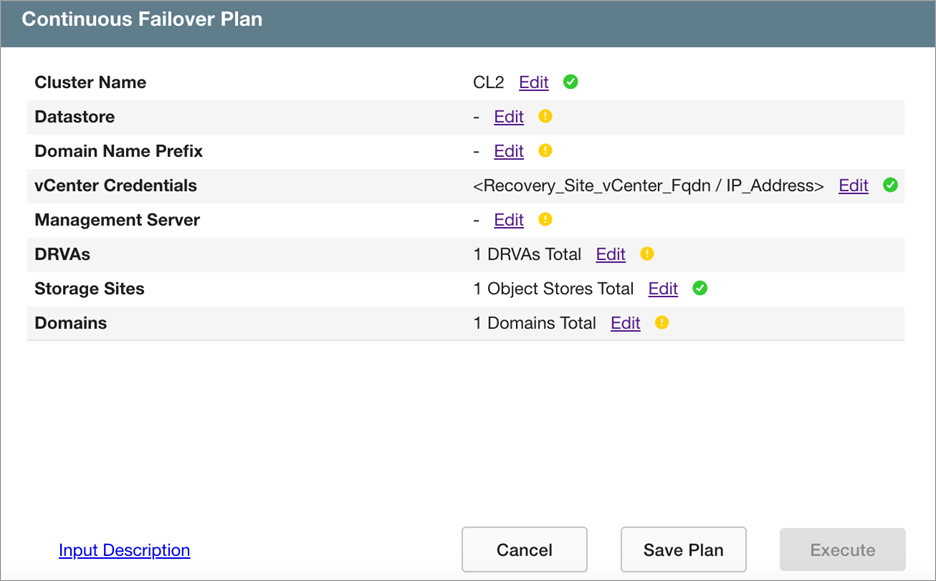
Figure 43: Default parameters of the plan can be modified.
Note: Click the Input Description link to view help text about the input fields of the screen.