Uninstalling the Software
JetStream DR software can be completely removed from vCenter and the vSphere cluster when it is no longer needed.
- Ensure that no snapshots are present in the protected cluster.
- If snapshots are present remove them before proceeding.
- Go to the Protected Domains screen.
- Browse each Domain that contains protected VMs and stop protection.
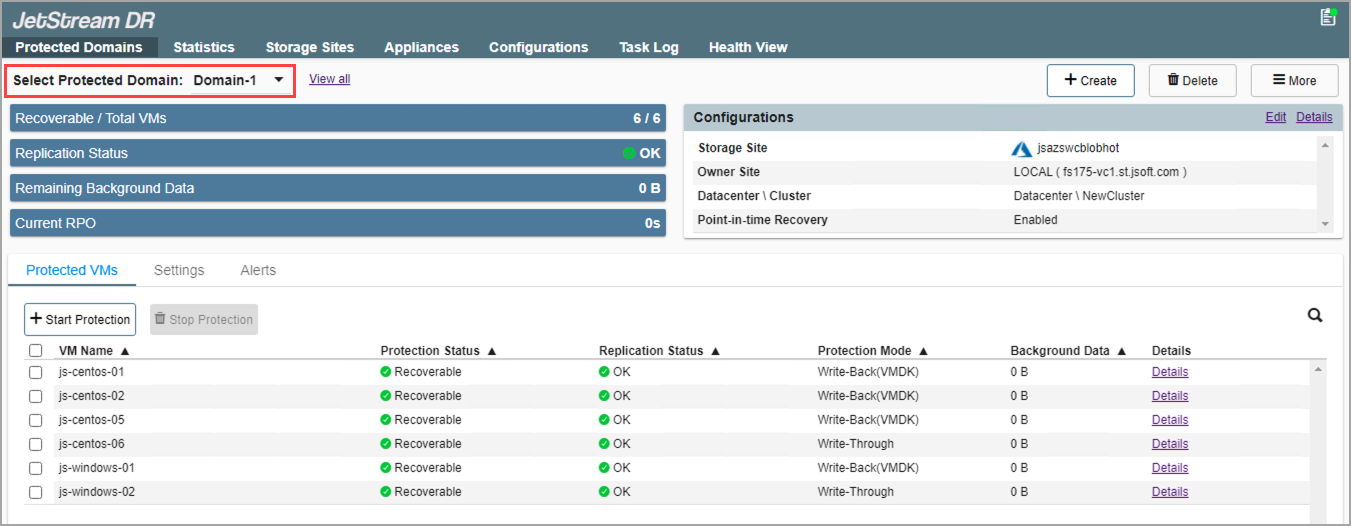
Figure 407: Navigate to each Protected Domain that contains protected VMs.
- Select all protected VMs.
- Click the Stop Protection button.
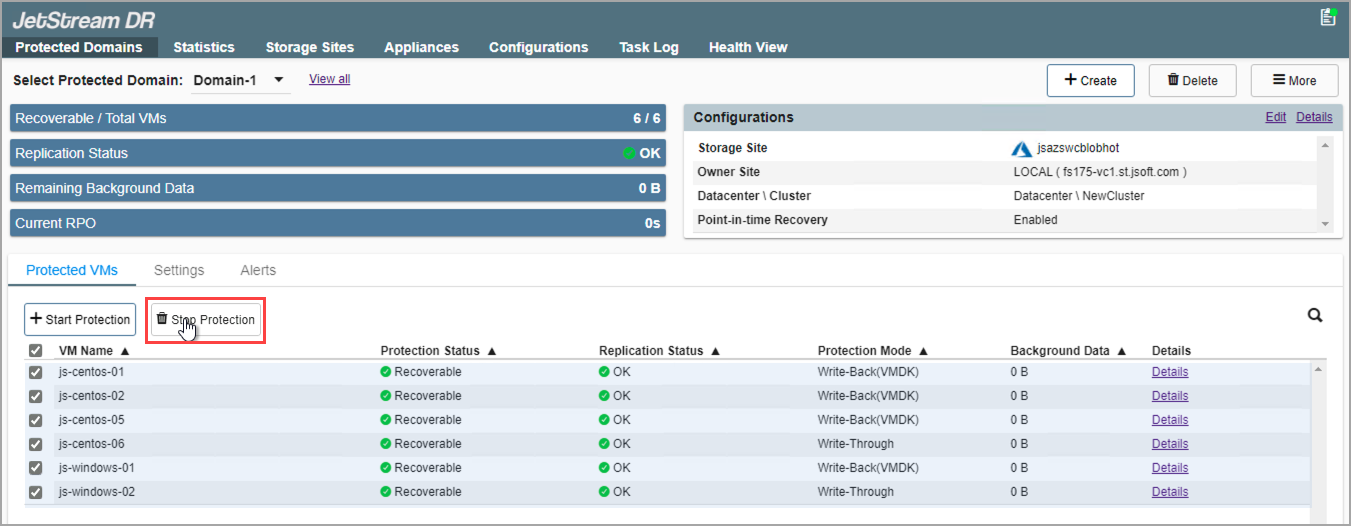
Figure 408: Click the Stop Protection button.
- After protection has stopped, the JetStream DR policy will be detached automatically from the protected VMs.
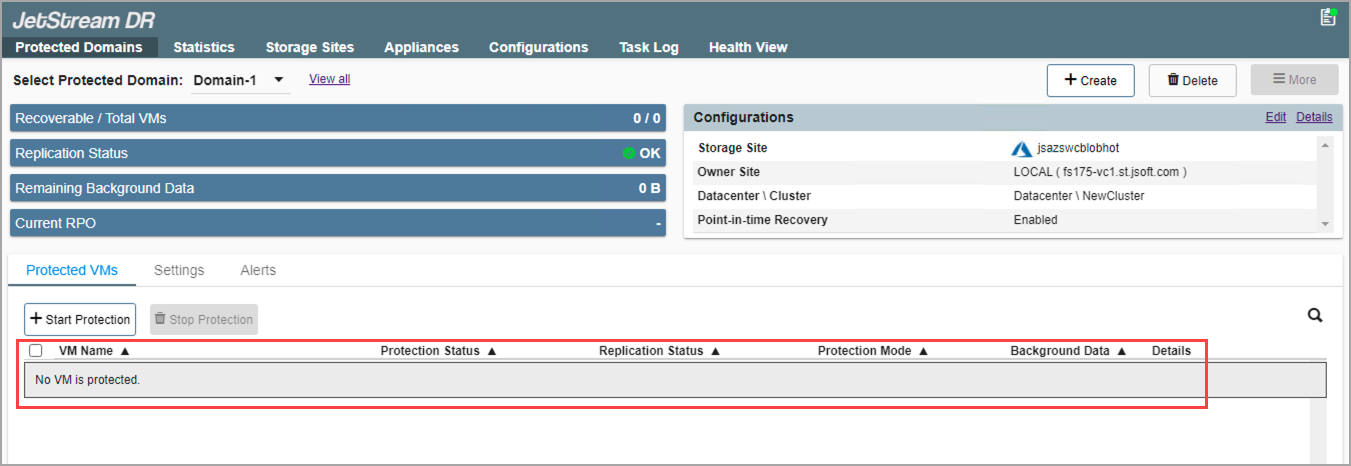
Figure 409: VM protection is stopped and the JetStream DR policy is detached.
- Click the Delete button to delete the Protected Domain.
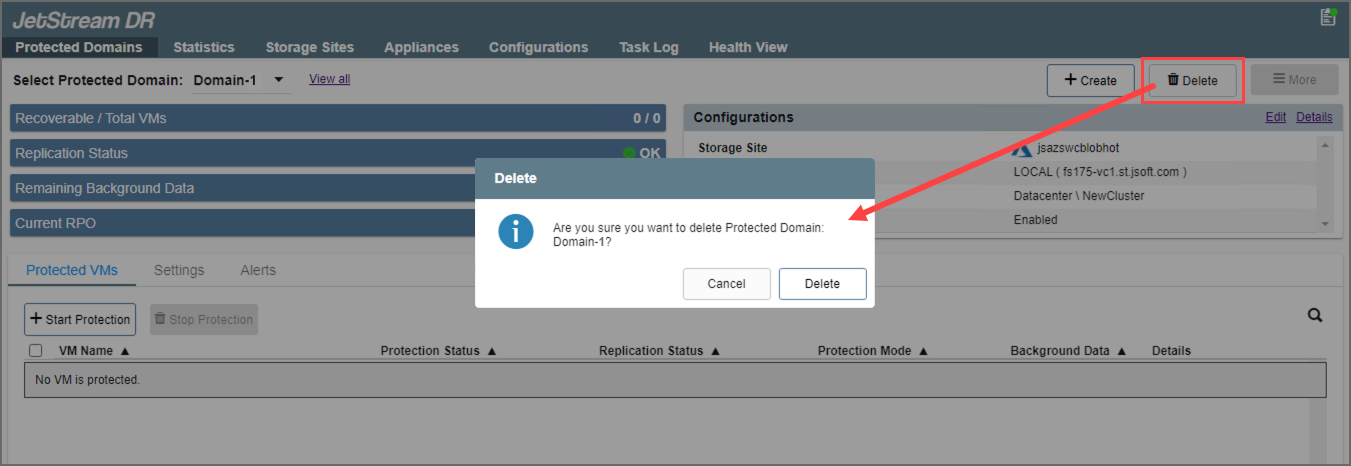
Figure 410: Delete the protected domain.
- Go to the Storage Sites screen.
- Select the storage site.
- Click the Remove button to remove the storage site.
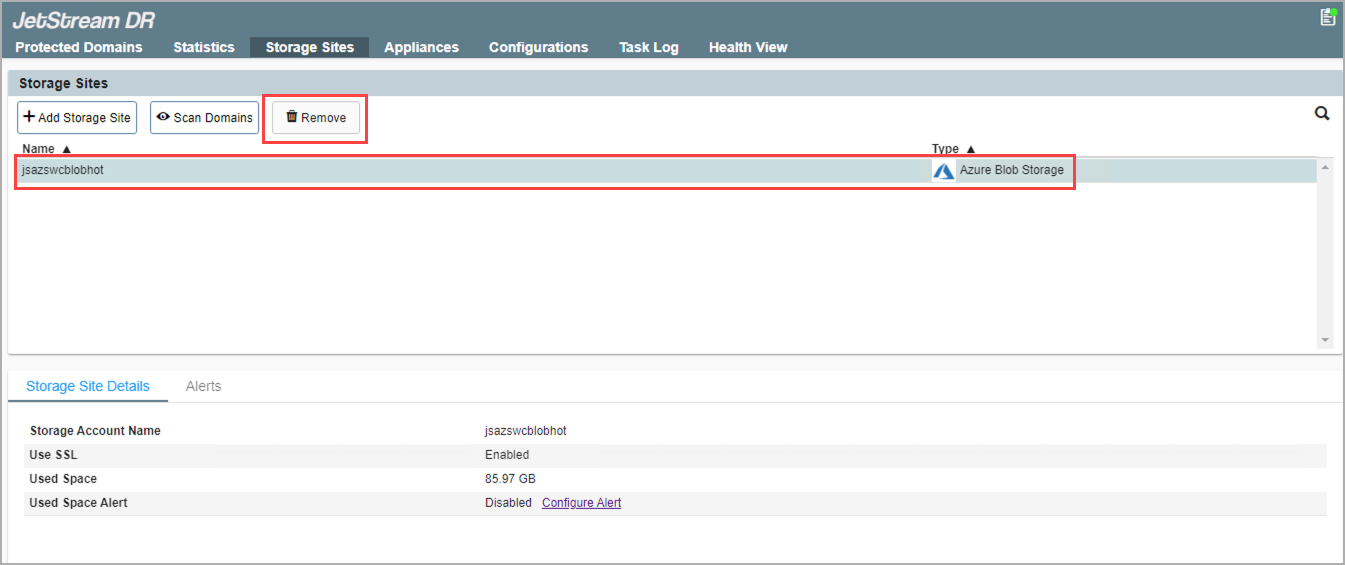
Figure 411: Remove the storage site.
- Go to the Appliances screen.
- Select a DRVA to unconfigure.
- Click the Unconfigure button.
- Repeat for all DRVAs.
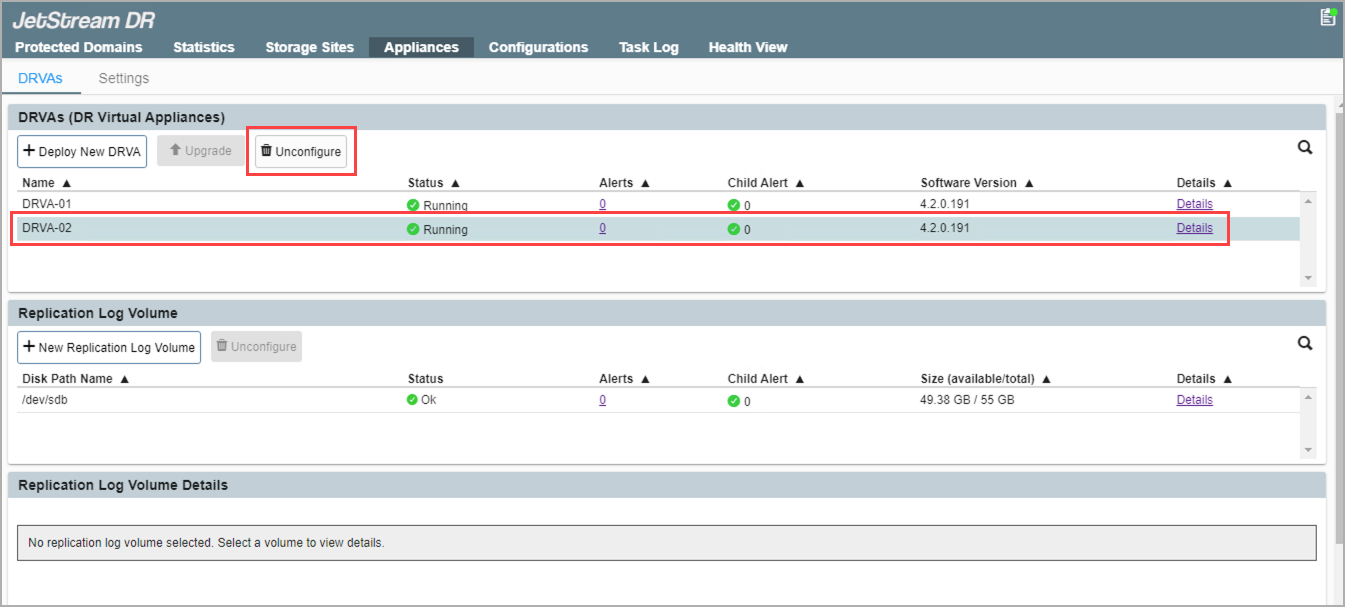
Figure 412: Unconfigure each DRVA.
- Go to the Configurations screen.
- Unconfigure all configured clusters.
- DRS of the clusters should be enabled with the "Fully Automated" level.
- All hosts of clusters to be unconfigured must be able to enter maintenance mode.
- The IOFilter VIB bundle will be removed from the hosts of the protected clusters during the unconfigure cluster operation.
- JetStream DR storage policies will automatically be removed from vCenter once all clusters have been successfully unconfigured.
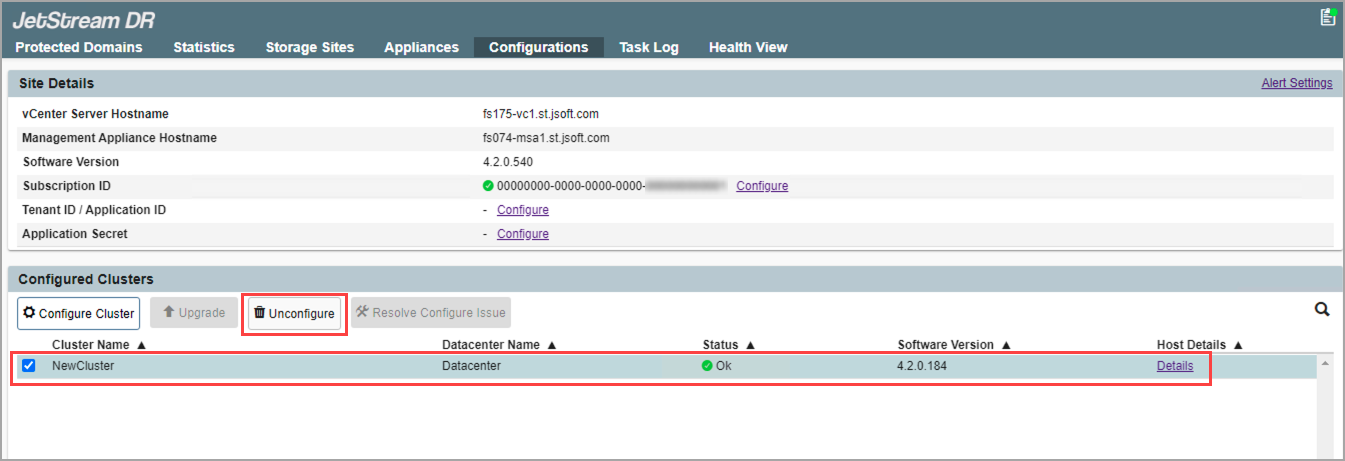
Figure 413: Unconfigure each cluster.
- Access the MSA using a web browser to unregister vCenter Server from the MSA.
- vCenter Server credentials with admin privilege are necessary to unregister.
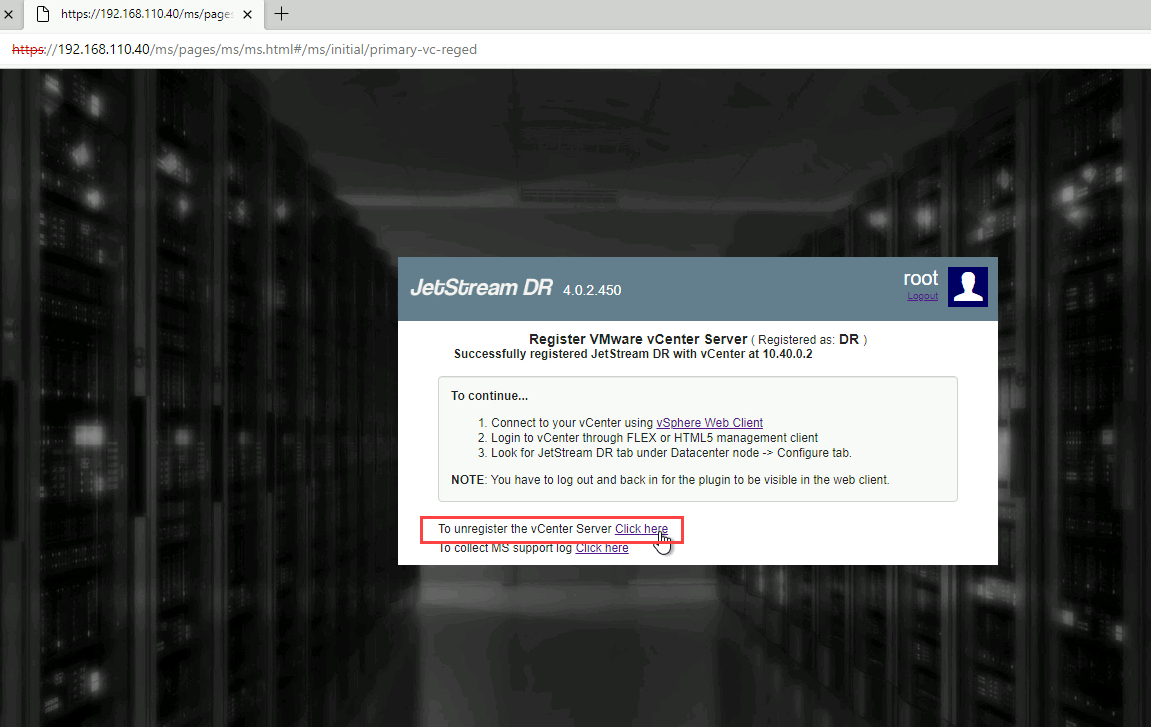
Figure 414: Unregister vCenter Server from the MSA.
- Log out from vCenter and then log back in (this is necessary to refresh the screen).
- The JetStream DR plug-in should no longer exist in vCenter.
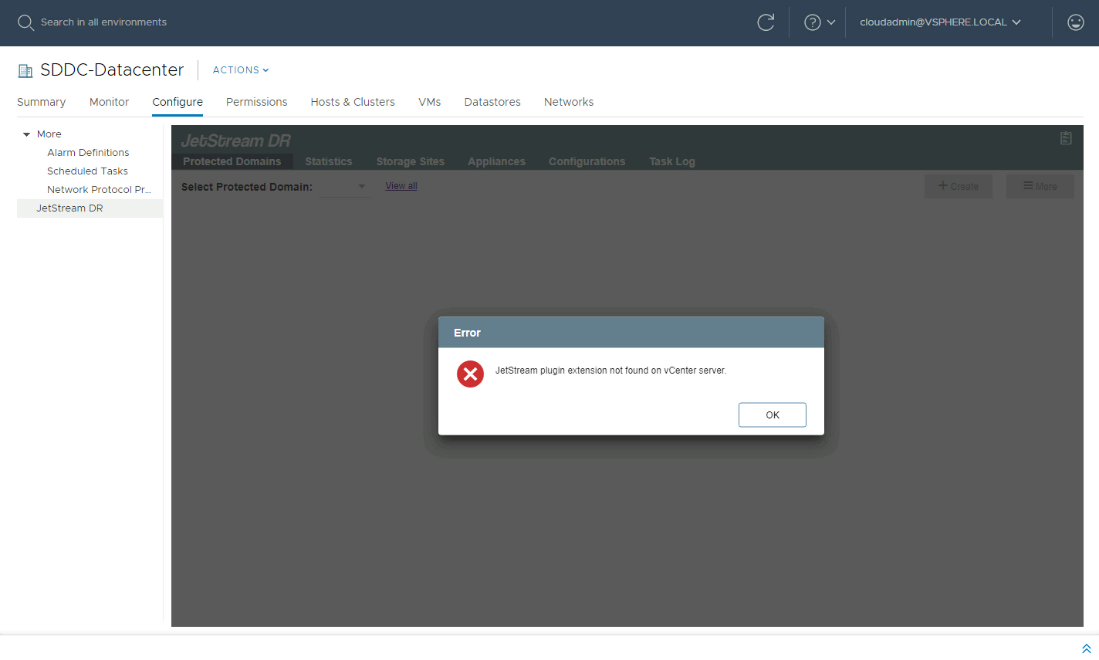
Figure 415: Verify the JetStream DR plugin has been removed and no longer exists in vCenter.
Note: If the JetStream DR plug-in still appears, restart the vsphere-ui service and check again.
The service can be restarted using the VCSA command: service-control -- restart vsphere-ui
- Shut down the MSA VM, then delete it from disk.
- JetStream DR software will now be fully uninstalled.
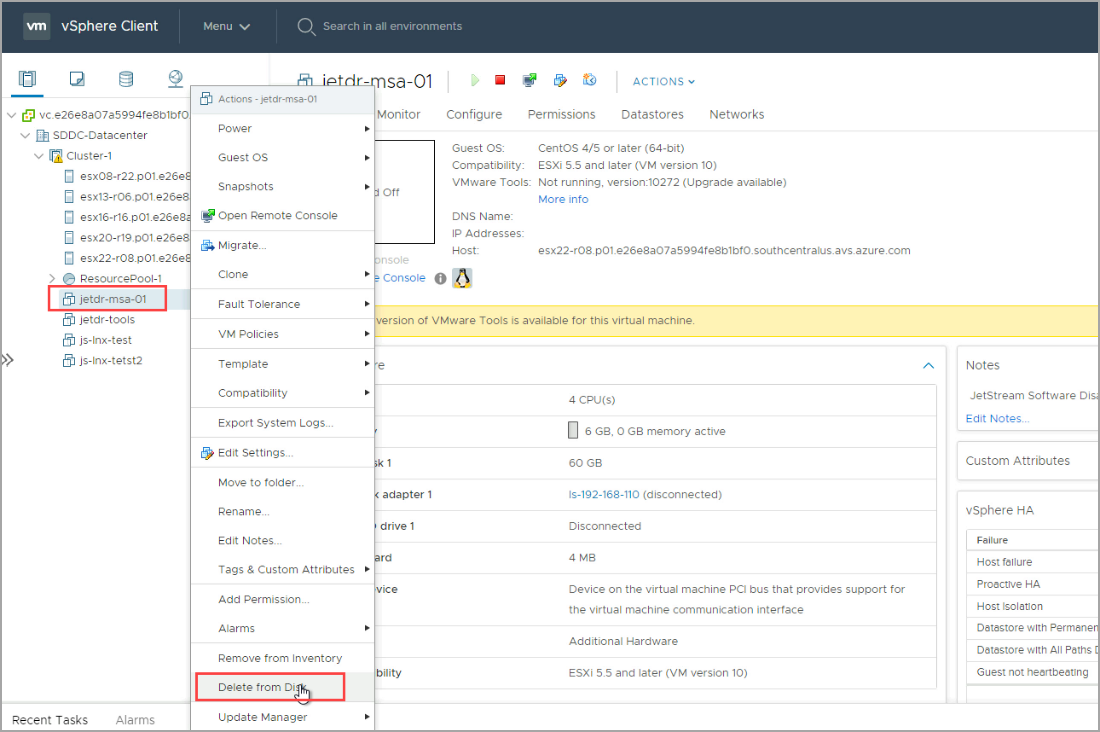
Figure 416: Delete the VM that contained the JetStream DR MSA.