Enter Microsoft Entra ID Information
Before attaching Blob storage, begin by specifying Microsoft Entra ID information.
- On the Configurations screen two sets of information must be provided to configure JetStream DR with Microsoft Entra ID:
- Tenant ID / Application ID
- Application Secret
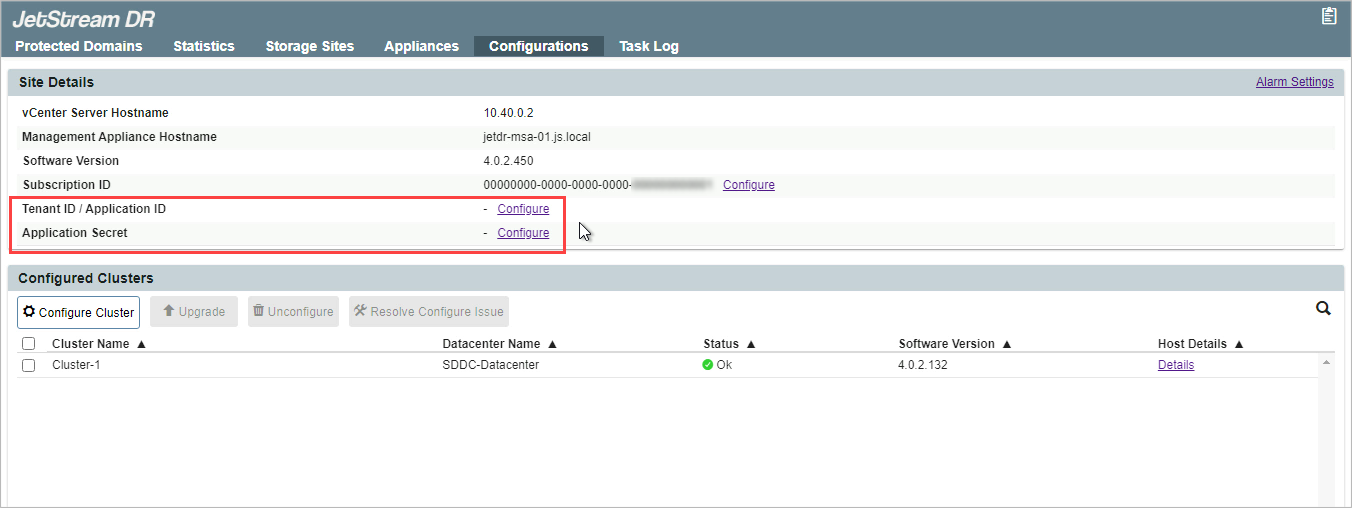
Figure 329: Enter configuration settings from the Configurations screen.
- Click the Tenant ID / Application ID Configure link.
- Enter the Tenant ID and Application ID as requested.
- Click the Configure button.
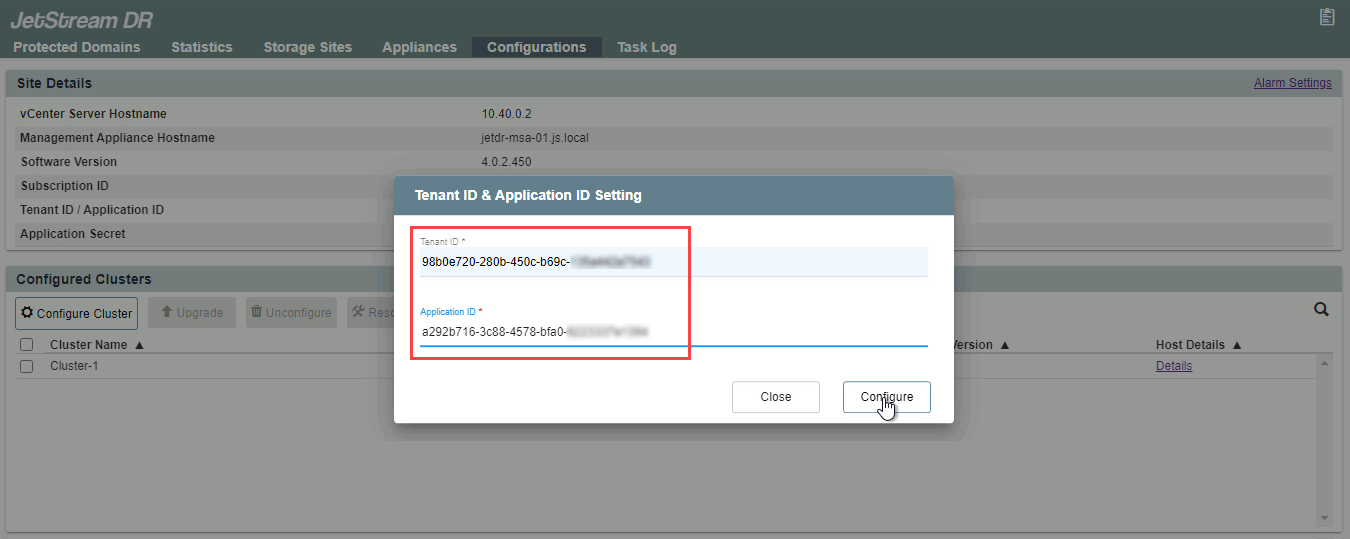
Figure 330: Configure the Tenant and Application IDs.
- Click the Application Secret Configure link.
- Enter the application secret value.
- Click the Configure button.
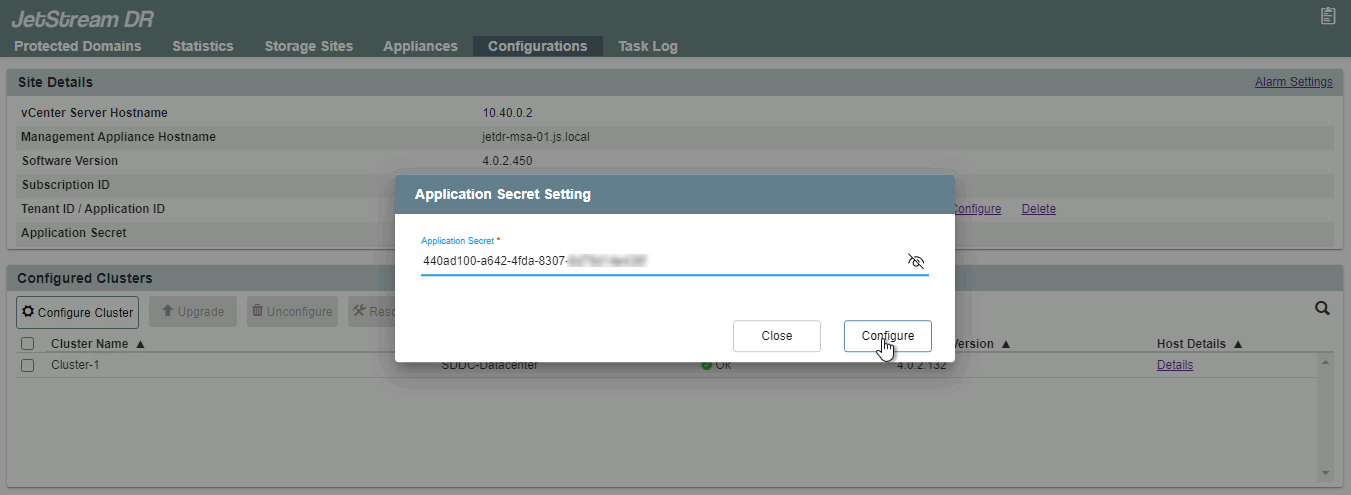
Figure 331: Configure the application secret value.
- The fields of the Configuration screen will be updated.
- If the Tenant ID, Application ID, or Application Secret should need to be modified, come back to this screen and click the corresponding link.
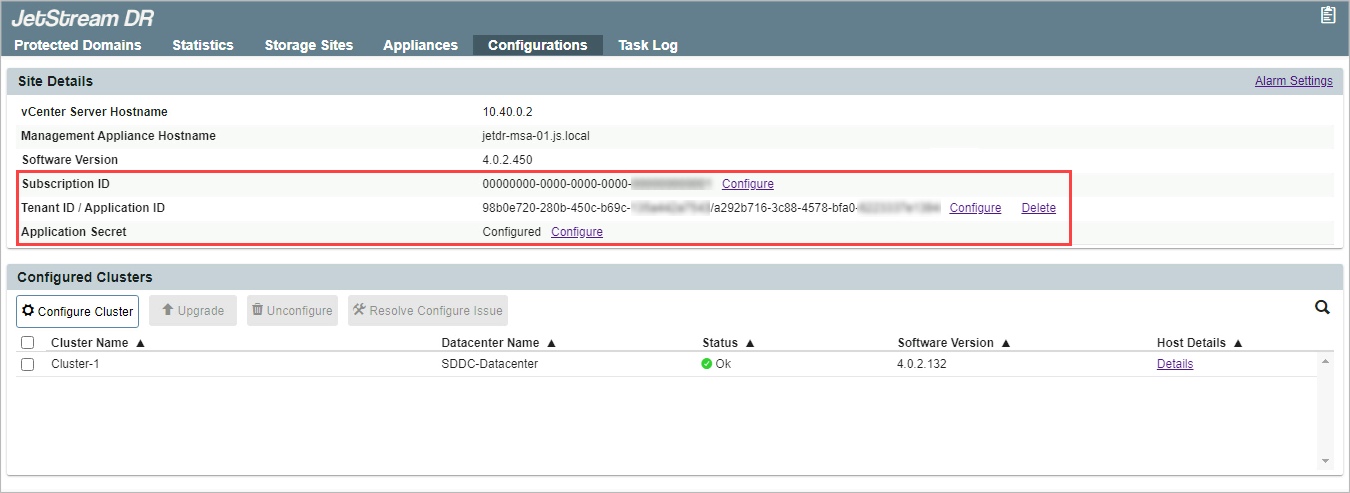
Figure 332: The setting values can be changed by returning to the Configurations screen.
Also see:
Connect Azure Blob Storage to JetStream DR