Certificate Management (MSA)
Certificates can be added and managed from the JSDR Management Server Appliance (MSA) user interface. Multiple certificates can be managed during the same transaction.
Add a Certificate
- Navigate to the MSA dialogue window and select the Certificate Management “Click Here” option:
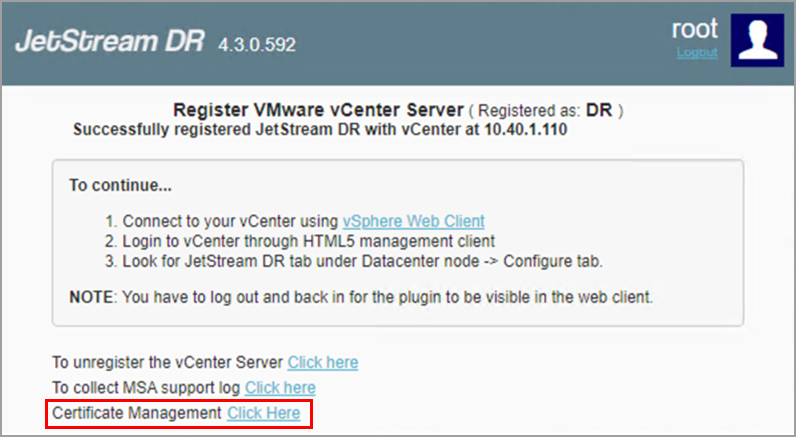
Figure 374: Click the Certificate Management link.
- Specify a certificate file to add:
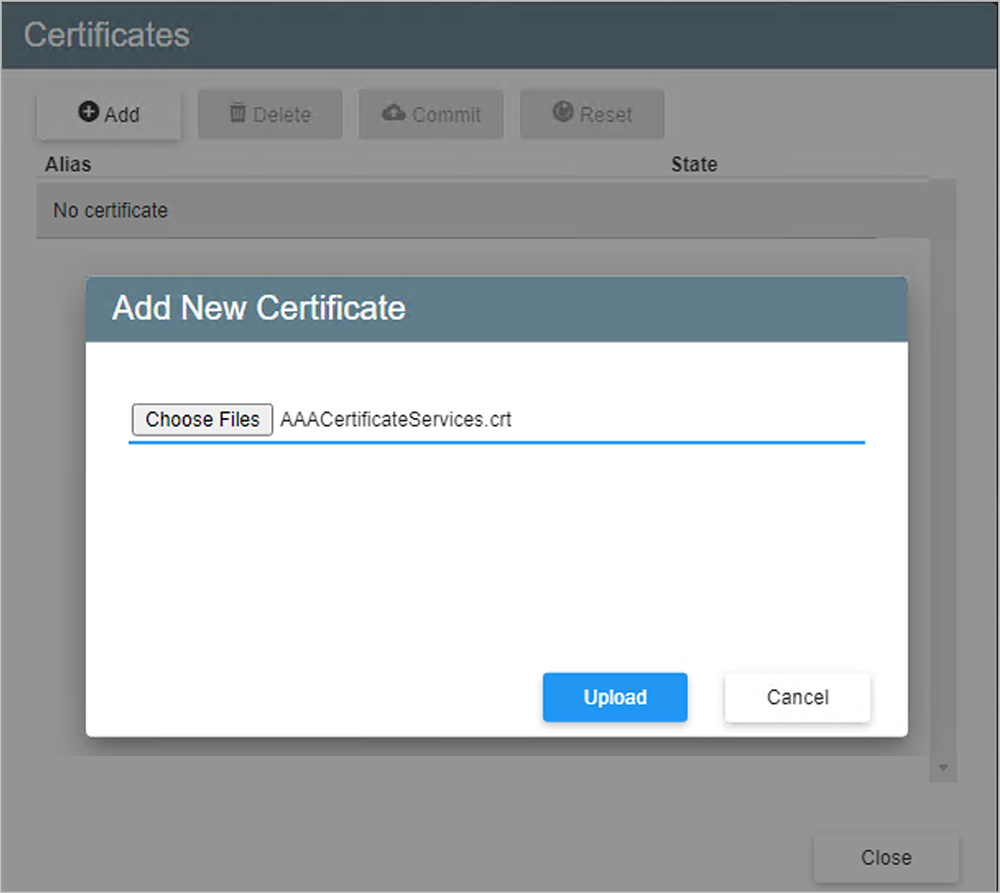
Figure 375: Select a certificate to add.
- Upload the certificate.
- The certificate will be added to the transaction list and its state will be changed to "READY_TO_ADD."
- Additional certificate(s) can be added by clicking the Add button.
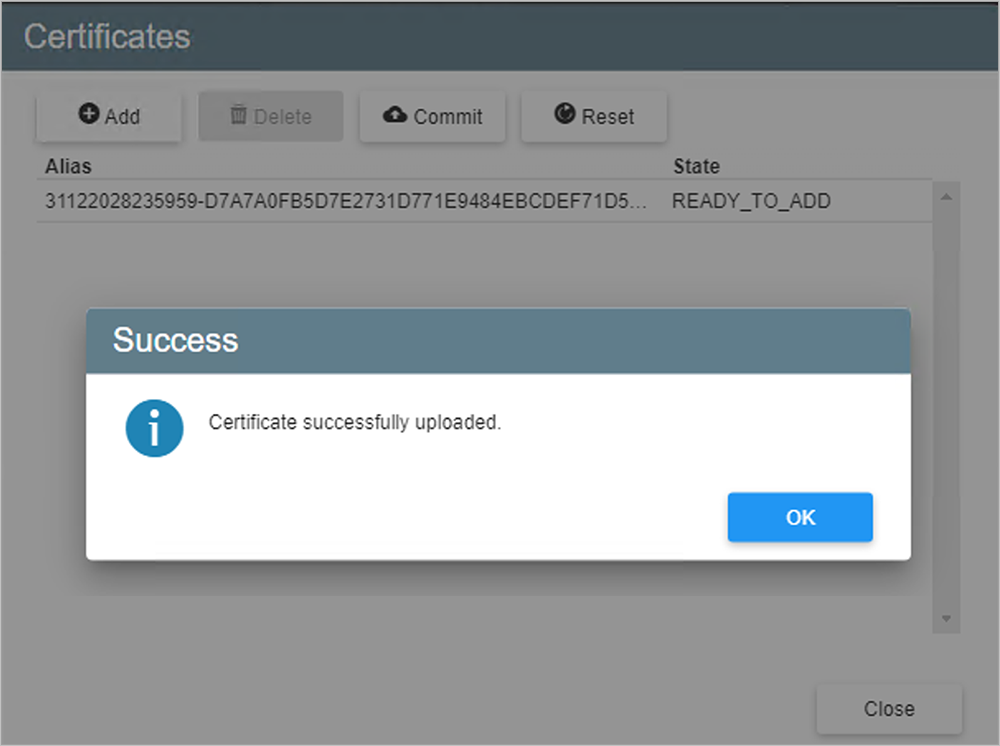
Figure 376: Certificate uploaded.
- Click the Confirm button to finalize all transactions and end the certificate management session.
- Trusted communication from the MSA can now begin.
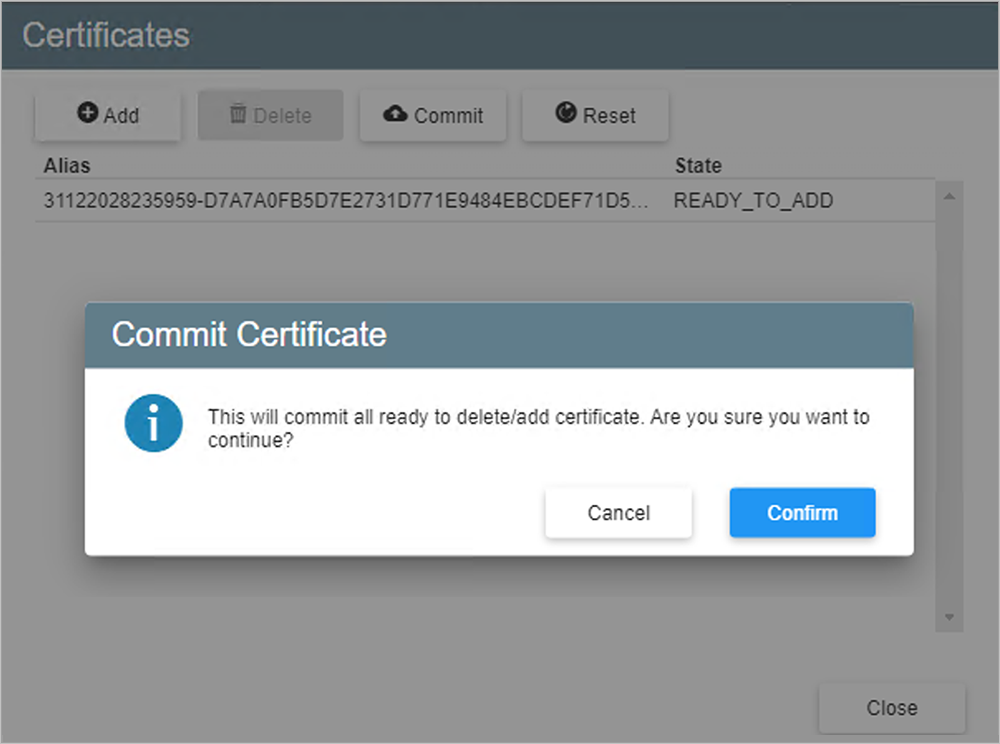
Figure 377: Commit the certificate.
Remove a Certificate
- Select a certificate from the Certificates window then click the Delete button.
- Follow the steps to confirm the certificate deletion.
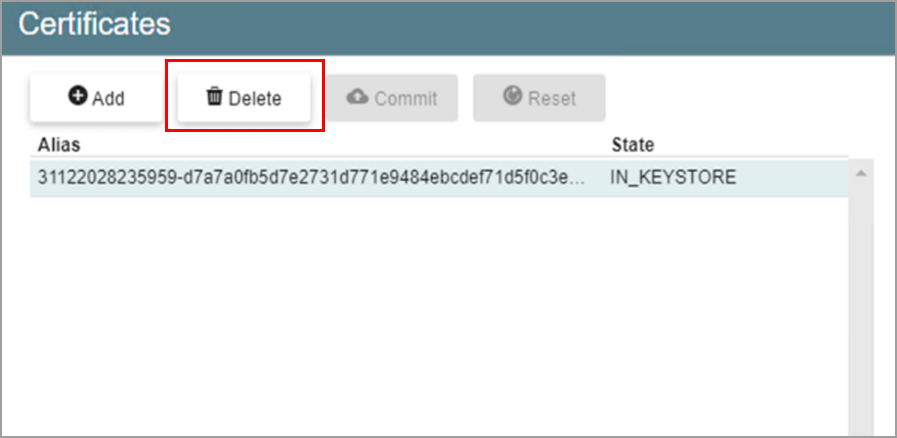
Figure 378: Delete the selected certificate.
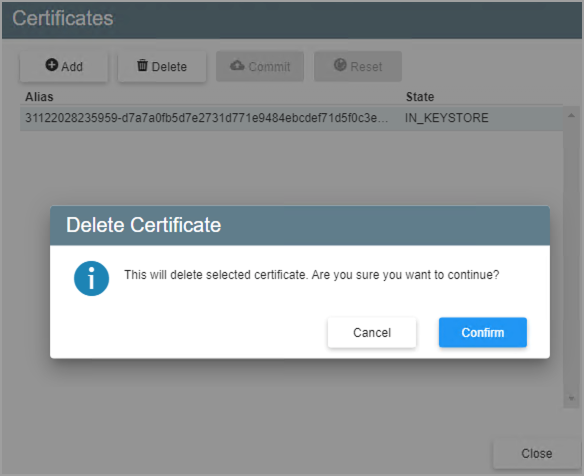
Figure 379: Confirm and commit the deletion.
Reset Changes
The Reset option resets all staged changes of the session allowing you to avoid unwanted certificate modifications.
- "READY_TO_ADD" entries will be removed.
- "READY_TO_DELETE" entries will be reverted to "IN_KEYSTORE."
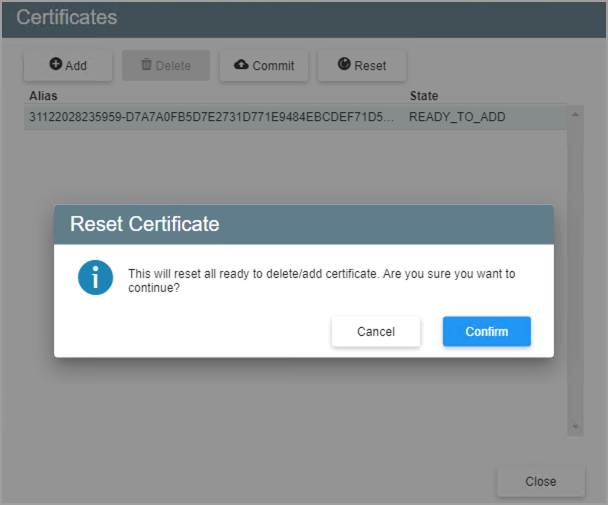
Figure 380: Reset certificates transactions.