Complete PITR (Restore VMs)
When the version of a PITR recovered Domain is found to be acceptable, its VMs can be restored to the recovery site by completing and exiting the PITR session.
- Click the Complete option.
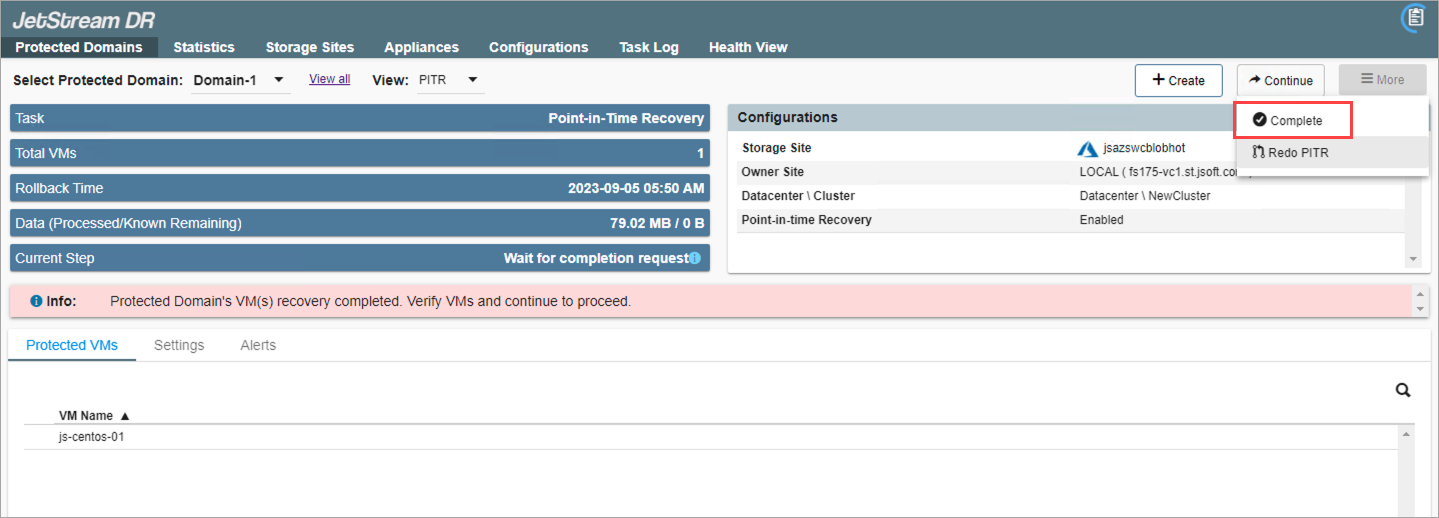
Figure 305: Click the Complete option to restore the recovered PITR VMs.
- The rollback point will be saved and VMs and data will be restored to the current rollback point.
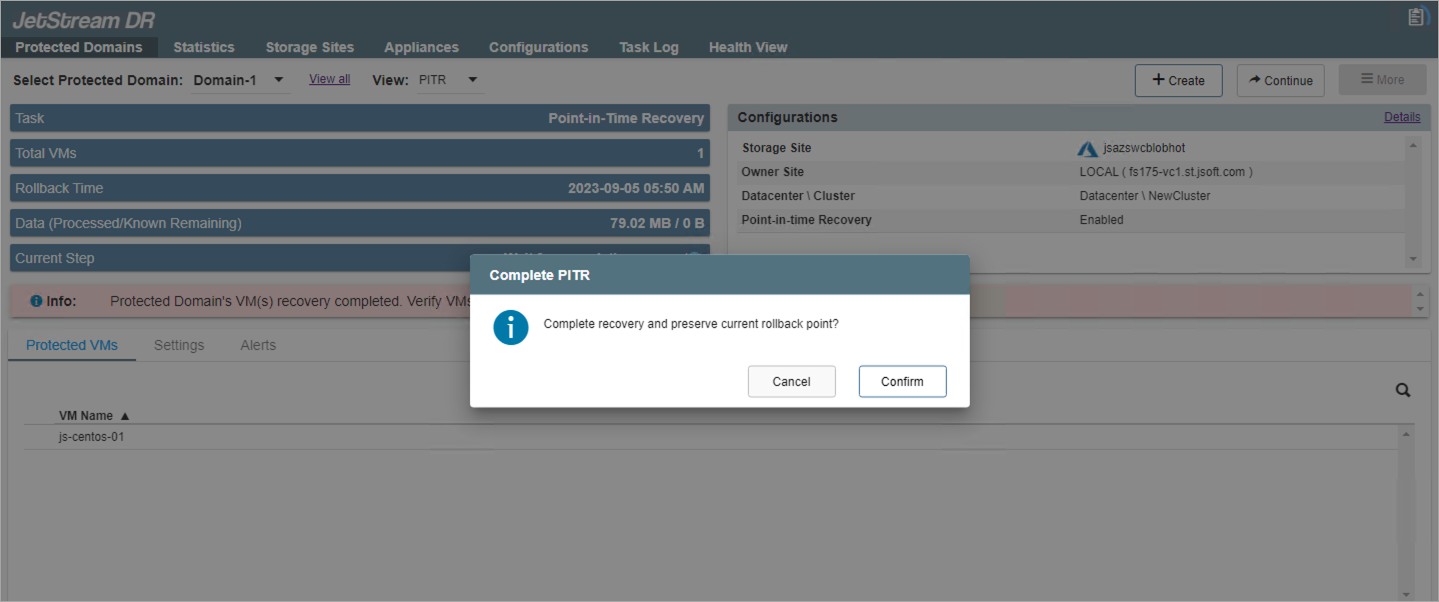
Figure 306: Confirm the action to restore the PITR VMs of the current rollback point.
- Click the Exit PITR button to end the PITR session and resume normal operation of the Domain.
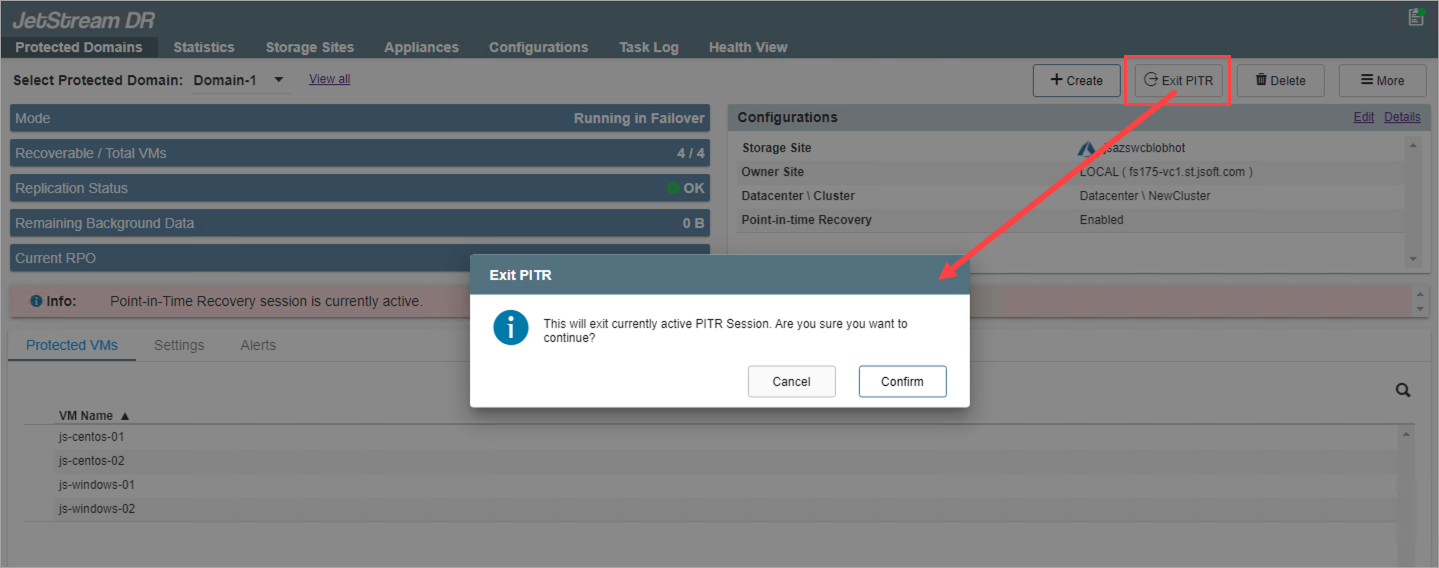
Figure 307: After PITR VMs have been restored, exit the PITR session.
- Upon exiting PITR, VMs and data will have been restored to the rollback point and protection of the Domain automatically resumes.
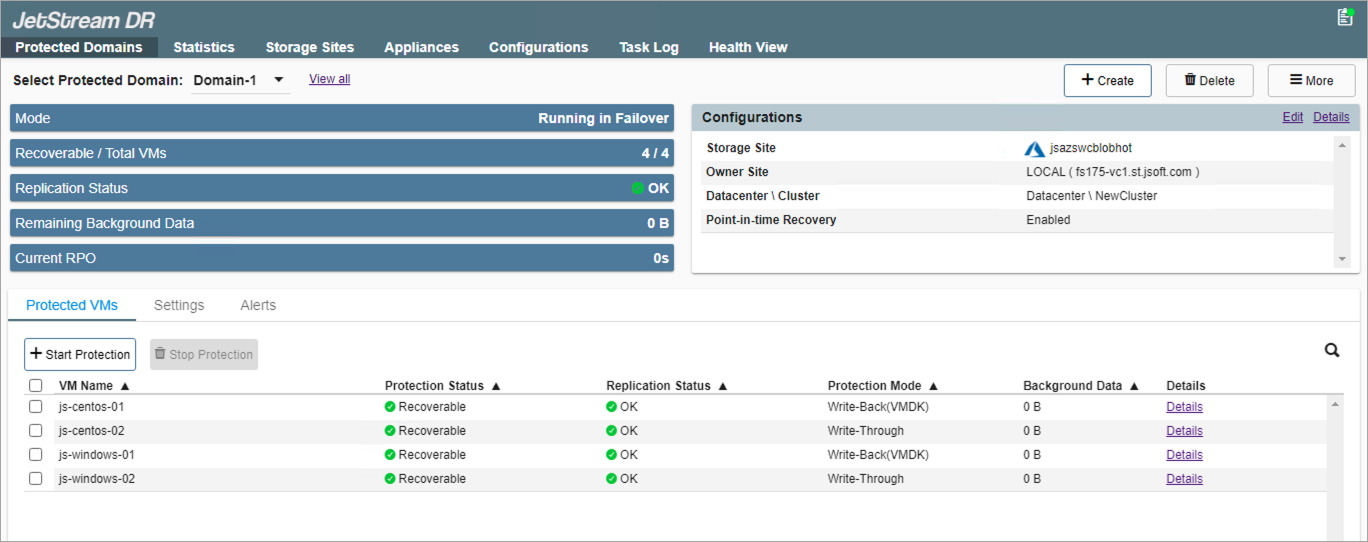
Figure 308: Regular protection of the domain will continue after exiting the PITR session.
Notes:
1) If the PITR session was manually started, the original VMs will not be automatically powered on at the conclusion of the session. It is the responsibility of the user to restart the VMs.
2) PITR supports rollback of data in vDisks. It does not roll back VM configuration changes that happen across the PITR window. Any VM configuration changes lost from rolling back to a prior point in time should be reapplied by the administrator after the PITR session has been completed. For example: VM configuration changes such as disk add, remove, detach and disk grow, etc.
Also see: