Configure Azure Storage
Configure an Azure storage account so it can be used with JetStream DR software.
- Go to the storage account.
- Click Access control (IAM).
- Click Role assignments.
- Click the Add role assignment button.
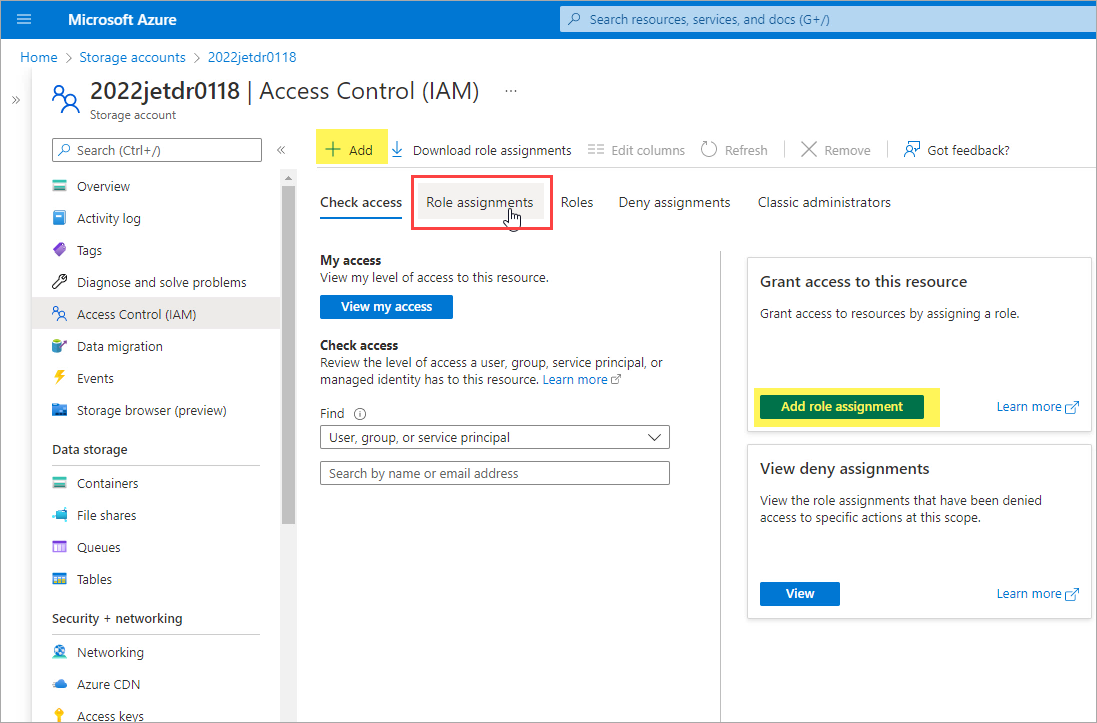
Figure 348: Add a role assignment from the IAM screen.
- From the "Role" tab of the Add role assignment screen:
- Select Storage Blob Data Contributor.
- Click the Next button.
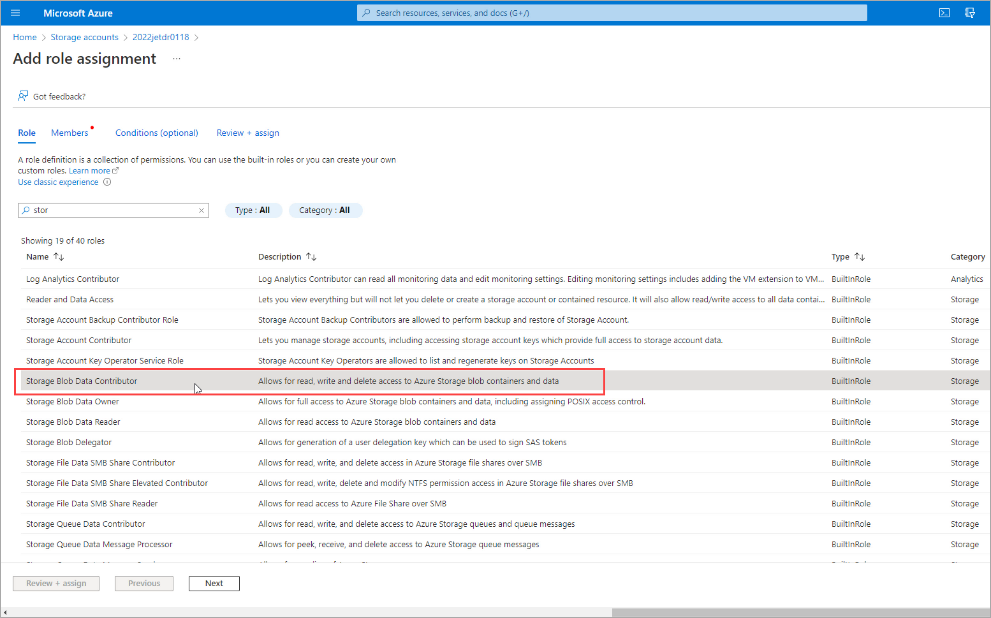
Figure 349: Add the Storage Blob Data Contributor role.
- From the "Members" tab of the Add role assignment screen:
- Assign access to: User, group, or service principal.
- Click +Select members.
- Begin typing in the Select box to search the directory for the registered application’s display name (configured previously).
- Click Select to add the application to the members list.
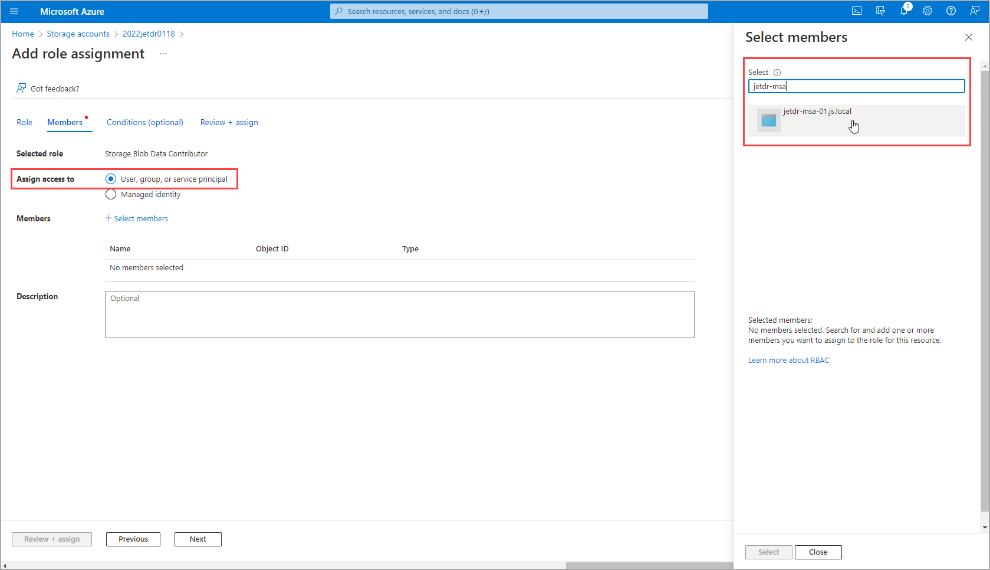
Figure 350: Assign access to the registered application.
- Review the role assignment for the member.
- Click the Review + assign button.
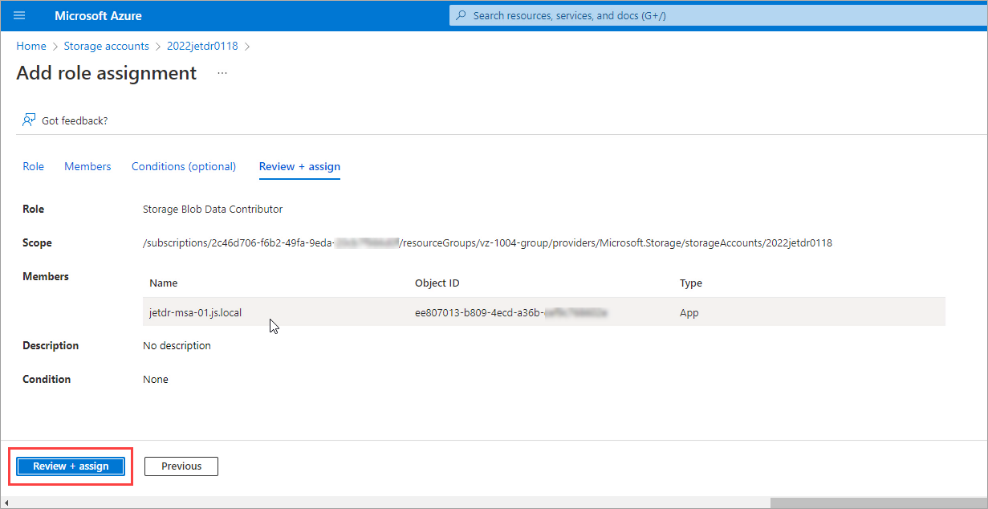
Figure 351: Review and assign the new role.