Continuous Failback
Continuous Failback (CFB) operates similarly to Continuous Failover but in the "reverse" direction.
Continuous failback can be initiated before VMs and workloads actually need to be failed back to the primary site. CFB operates in the background writing data from the failover site to the primary site while keeping them synchronized. This minimizes the time required to compete failback while allowing configuration changes to be made to Domains and VMs at the protected site (e.g. disk grow, disk add, disk remove, add/remove protected VMs, etc.). It also allows the user to control when to shut down VMs at the failover site and complete the failback process (when using "standard" failback, shutdown operations are controlled exclusively by the MSA).
Continuous Failback Operation
When CFB mode is used, the following conditions apply:
- Data is copied and kept synchronized between the failover and primary sites.
- VMs can continue to be operated normally at the failover site without interruption.
- Once data is synchronized between the sites, the operating mode will indicate “Continuous Rehydration in Progress.”
- Continuous failback can be "completed" any time after this state has been achieved.
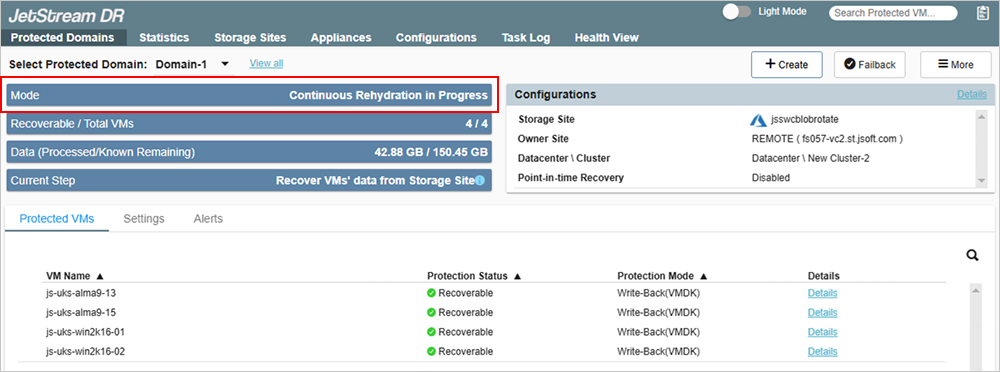
Figure 260: Running in Continuous Failback mode.
Notes:
1) Additional VMs can be added to or removed from a Protected Domain operating in continuous failback mode.
2) VDISKs can be added to or removed from VMs of the Domain while operating in continuous failback mode.
3) Continuous failback can be used with PITR-enabled Domains.
Completing Continuous Failback
When necessary, (after data has been synchronized and the operating mode is "Continuous Rehydration in Progress") click the Failback button to immediately failback VMs and workloads to the primary site. The following tasks will be performed:
- VMs of the Domain will be powered off at the protected (failover recovery) site.
- Ownership of the protected VMs will be shifted to the primary site.
- Failback runbook settings will be applied.
- Temporary VMs used for the failback process will be cleaned up and final recovered VMs created.
- Protection of the Domain will be resumed.
- Failback runbook settings will be applied, and VMs of the Domain may be powered on at the primary site again.
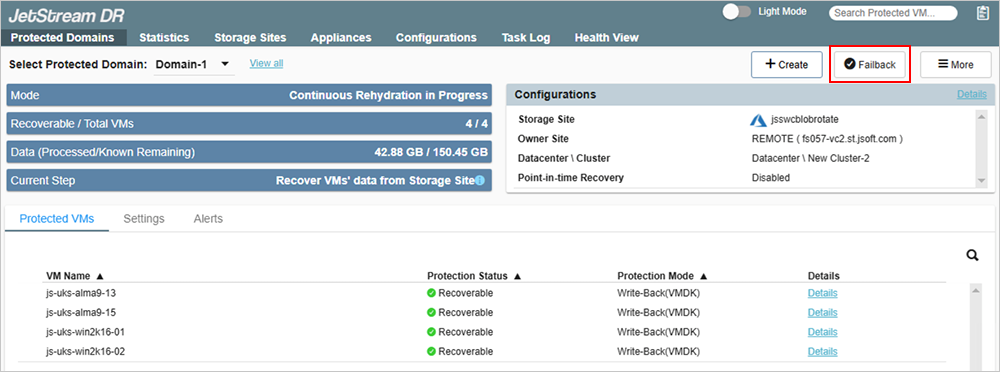
Figure 261: Click the Failback button to conclude continuous failback.
- Select an option to indicate how continuous failback should be handled.
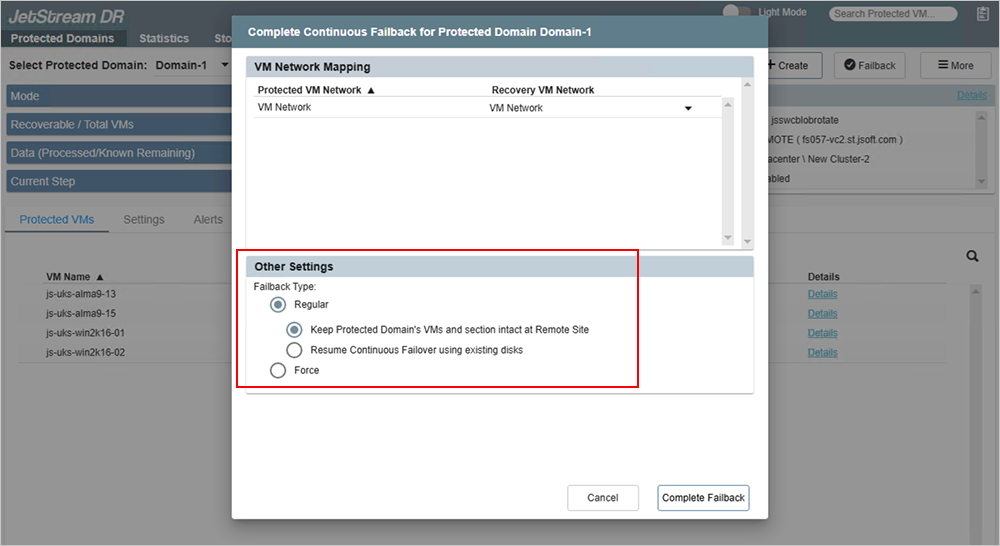
Figure 262: Select an option to complete continuous failback.
"Regular" Failback
- Regular failback follows the set course of steps for failback mode. Two sub-options are available:
- Keep Protected Domain's VMs and section intact at Remote Site
- This option preserves the VMs and corresponding replication log at the remote site after failback is completed.
- The VMs will be unregistered from vCenter to prevent duplication with the protected site.
- Click the Show Kept VMs button on the Protected Domains screen to view a list of all VMs that were preserved at the remote site.
- If the "Kept VMs" are no longer needed at the remote site, click the Clean Up button to delete all the VMs and the corresponding replication log in the DRVA. Cleanup can also be manually performed by the user, if necessary.
- The ability to automatically clean up kept VMs will be revoked when a Domain with the Keep Protected Domain's VMs and section intact at Remote Site option is recovered (i.e., failed over). After this point, the system will not remove kept VMs from the remote site and this must be done manually by the user.
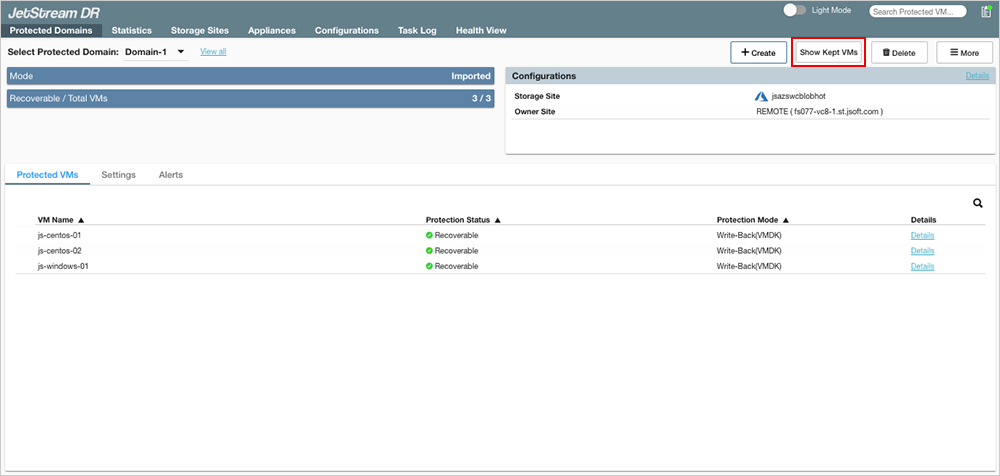
Figure 263: Click the Show Kept VMs button to see the VMs preserved at the remote site.
- Resume Continuous Failover using existing disks
- After failback, any new data generated at the primary site will automatically be copied to the object store and “rehydrated” to the recovery site allowing for “near-zero RTO” failover.
"Force" Failback
- During failback, VMs will be gracefully shut down and all selected Domains stopped at the failover site before transferring ownership back to the primary site. If any selected Domain from the failover site becomes unavailable, graceful shutdown cannot occur and failback will be unable to proceed. The Force failback option allows the primary site to "forcefully" take ownership of the Domain allowing failback to be completed.
- Ownership of the Domain is immediately passed to the primary site without waiting for graceful release from the protected (failover) site.
- A dialog window will appear asking the user to confirm that complete ownership of the Domain can be taken over immediately by the primary site.
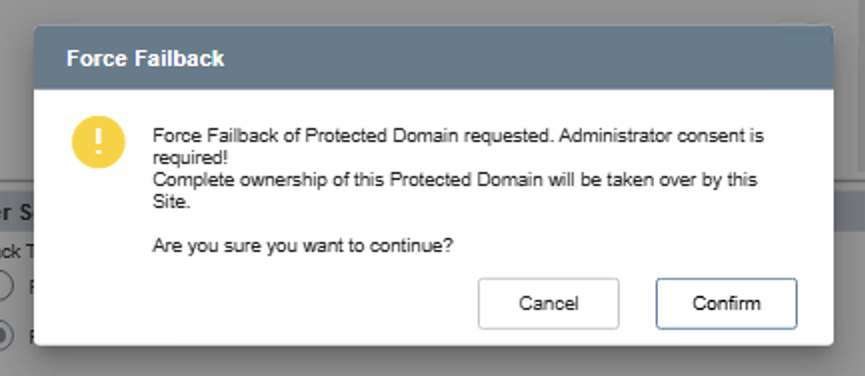
Figure 264: Force failback option.