Runbook Network IP Addresses and Settings
NIC settings of guest VMs can be customized to use static IP addresses for DR operations including failover, test failover and failback. The settings are applied through runbook configuration.
- Go to a runbook’s Edit VM Settings screen:
- Under the NIC column, the number of NICs configured for each VM are displayed.
- Click a VM’s NIC link to see its details or change its network settings.
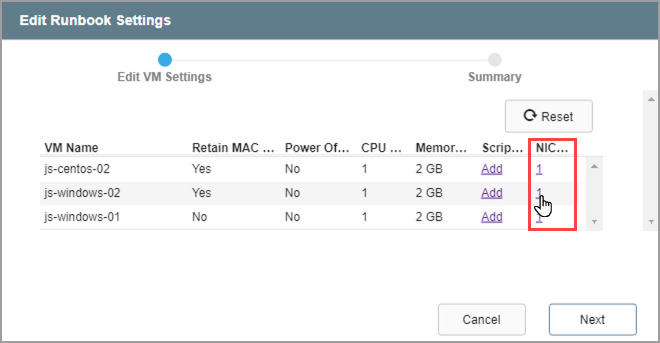
Figure 127: Edit runbook NIC settings.
- In this example, static IP has not been configured for the VM.
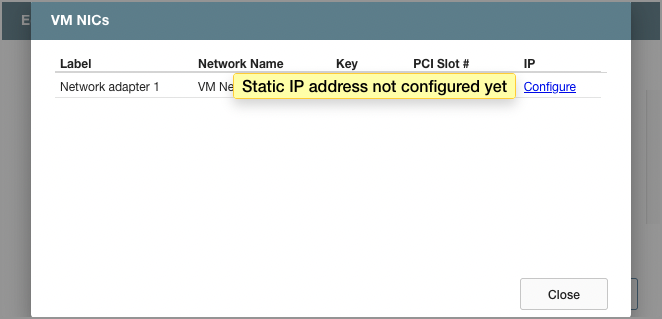
Figure 128: Static IP not configured.
- On the VM NICs detail screen click the Configure link to change the network settings.
- By default, IP addresses are assigned as they were originally configured for the VM.
- Manual configuration can be performed to specify static IP addresses.
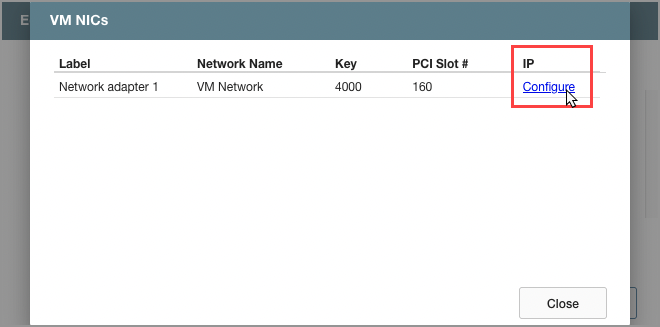
Figure 129: Configure IP settings.
- Enter static IP address values for the VM:
- IP Address
- Subnet Mask
- Gateway
- DNS
- DNS Suffix
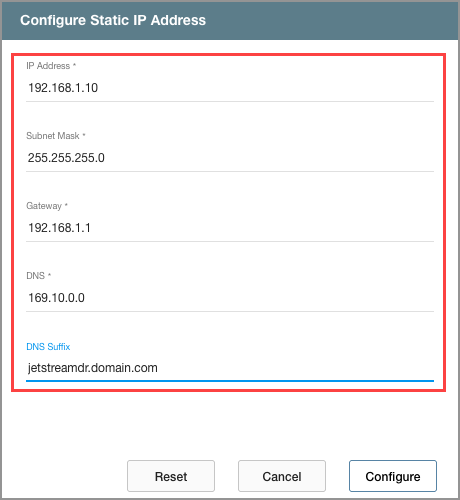
Figure 130: Enter static IP details.
Note: All fields must be completed to configure a static IP address for a VM.
- Some network options can be configured by clicking the option value directly to make the change.
- The option value will be updated on the screen.
- This example shows changing the Retain MAC option for a VM with static IP.
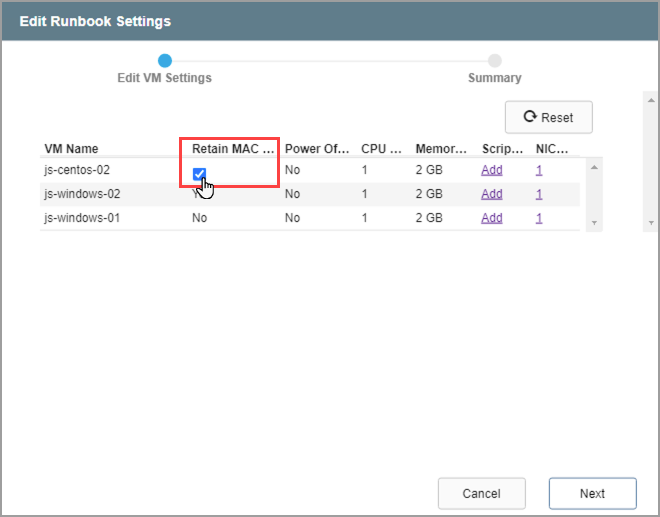
Figure 131: Retain MAC option.
Note: The Retain MAC option maintains the same hardware address for a VM across any DR operations performed for it. (E.g., the same IP address of a protected VM will be applied when it is failed over to a recovery site.) This setting can be independently set for each VM of a recovery group or Protected Domain.
Also see:
Manually Configure PCI Slot Number