
Problem
Differences in time settings between JetStream appliances, vCenter, and ESXi hosts can lead to multiple JetDR functional issues and errors. It causes internal authentication failures, token issues, DR problems, misordered logs reporting etc.
Common impacts can include:
- MSA to Host communication errors.
- VM protection failures (inability to start or stop VM protection).
- Protected VM configuration changes, such as disk add/remove or attach/detach operations.
Troubleshooting
Check the time of the MSA VM
- Execute the command date on the MSA console/SSH:

- Validate the returned time by comparing it to the time of vCenter and the host.
Check the time of vCenter
If you have access to vCenter:
- SSH login as root and execute the command date.
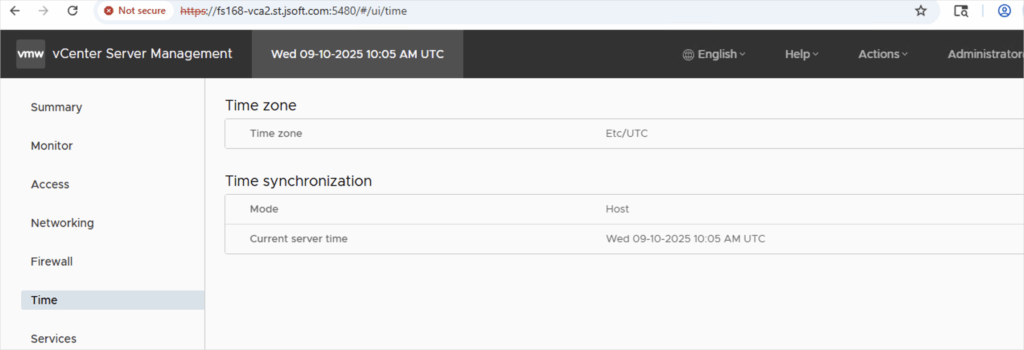
- Get the time from vCenter Server Appliance Management Interface (VAMI)
- Access vCenter VAMI from https://<VC_FQDN/IP>:5480
- From the VAMI page, select → Time
Check the time of the ESXi host
If you have access to ESXi CLI:
- Login as root and execute the command date.
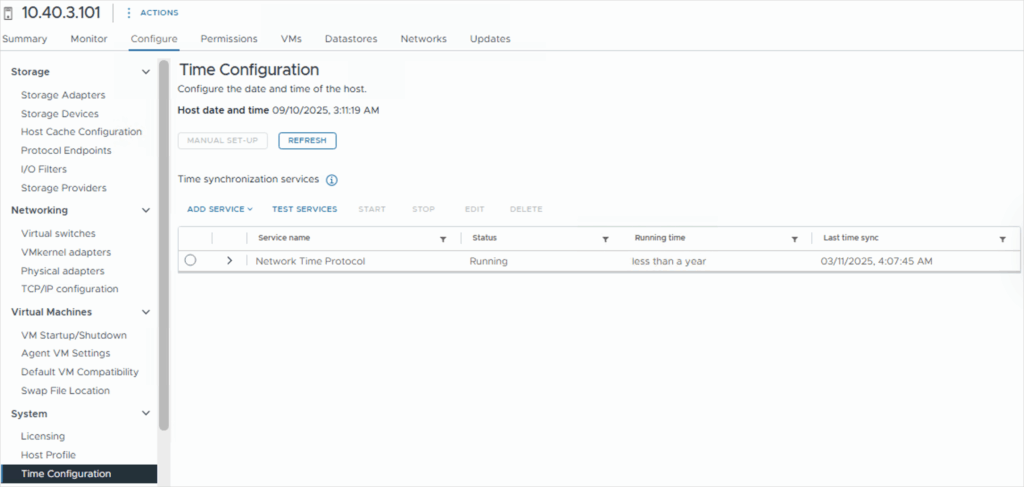
Or, from vCenter Server:
- In the left navigation pane, go to Hosts and Clusters.
- Select the ESXi host you want to check.
- Go to the Configure tab.
- In the left navigation panel go to System → Time Configuration and view the current host time on the Time Configuration screen.
Solution
Part 1
Synchronize the time of the MSA VM:
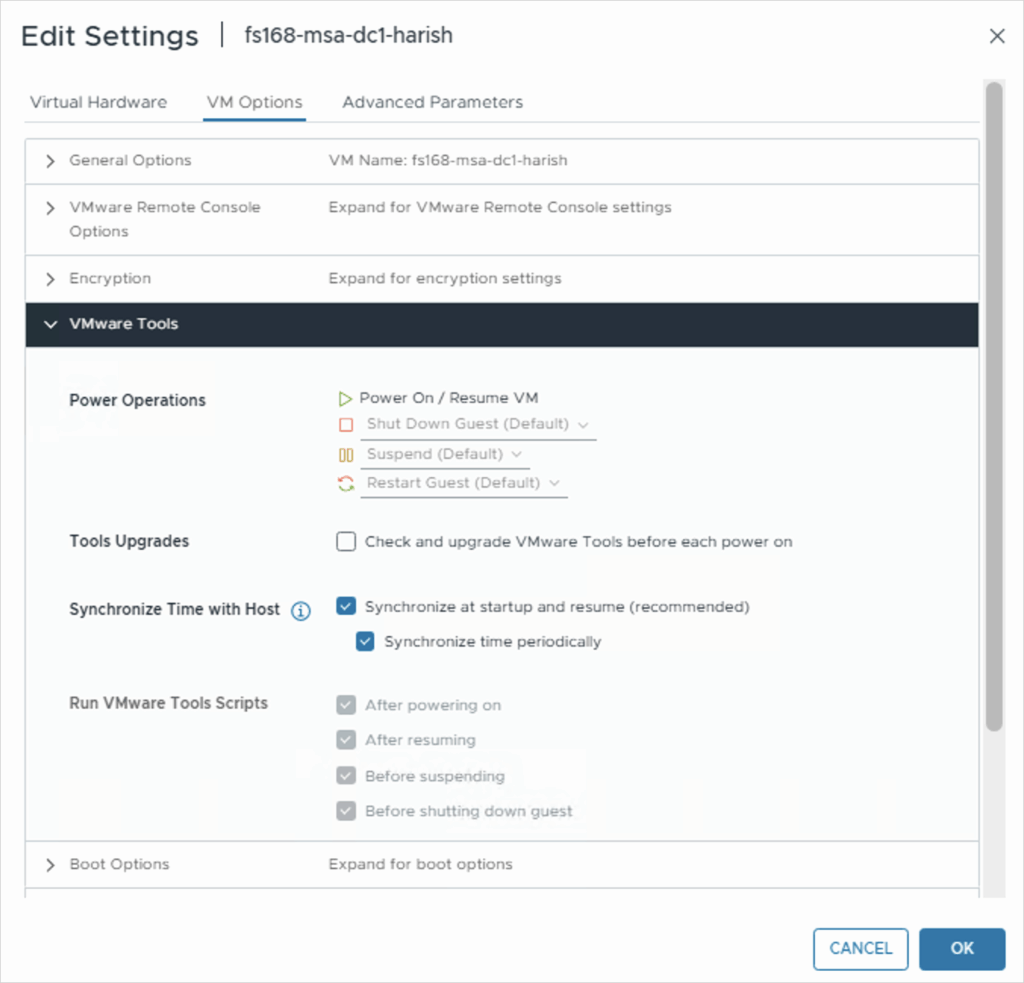
- Navigate to the MSA VM from vCenter.
- Right-click the MSA VM → Edit Settings.
- Go to the VM Options tab.
- Navigate to VMware Tools → Time Synchronization.
- Under Synchronize Time with Host, ensure “Synchronize at startup and resume” and “Synchronize time periodically” options are checked.
- Click the OK button to save settings.
- Validate the time by comparing it to the host and vCenter.
- If the time has not changed, reboot the MSA VM and verify again.
- If the times are synchronized, you are done.
Part 2
In some cases, the above steps of Part 1 may not resolve the time issue or the changes may not persist after a reboot. If so, the following steps should be performed:
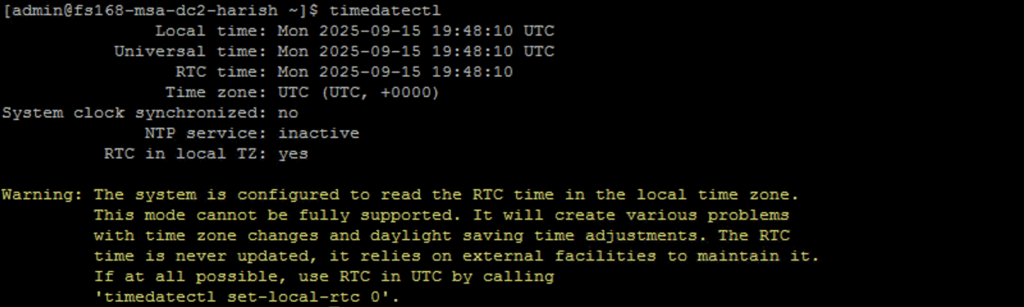
- Execute the command timedatectl on the MSA console/SSH:
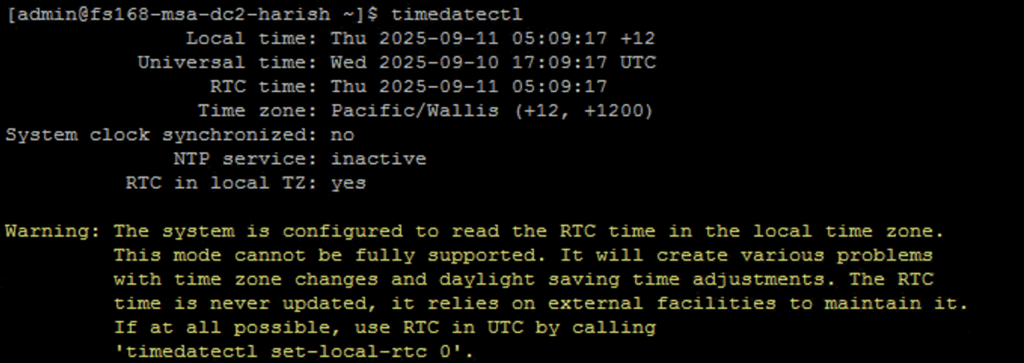
- If the output displays RTC time that differs from the host/vCenter, it will have to be manually set.
- Access the MSA cockpit web console via https://<MSA_ip>:9090
- Ensure the time zone is correct (default in AVS is UTC)
- From the MSA console/SSH, correct the data and time using the command:
sudo date -s "YYYY-MM-DD HH:MM:SS" - Sync the system time with the HW clock (RTC) using the command:
sudo hwclock --systohc
—–OR—–
Manually update the MSA RTC time using the command:
sudo hwclock --set --date "DD-MM-YYYY HH:MM:SS"
(Note : This should be the same as the system date and time.)
- After the time has been synchronized, restart the MSA Tomcat services using the command:
sudo systemctl restart msa-tomcat