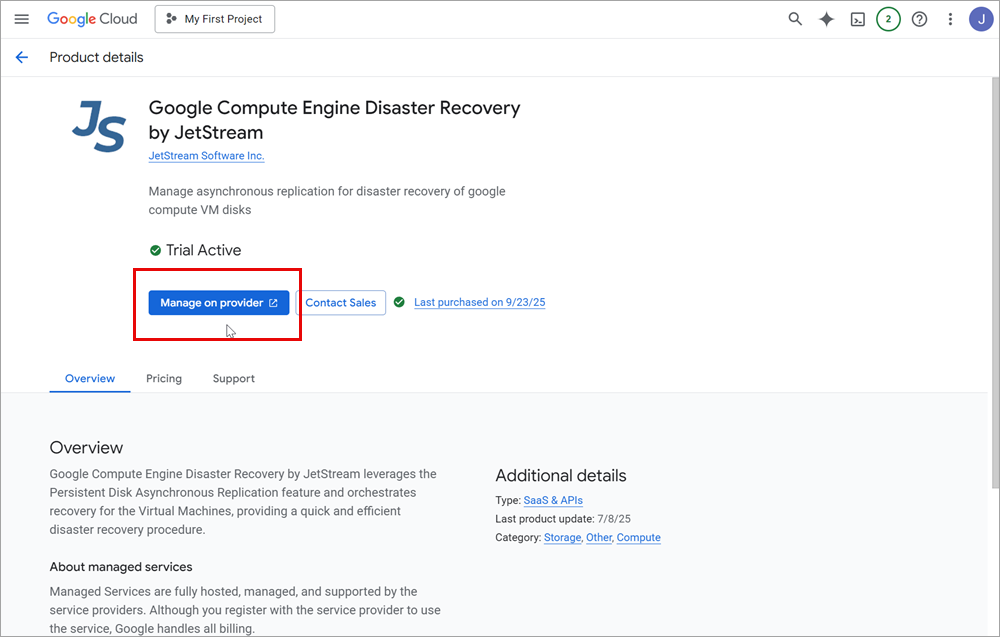
Order Summary Details
Enter your details on the Order Summary screen to complete setting up the subscription.
Select Plan
The first step of the process is to select a usage plan.
- When a plan is selected from the drop-down menu, its features and pricing details will be displayed.
- Only a single plan is currently offered, so the selection is pre-set and no other option can be selected.
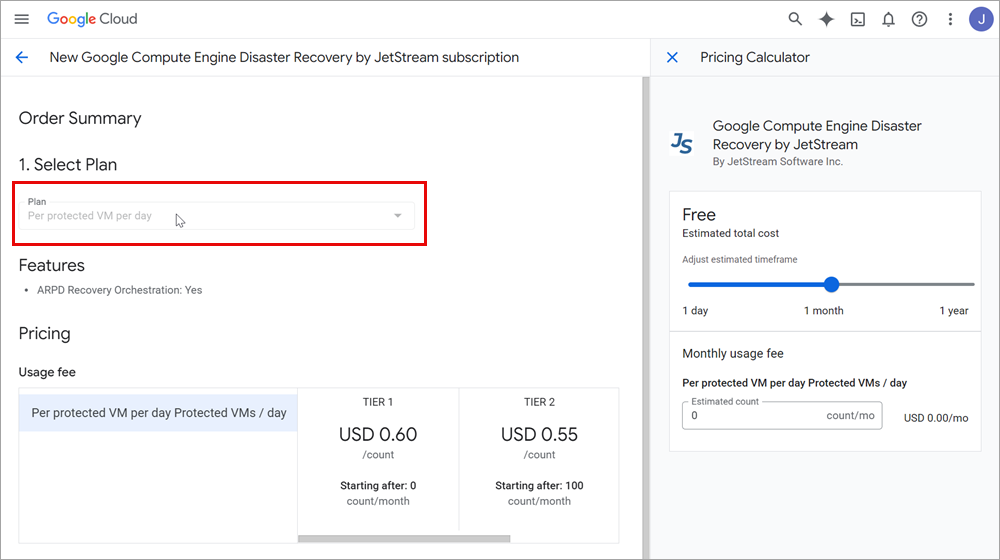
Figure 11: Select a usage plan.
Purchase Details
Under the Purchase details section, select a Google Cloud Billing account to use to pay for the subscription.
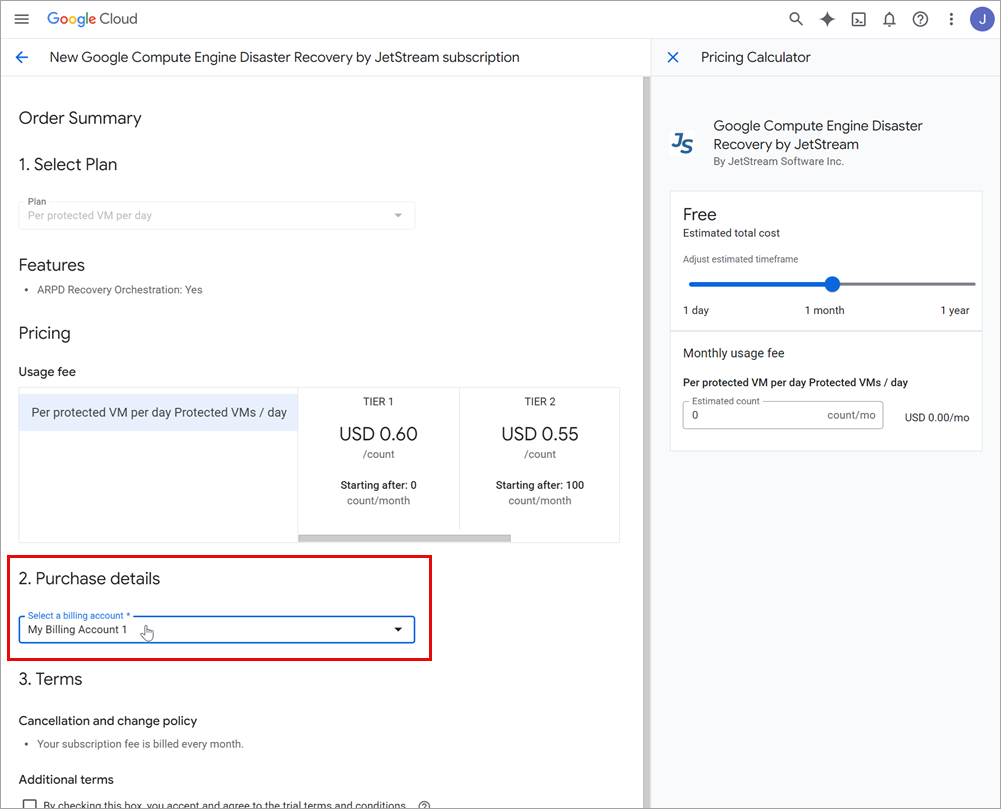
Figure 12: Select your billing account.
Terms
Under the Terms section, review and agree to the terms and conditions of the software subscription.
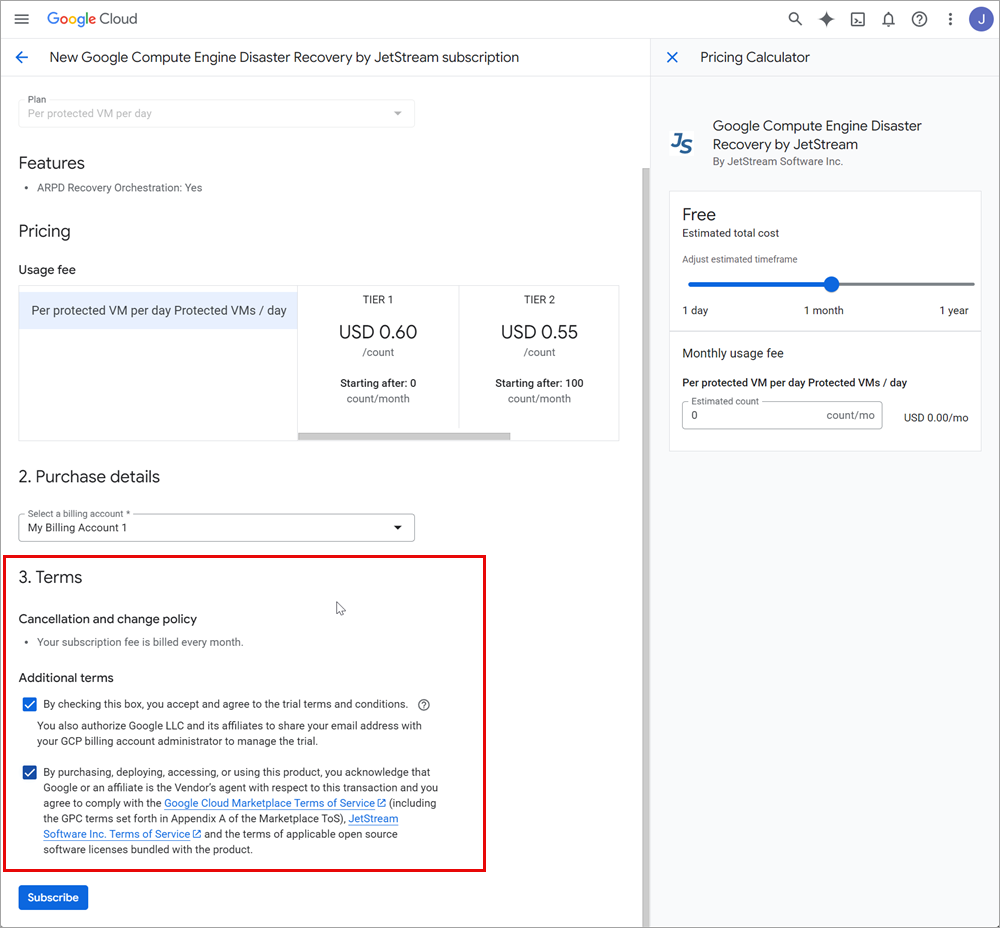
Figure 13: Review and agree to the terms and conditions.
Subscribe
After the above have been completed, click the Subscribe button at the bottom of the screen to begin the software subscription.
- A pop-up message will appear letting you know your subscription is being processed.
- Select one of the options to:
- Manage the subscription order, or
- Activate the subscription by signing into JetStream
- Either option can be selected from the pop-up message window that appears; however, both options can be manually navigated to from the Google Cloud console at a later point in time.
- To start using the software you must register a user account with JetStream Software; therefore, it is recommended to start by selecting the option "Sign up with JetStream Software Inc."
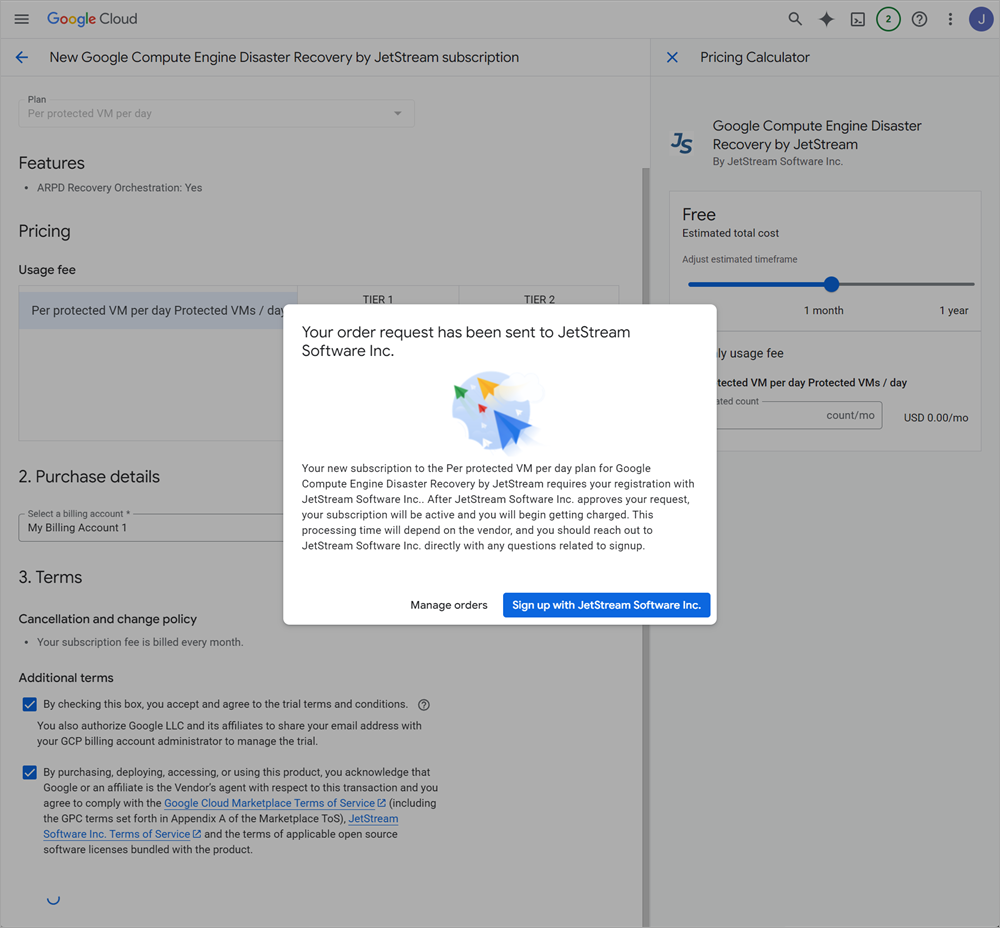
Figure 14: Register with JetStream to activate the subscription.
Important: After subscribing, your user account must be activated with JetStream Software in order to be able to operate the product. Do this by clicking the "Sign up with JetStream Software Inc." button or by going back to the Google Compute Engine Disaster Recovery by JetStream product details page and clicking the "Manage on provider" button that appears there.