Test Failover
Test Failover (TFO) allows disaster recovery readiness to be validated without impacting production workloads. It creates and then powers on VMs in the secondary region using Test Failover runbook settings enabling the user to verify configurations, application functionality, and connectivity. This ensures that in the event of an actual disaster, failover will work as expected.
Note: The Protected Domain is the fundamental unit of Test Failover. Only VMs belonging to a Protected Domain can be failed over.
Test Failover is managed by the currently active AROVA and is fully orchestrated by it. The steps of TFO include:
- Create a Consistency Group for each Recovery Group and independent VMs of the Protected Domain and add their corresponding secondary disks to the respective groups.
- Create a clone of the Consistency Groups, which clones all secondary disks within it.
- Using the latest VM properties from the CDB and TFO runbook settings, test VMs are created in the secondary region for each VM and secondary disk clones are attached.
- VMs of a Recovery Group are created and started in their configured sequence with any defined boot delay (per TFO runbook settings).
- After the test VMs have been created, the task will pause for user verification. This gives the user the opportunity to test the VMs and their configuration, overall application functionality, and connectivity.
- After user verification is complete, the user can initiate the End Test action which automatically cleans up test VMs, cloned disks, and Consistency Groups.
Note: Performing Test Failover does not affect ongoing protection of Protected Domain VMs. Test VMs are created from clones of the secondary disks, ensuring replication continues uninterrupted.
Performing TFO
- Select a Protected Domain to view its details screen.
- Click the Test Failover option.
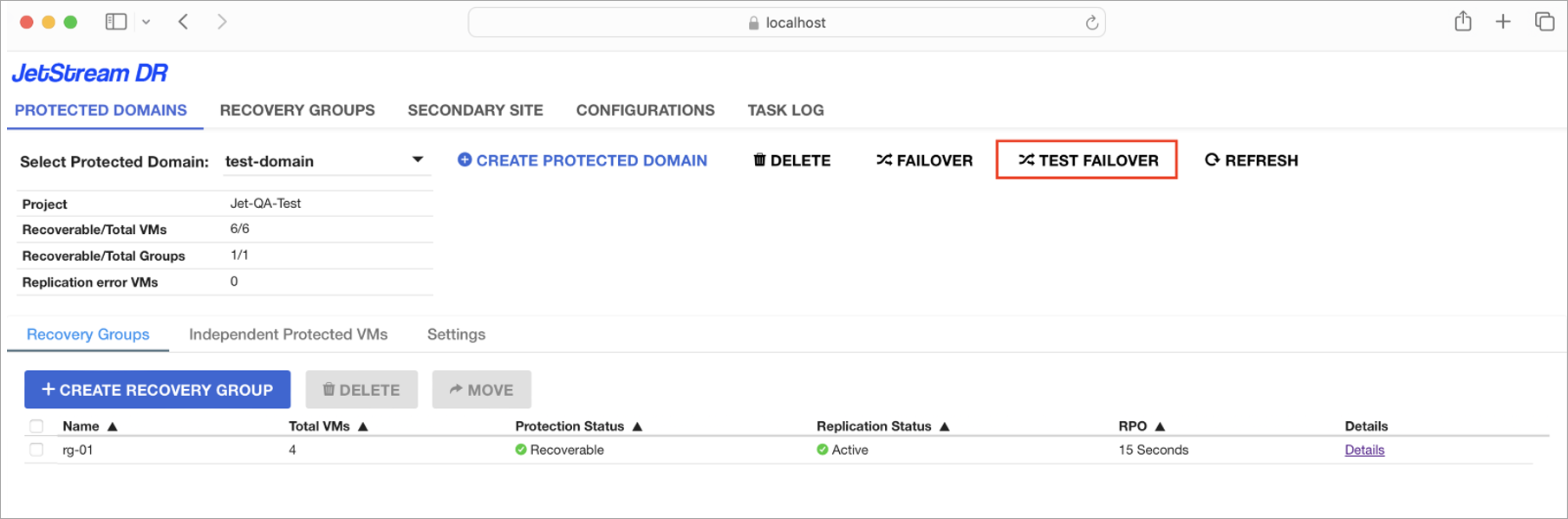
Figure 103: Click the Test Failover option.
- A dialog window will appear displaying details about the Domain and show a message explaining the TFO process.
- Click the TEST FAILOVER button.
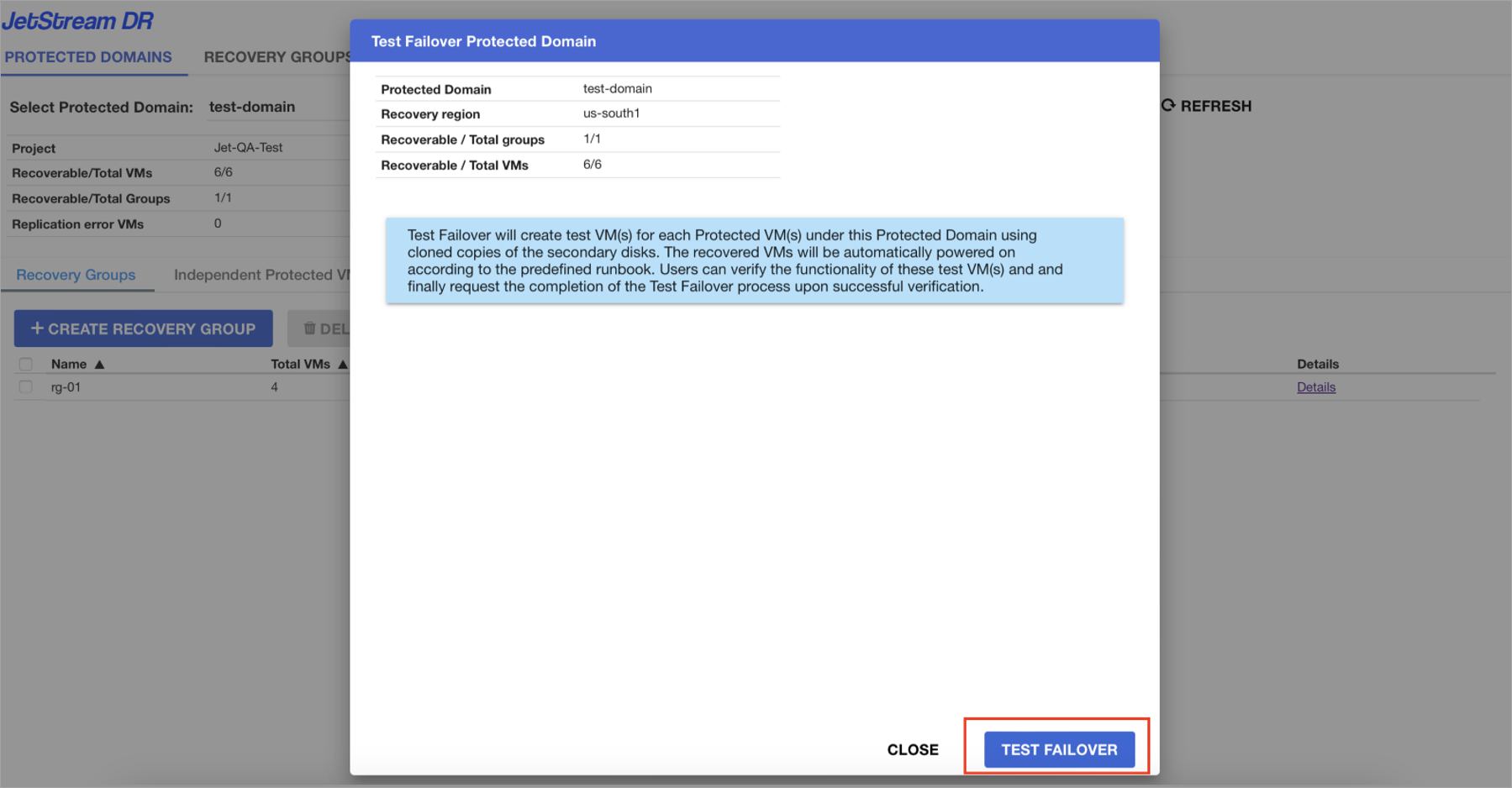
Figure 104: Click the Test Failover button to start TFO.
- Click the Details link to view details about the TFO test.
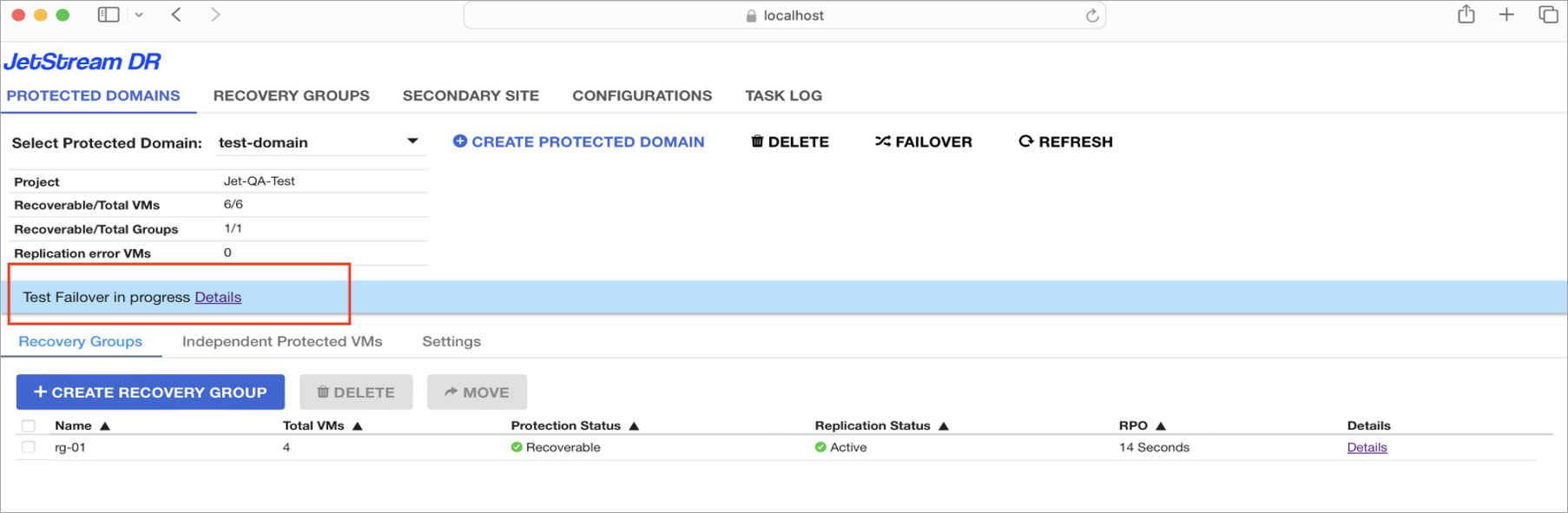
Figure 105: Click the Details link.
- The Protected Domain Test Failover details screen will appear showing the history actions performed to start the TFO test and current status.
- TFO VMs can now be accessed and tested by the user.
Note: While the Protected Domain Test Failover details screen is displayed, TFO is essentially "paused" allowing the user to directly access recovered test VMs in the environment and validate they have failed over, are configured, and operate according to expectation.
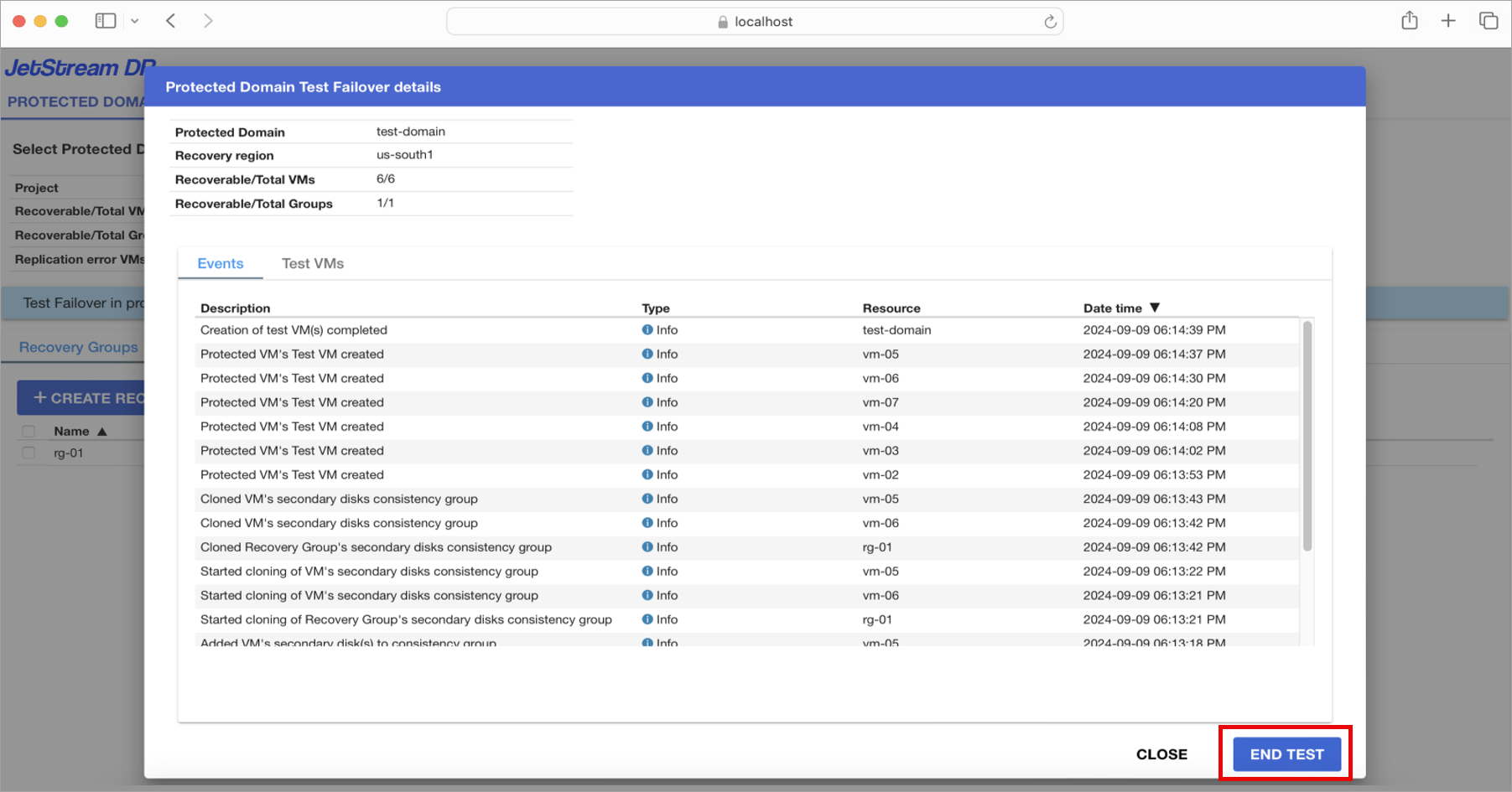
Figure 106: Details of the TFO test.
- After user testing has been completed, click the END TEST button to stop the TFO test and clean the system.
- A confirmation message will appear to confirm TFO VM testing is done and the test VMs can be removed.
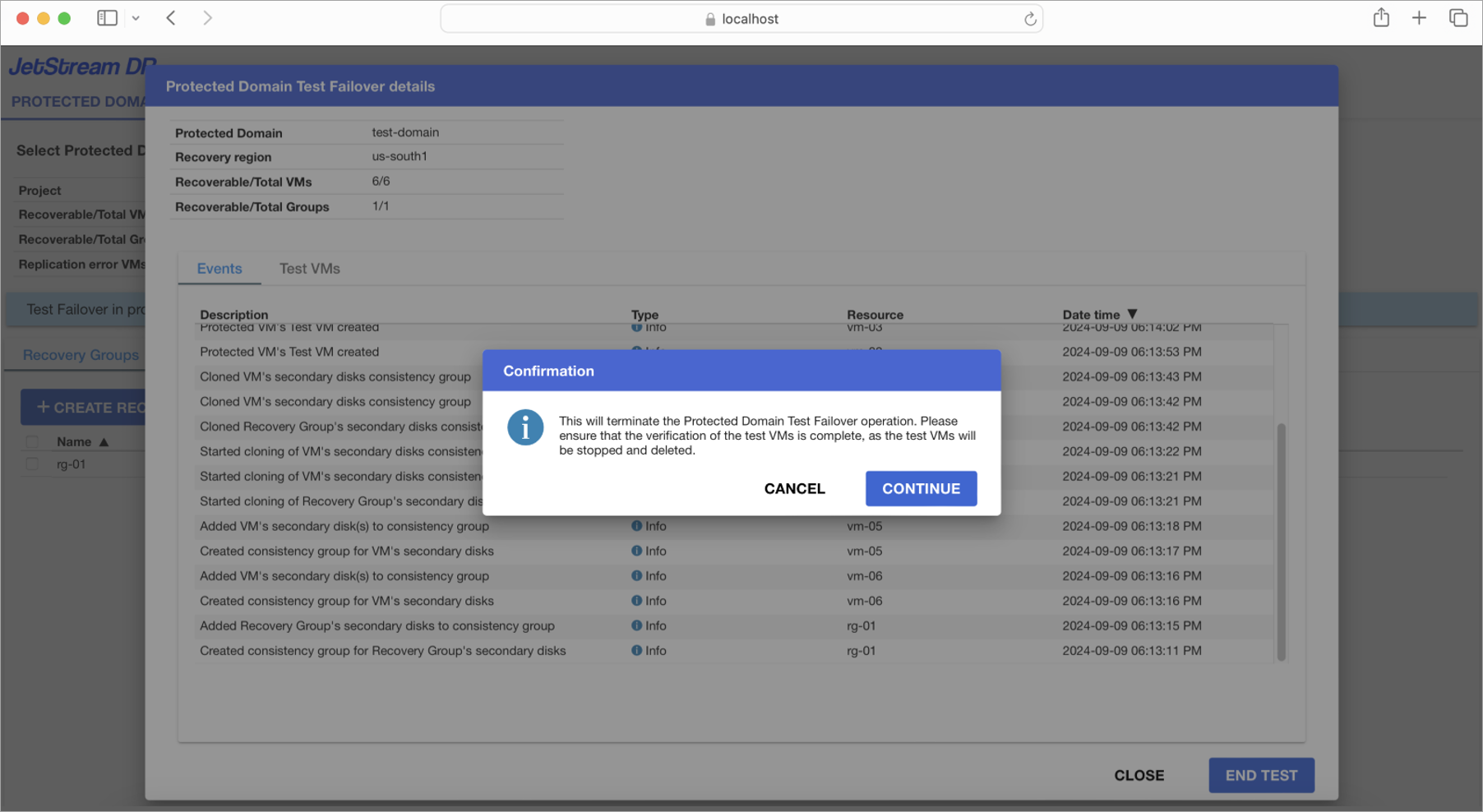
Figure 107: Confirm TFO is complete and the test VMs can be removed.
- The Protected Domain Test Failover details screen shows the actions performed to end TFO and clean the system.
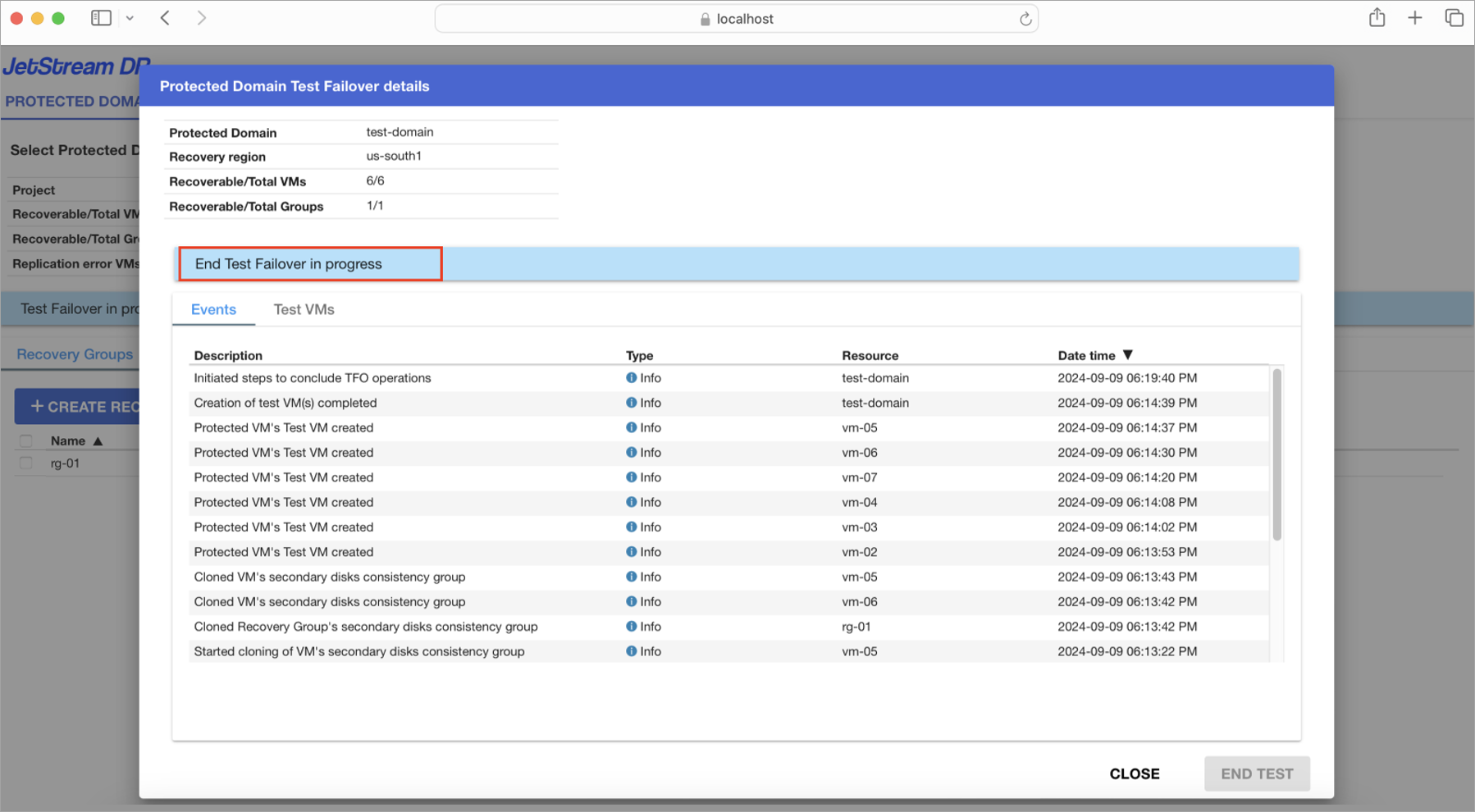
Figure 108: Details are displayed about ending the TFO test.
- Upon the completion of TFO, an operation results summary will be displayed.
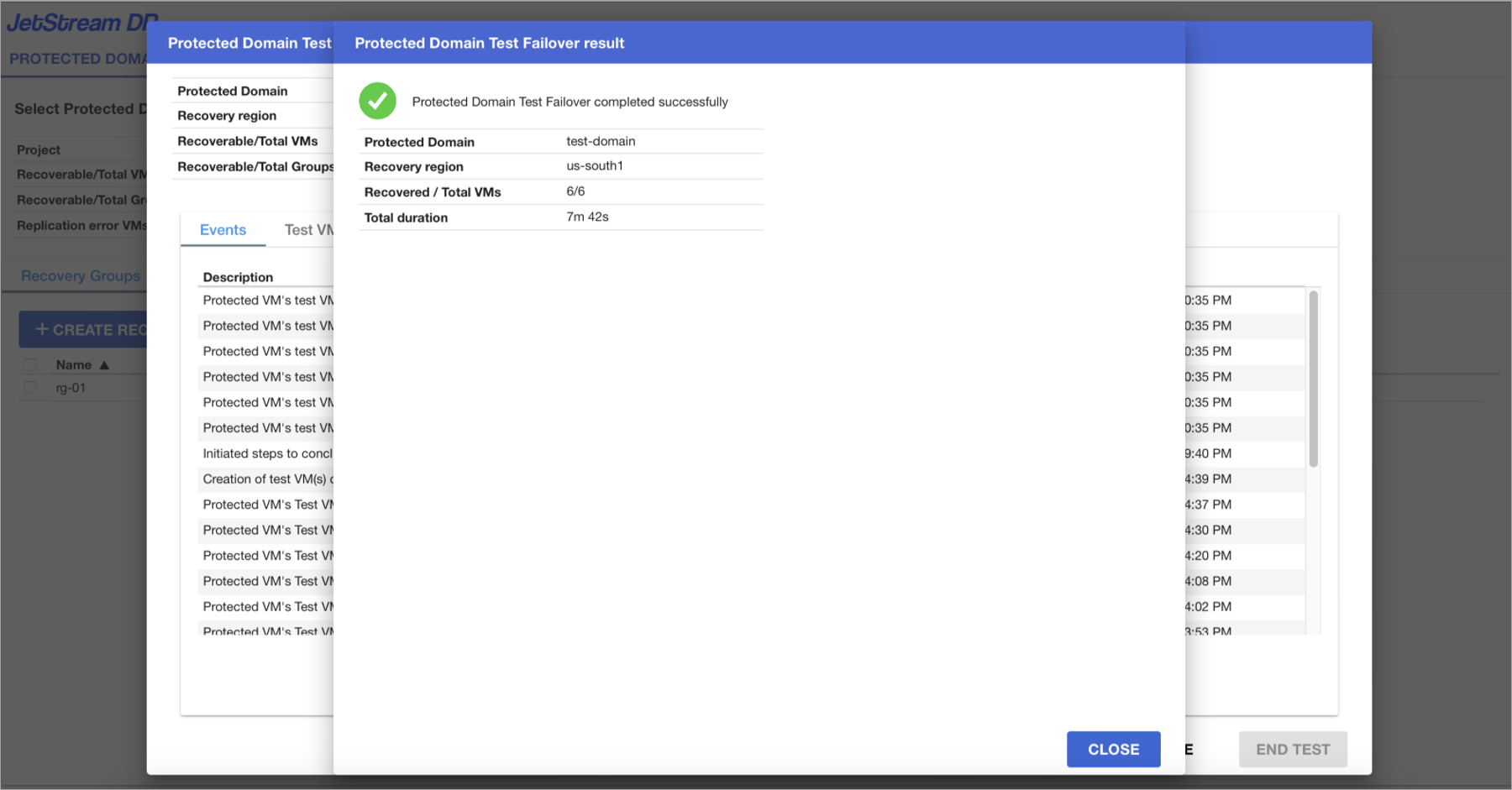
Figure 109: The TFO test is complete.
- The Task Log can be viewed to confirm the TFO task has successfully completed.
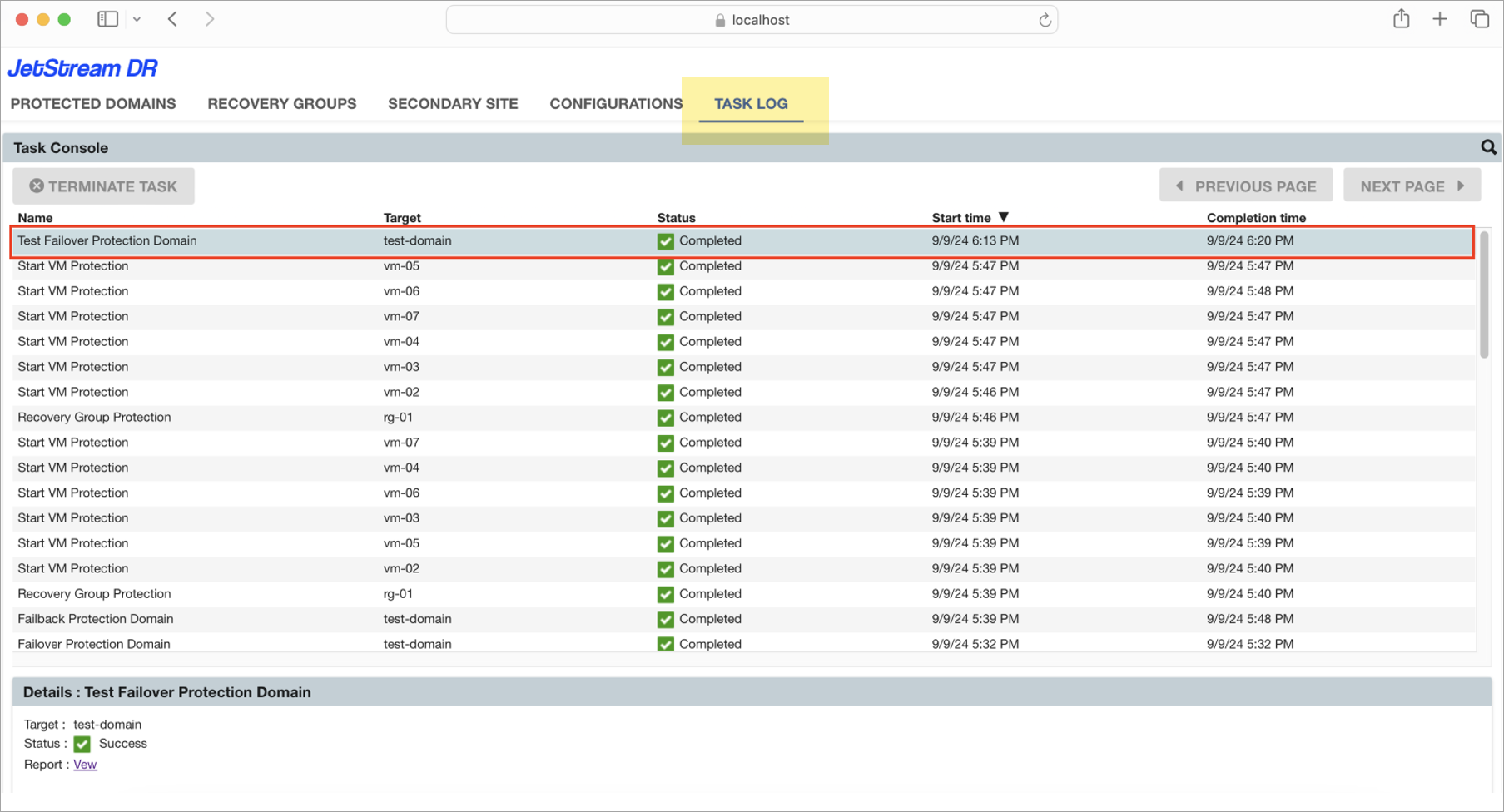
Figure 110: Check the Task Log to confirm the TFO test is complete.
Note: If an actual failover is required while TFO is in progress, the TFO must first be cancelled before failover can be started. Canceling TFO is not necessary if the TFO and failover Domains are different.