Edit VM Instance Properties
Properties of a VM's instance in the AROVA Configuration Database (CDB) can be edited from the AROVA UI. This function allows you to update the properties of a particular VM Instance registered in the CDB. The updated properties will be used during failover to create a secondary instance of the VM.
Note: VM properties can only be edited during a disaster situation when a VM’s replication status indicates "Issue(s) present."
- Click the Details link of the VM to display its Details page.

Figure 99: Click the Details link of the VM reporting a replication issue.
- The VM Instance Properties window will display the full scope of the registered VM properties.
- Click the Edit button to modify VM properties.
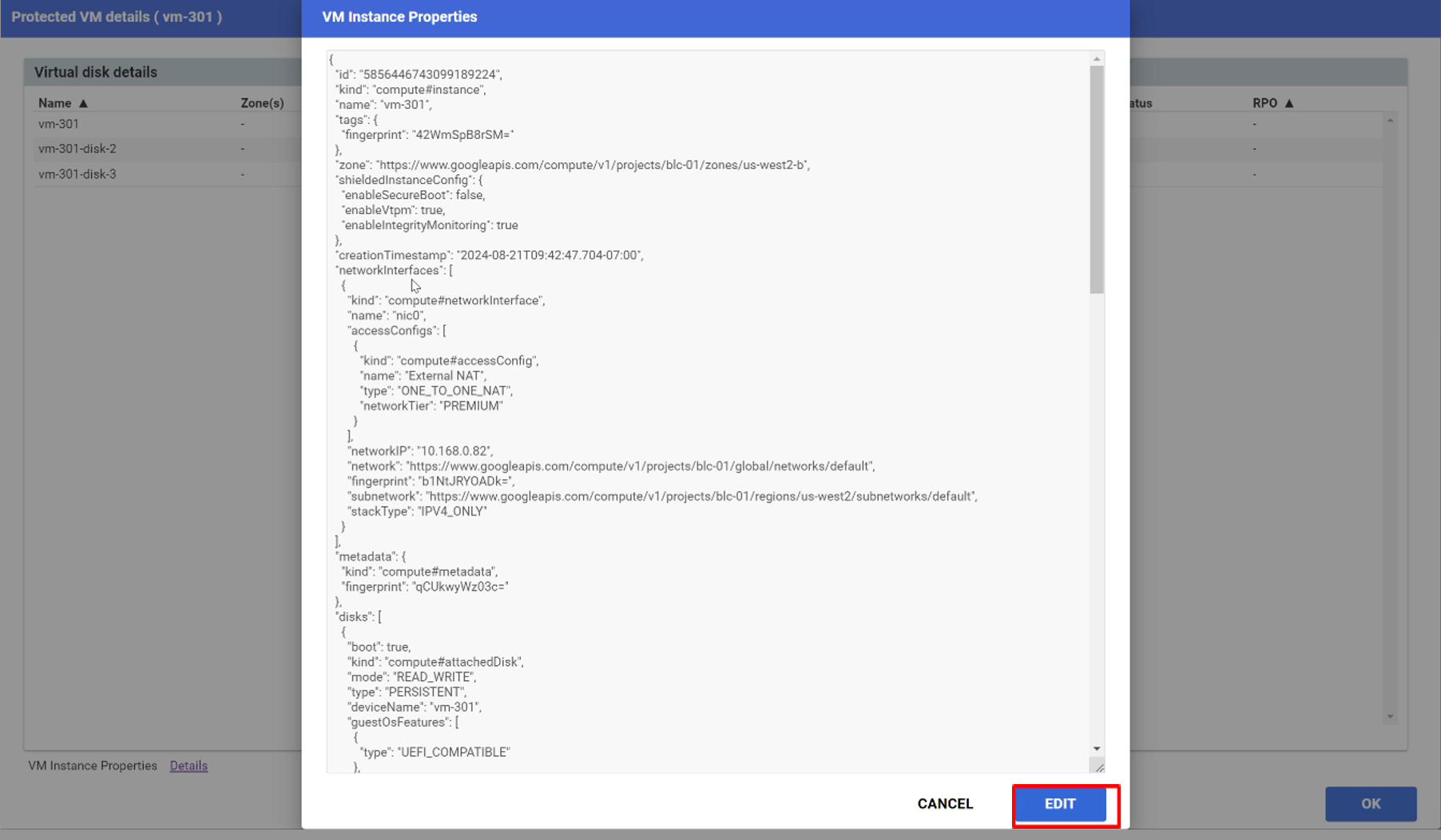
Figure 100: Click Edit to begin editing properties.
- Make any necessary changes directly in the text window.
- Click the UPDATE button to save the changes.
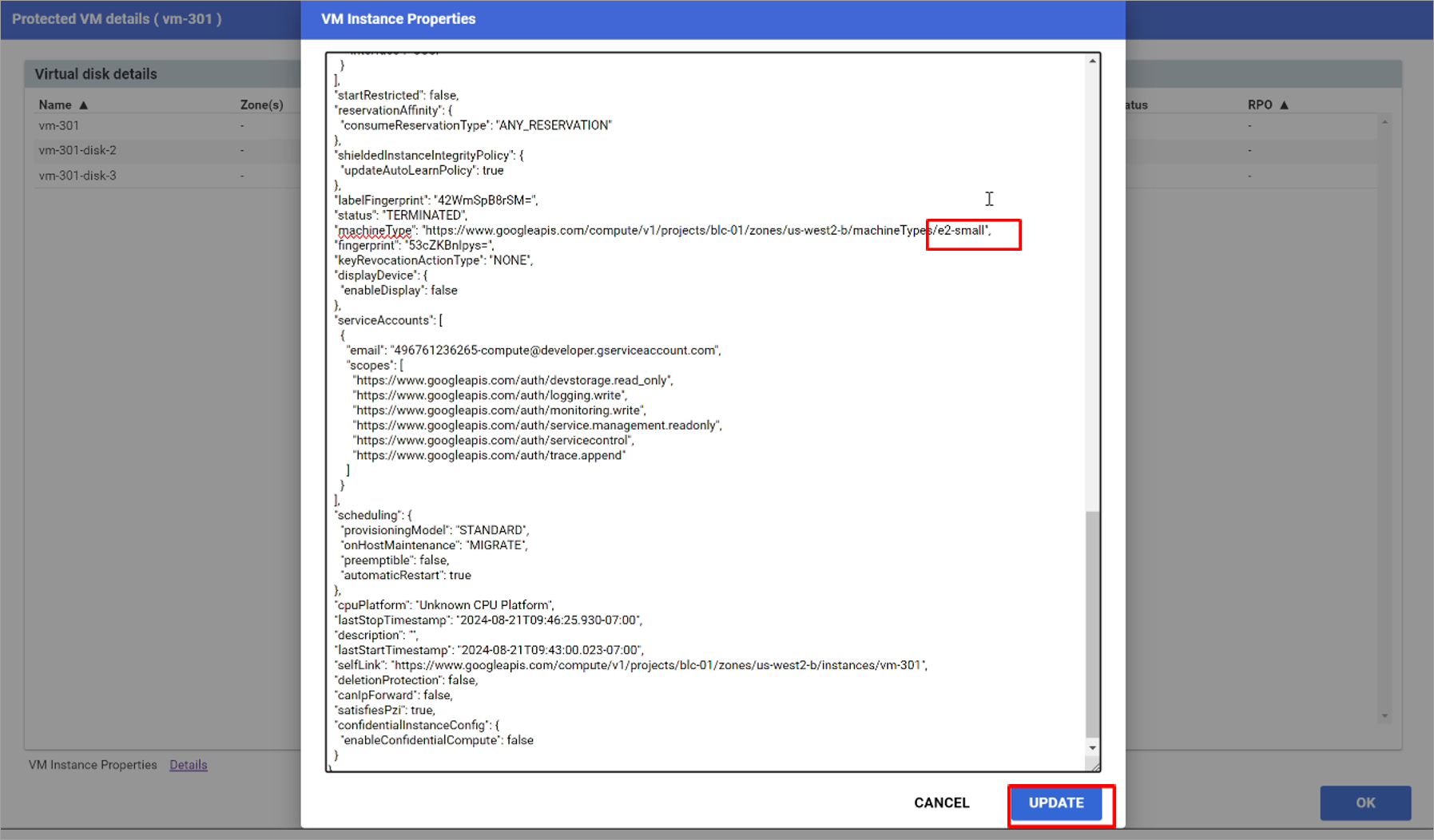
Figure 101: Editing the Machine Type property.
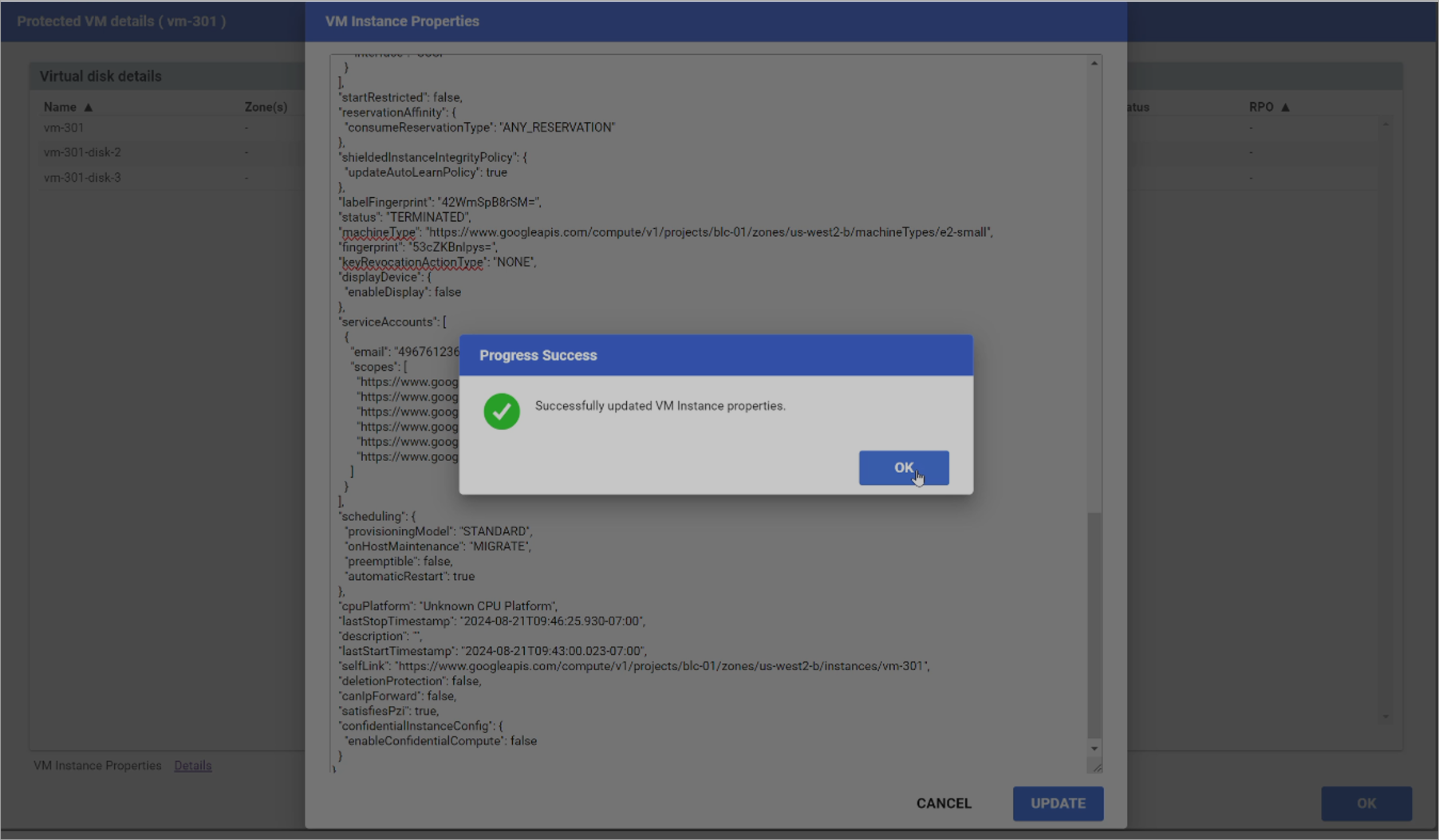
Figure 102: VM instance properties are saved and the ACD is updated.
Note: After a VM's instance properties have been updated, Domain failover can be attempted again. VMs that have already been successfully failed over can be skipped during this step.
Note: In situations such as partial failover where the status of some VMs are "Active" but it is desired to failover the entire Protected Domain, the replication status of "Active" VMs can be forced into an error condition by manually stopping asynchronous replication of their disks (from the Google Cloud console) and then editing their VM properties to force an error condition. This can allow the entire Domain to be failed over completely.