Register the vCenter Server Plugin
Register vCenter Server with the MSA with the following actions:
- Identify and copy the FQDN of the MSA.
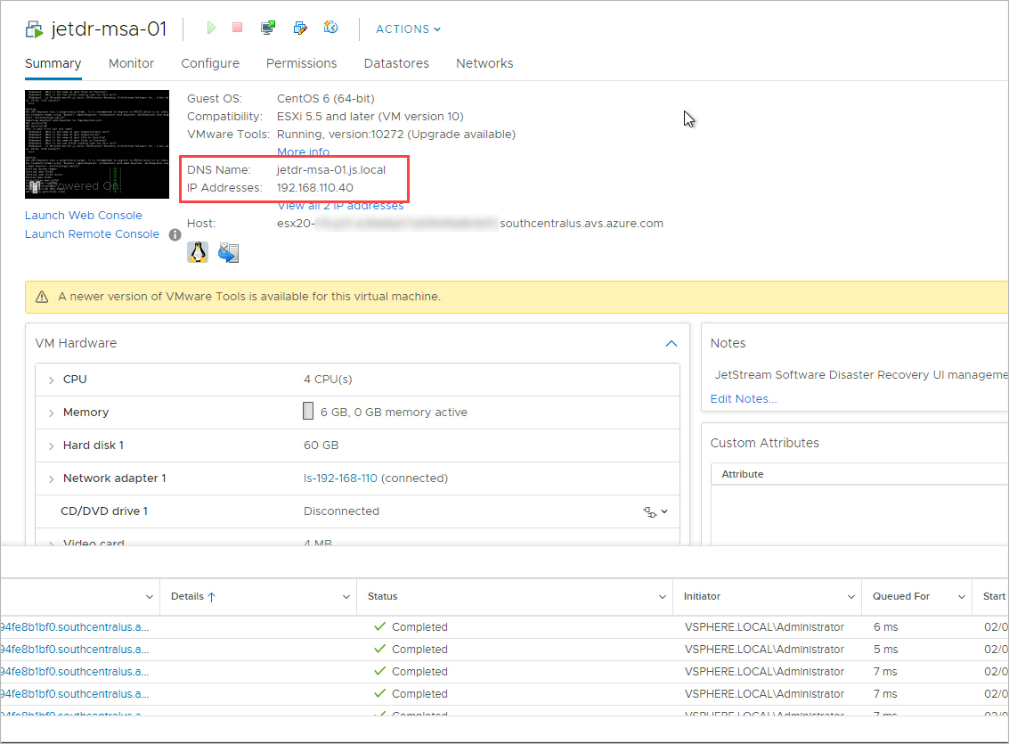
Figure 23: Copy the FQDN of the MSA.
- Access the MSA using a web browser.
- Log in as root user with the password that was specified during its deployment.
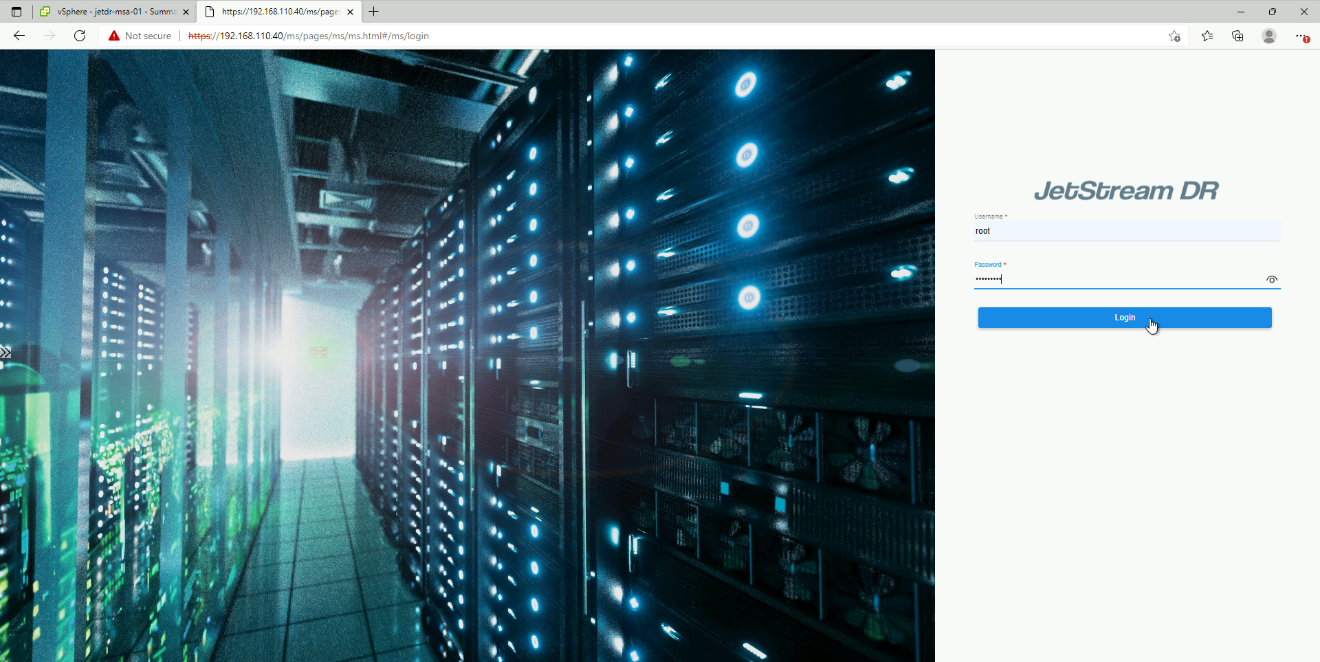
Figure 24: Log in as root user.
- Provide requested details about the vCenter Server FQDN and Admin user credentials.
- Click the Register button.
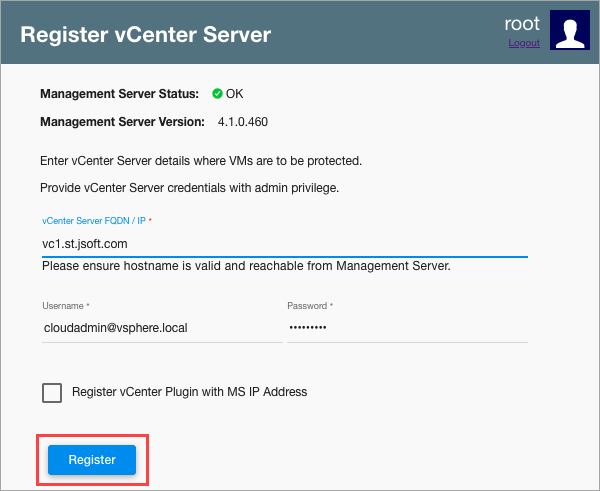
Figure 25: Register the MSA with vCenter Server.
- A confirmation screen will indicate JetStream DR has been successfully registered.
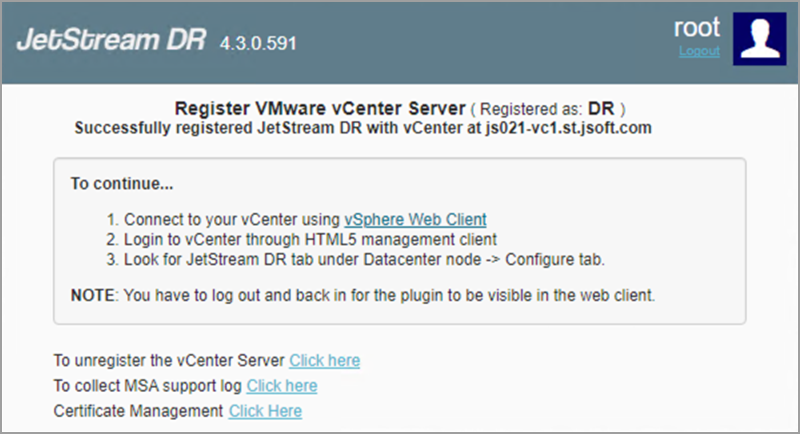
Figure 26: The MSA is registered.
Important: When registering the MSA with an on-premises vCenter, before proceeding to the next step, open a command window on the MSA and execute the script /opt/fio/vme2/python/manage_iofrest_user.ps1. This ensures a clean installation in vCenter if JetStream DR had ever been previously installed. It is advisable to perform this step no matter the history of the vCenter.
- Refresh the plug-in in the vSphere client.
- Log back in to access the JetStream DR plug-in.
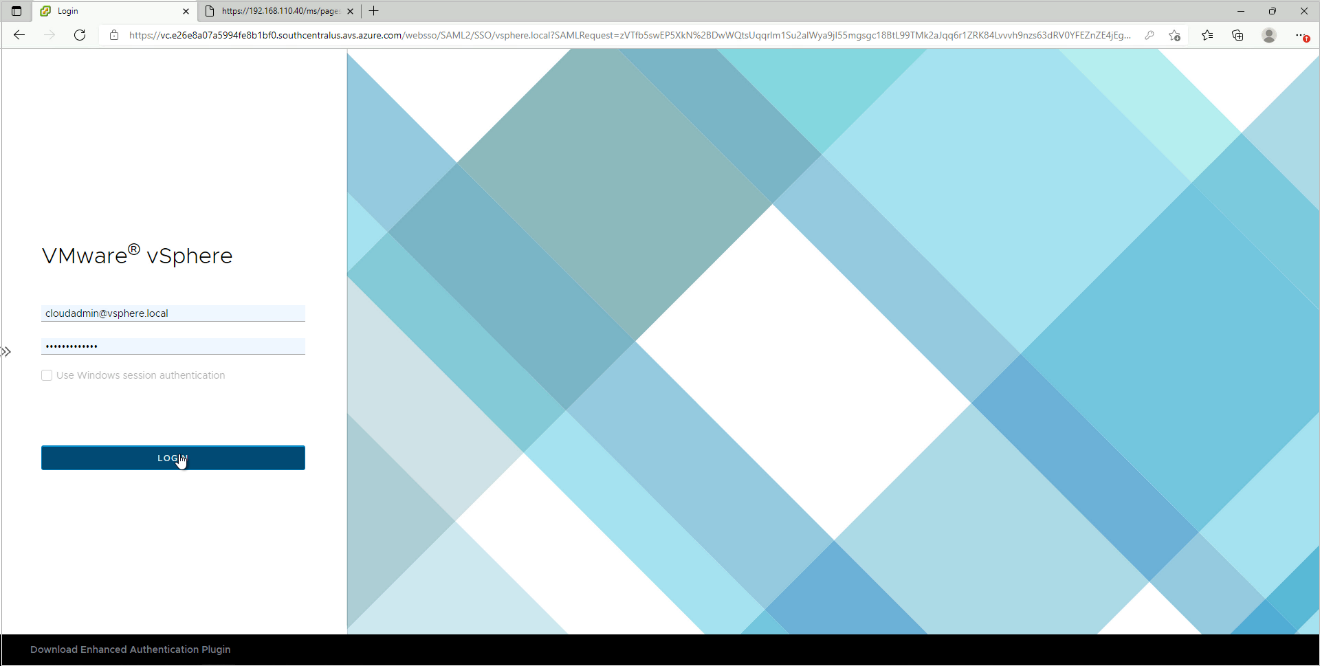
Important: To properly access the JetStream DR plug-in after registering it, you must refresh the vSphere Client and then log back in again. Otherwise, the JetStream DR plug-in may not display correctly. This action will not be necessary for subsequent logins.
- Navigate to the datacenter where the MSA was installed.
- Click the Configure tab.
- The JetStream DR user interface should now appear.
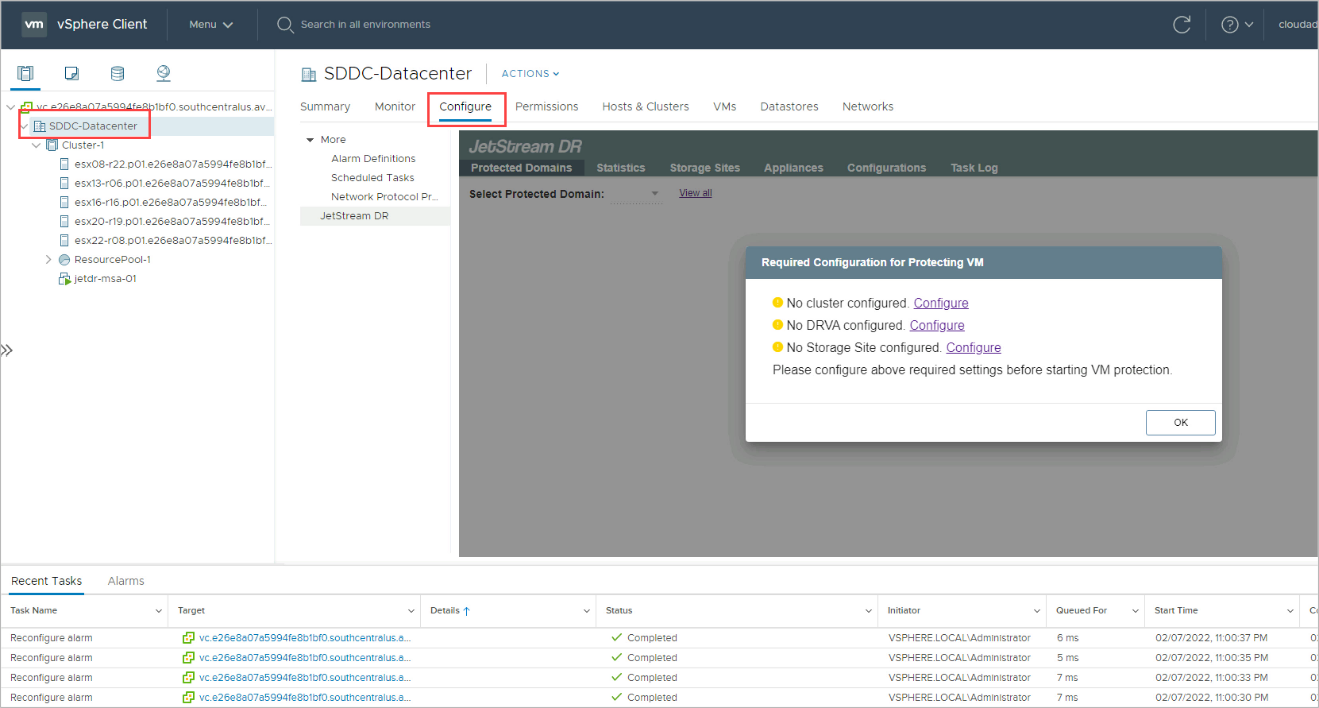
Figure 28: Configure JetStream DR software.