Create a Protected Domain
The following steps describe how to set up a new Protected Domain.
- Go to the Protected Domains screen and click the Create button to create a new Protected Domain.
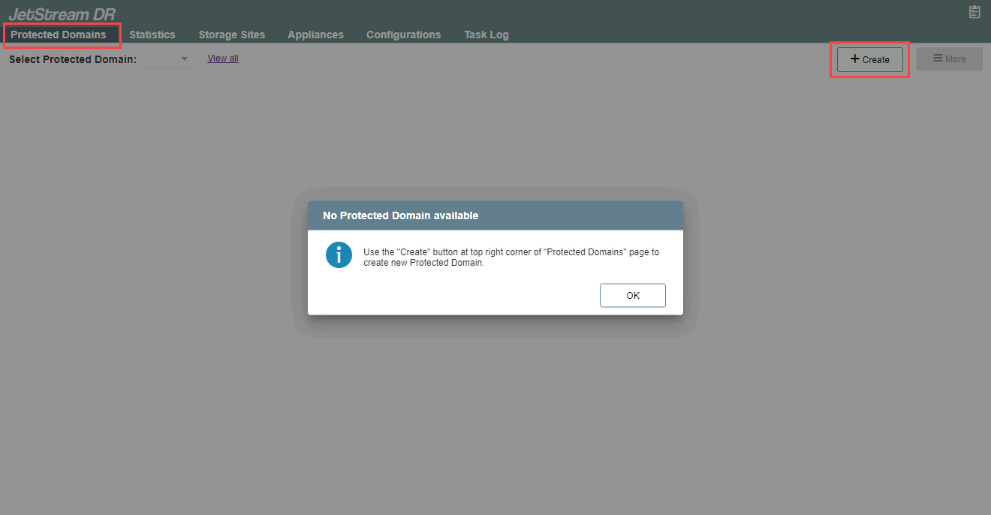
Figure 73: Create a new protected domain.
Note: If no Protected Domains yet exist, a pop-up message will be displayed.
- A pop-up dialog window will appear to guide you through a multi-step deployment process.
Step: General
- Enter a name for the Protected Domain.
- Select a Storage Site from the drop-down menu.
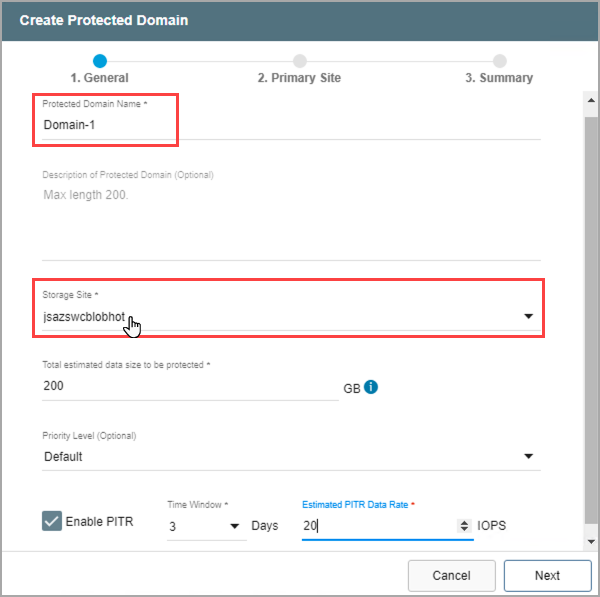
Figure 74: Enter general details about the new protected domain.
- Specify a value for “Total estimated data size to be protected.” This value reserves an initial amount of space for storing metadata and data of the protected VMs. It can be adjusted to optimize system performance.
- The minimum value is 200GB.
- A good starting value is the total amount of disk space consumed by all protected VMs in the cluster.
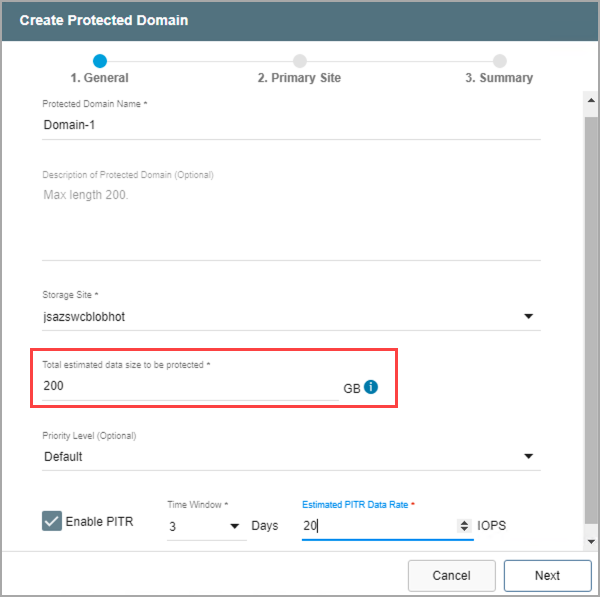
Figure 75: Estimate the size of the protected domain.
- (Optional) Set a priority level for the Protected Domain by selecting a value from the drop-down menu.
- Priority is a numeric value used to identify and sequence operations of Protected Domains. Priority values from 1 to 5 can be assigned, with lower numbers having higher priority.
- For failover/failback operations, the priority level number is used to identify which Protected Domains get failed over (or failed back) and in what sequence.
- For example, the Continuous Failover function fails over Protected Domains in batches. By assigning priority levels to Protected Domains, the administrator could specify Domains assigned "priority 1" get failed over together first, followed by Domains assigned "priority 2", then "priority 3" and so on.
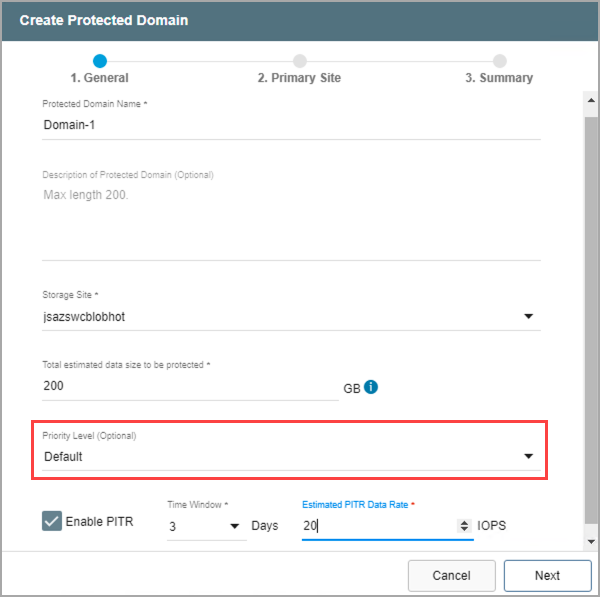
Figure 76: Specify a priority level for the protected domain (optional).
Note: Although the priority level can be specified in the UI during creation of the Protected Domain, it is specifically used together with the Capacity Planning Tool (CPT) script for the purpose of automating failover and failback operations. It is recommended to leave the priority level option in its default state unless necessary to explicitly change it.
- Point-in-Time Recovery (PITR) allows VMs and data to be recovered to a particular time in the past (last "known good" point) specified by the user. Select the Enable PITR option if point-in-time recovery is desired.
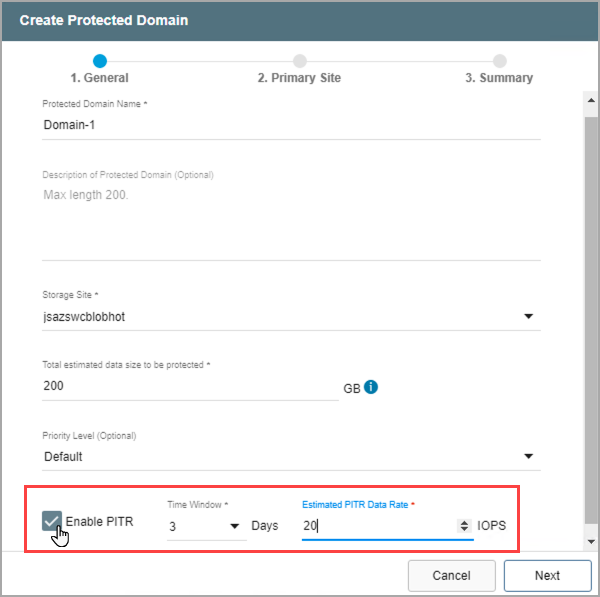
Figure 77: Enable Point-in-Time Recovery (optional).
- Click the Next button when done.
Note: View the Point-in-Time Recovery section of this document for detailed information about using this feature.
Step: Primary Site
- Select a DRVA from the drop-down menu to use for the Protected Domain.
- Any DRVA that was previously configured on the Appliances screen can be selected.
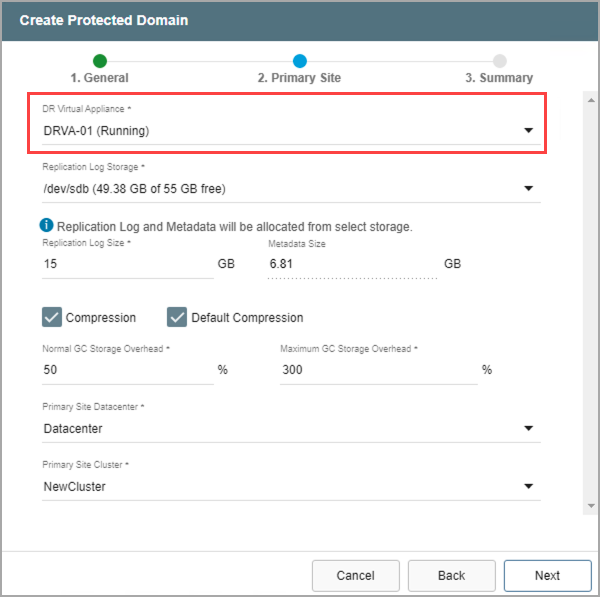
Figure 78: Select a DRVA to use.
- Select a resource for Replication Log Storage from the drop-down menu.
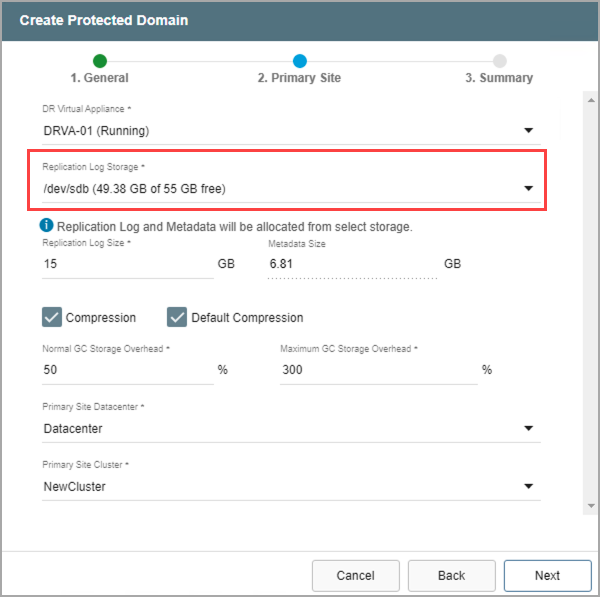
Figure 79: Select replication log storage to use.
- Review the Replication Log and Metadata sizes.
- Default values will be applied by the system but can be changed if necessary.
- The size of the replication log cannot exceed the total replication log volume size minus the metadata size.
- The minimum allowable size of a replication log is 15GB.
- If necessary, adjust the compression option.
- When the Default Compression option is de-selected, a menu will appear allowing a specific compression level to be manually specified.
- Unless specifically advised, it is not advisable to change from the default compression settings.
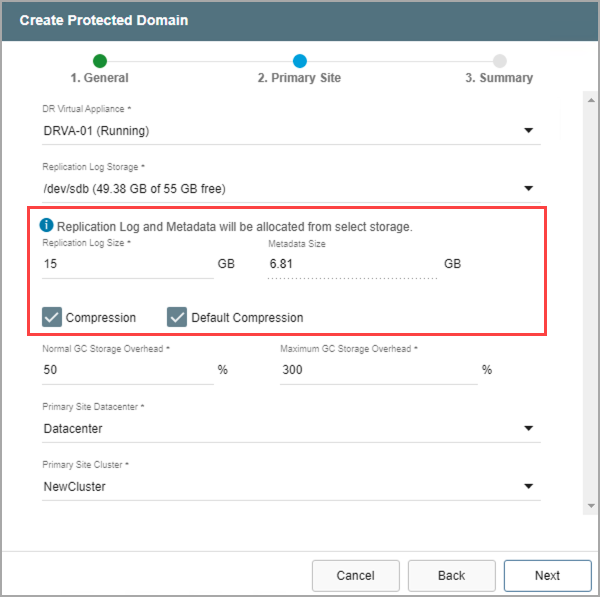
Figure 80: Enter replication log storage details.
- Enter values to specify the amount of GC Storage Overhead to be reserved for normal garbage collection and a maximum amount that should never be exceeded.
- The values are represented as percentages of the amount of storage reserved for protected data (described above).
- The values can be changed as necessary to optimize system performance.
- The default maximum amount is 300% (i.e., three times the amount of storage reserved for protected data.)
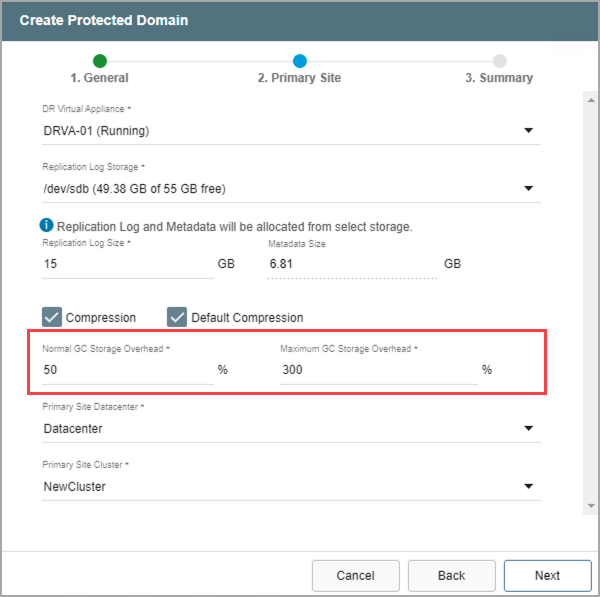
Figure 81: Enter garbage collection details.
- Identify the primary site datacenter and the cluster containing the VMs to be protected.
- Only clusters that have been configured in the previous steps will appear in the selection drop-down menu.
- Click the Next button when done.
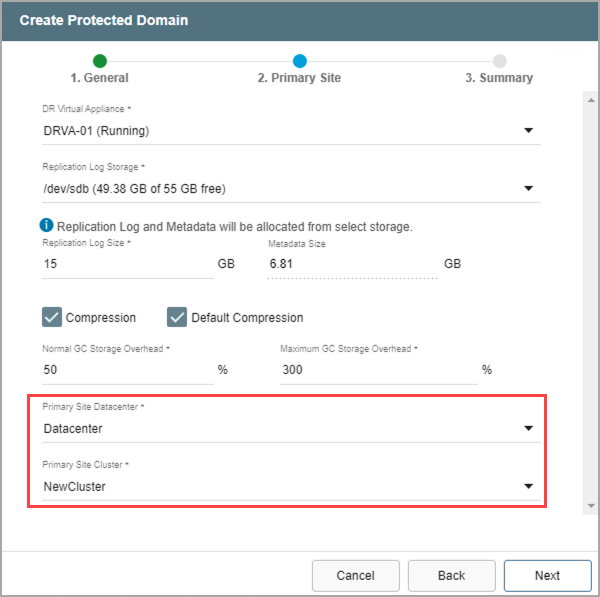
Figure 82: Enter details about the primary site.
Step: Summary
- Review all entered settings on the Summary step.
- Use the Back button to modify any settings that need to be changed.
- If the settings are correct, click the Create button.
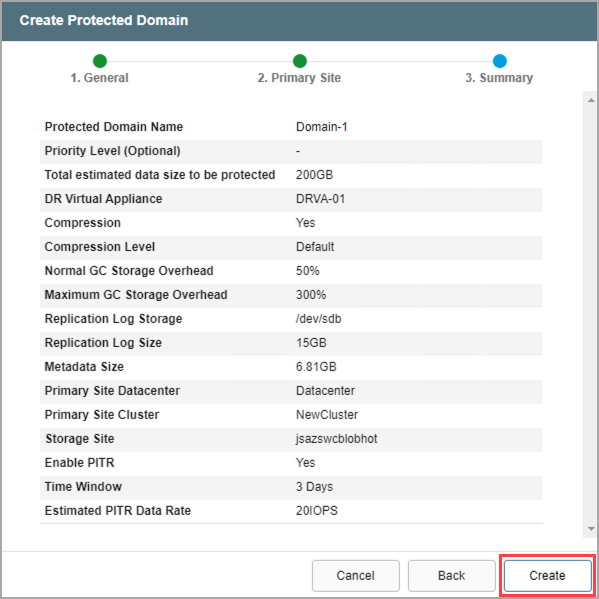
Figure 83: Review setup details and create the protected domain.
- The Protected Domain will be created. It is now possible to add VMs to the Domain and start protection.
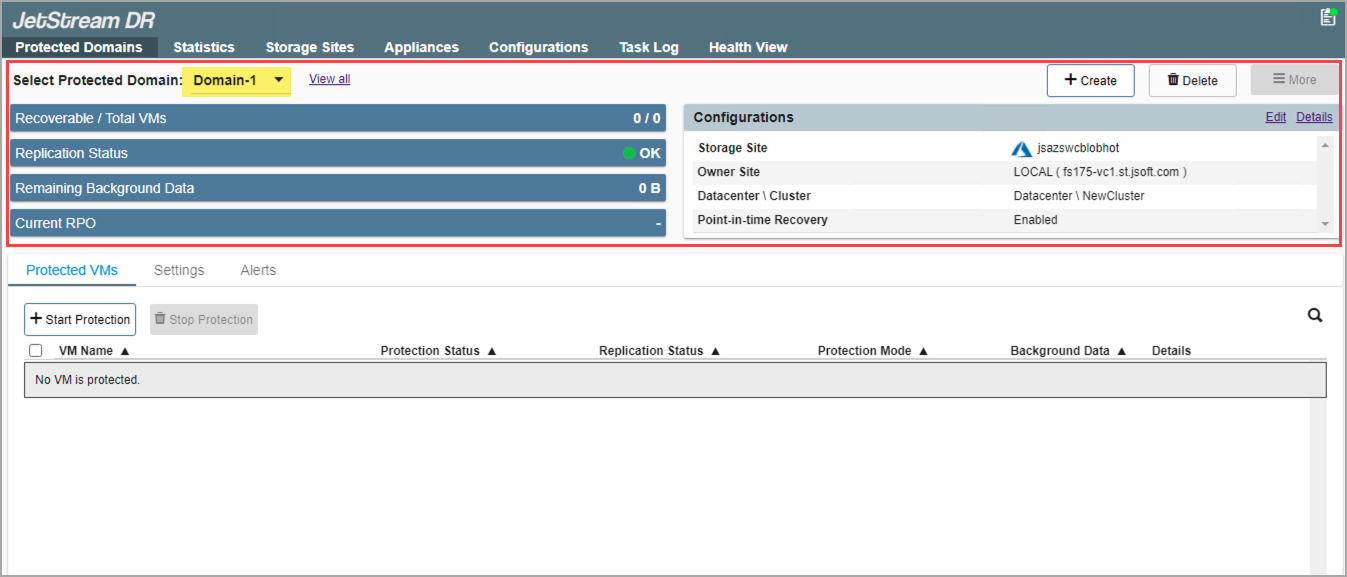
Figure 84: The protected domain has been created.
- Repeat the above steps to create as many Protected Domains as needed.
- Multiple Domains can share the same DRVA, but each Domain must have its own replication log.
- As previously noted, replication log volumes from multiple DRVAs can share a common datastore or ISCSI LUN with space management handled automatically by JetStream DR software.
Also see:
Edit Protected Domain Settings