Legacy MSA and Plugin Upgrade (from versions older than 4.3)
Manually upgrade a previous version (older than v4.3) of the MSA/Plug-in to JetStream DR version 5.0:
- Obtain a copy of the JetDR bundle and deploy the 5.0 MSA.
- Power off the existing (old) MSA.
- Attach the disk from the old MSA to the new 5.0 MSA being installed.
(VM -> Edit Settings -> Add existing disk -> Select the vmdk of the old MSA).
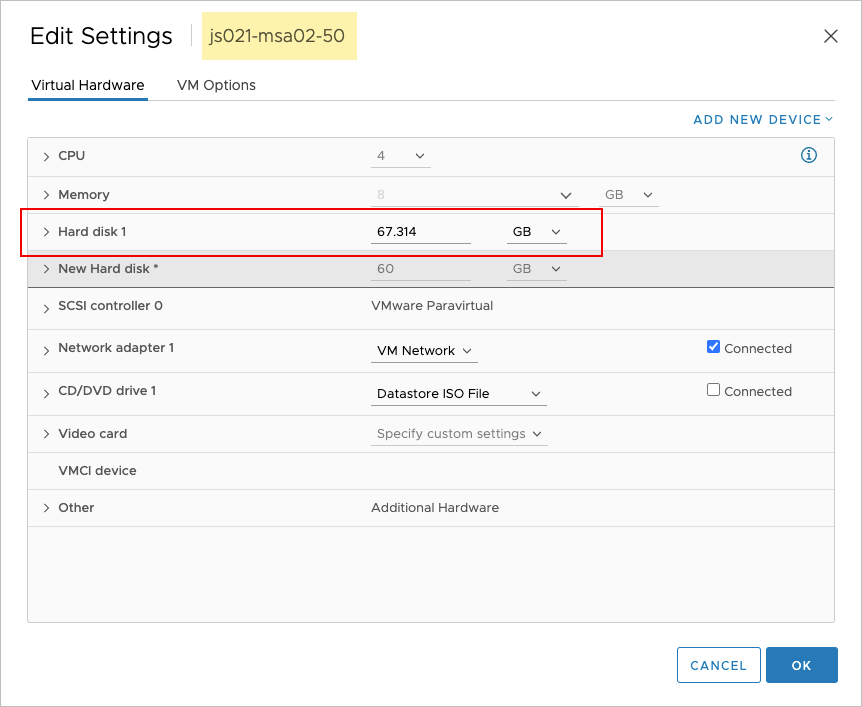
Figure 366: Attach the old MSA disk to the new MSA.
- From the command prompt of the new MSA, navigate to: #cd /opt/fio/vme2/bin.
- Run the command: #sudo ./msa-migrate.py
This step copies all configurations, database etc. from the old MSA to the 5.0 MSA. - The upgraded plug-in should now be available. If the vCenter plug-in does not appear automatically updated, go to the MSA https and look for the message that a new version of the plug-in is available. Click the link to upgrade the plug-in on vCenter.

Figure 367: New plugin version is available.
- Refresh the vSphere browser.
- After step 7 has been completed, detach the old MSA's disk from the new 5.0 MSA. All of its original settings should now be copied to the new MSA's disk (including ip, fqdn, etc.)
- The old MSA and its unused resources can be destroyed.