MSA and Plugin Upgrade (from version 4.3)
Manually upgrade the JetStream DR 4.3 MSA/Plug-in to version 5.0:
- Obtain a copy of the JetDR bundle and unzip it to obtain the file jetstreamsoft-jetdr-update-5.x.x.x.iso.
- Upload the ISO file jetstreamsoft-jetdr-update-5.x.x.x.iso to the datastore where the management server (MSA) VM is located.
- Right-click the MSA VM:
- Navigate to: Edit Settings > CD/DVD Drive > Datastore ISO file > Expand CD/DVD drive > BROWSE
- Select the ISO uploaded in the above step.
- Select the Connected check box then click the OK button.
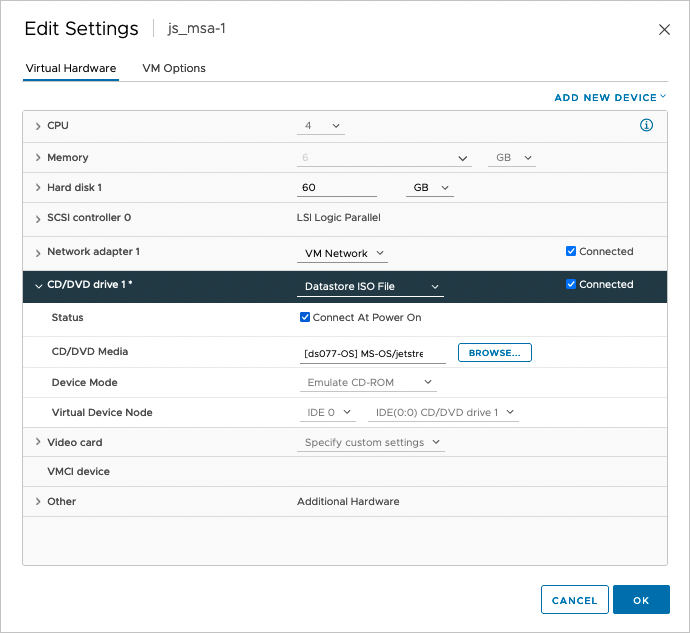
Figure 362: Connect the ISO file via the virtual CD/DVD drive.
- Log in to the MSA through the console and execute the following commands in order:
- sudo rpm --import /etc/pki/rpm-gpg/*
- sudo js_upgrade.py -v check (This command should execute then exit without any errors.)
- sudo js_upgrade.py -v upgrade (This command should execute then exit without any errors.)
Note: Use the command js_upgrade.py -v help to view a list of all supported commands.
- The MSA and plug-in will be upgraded.
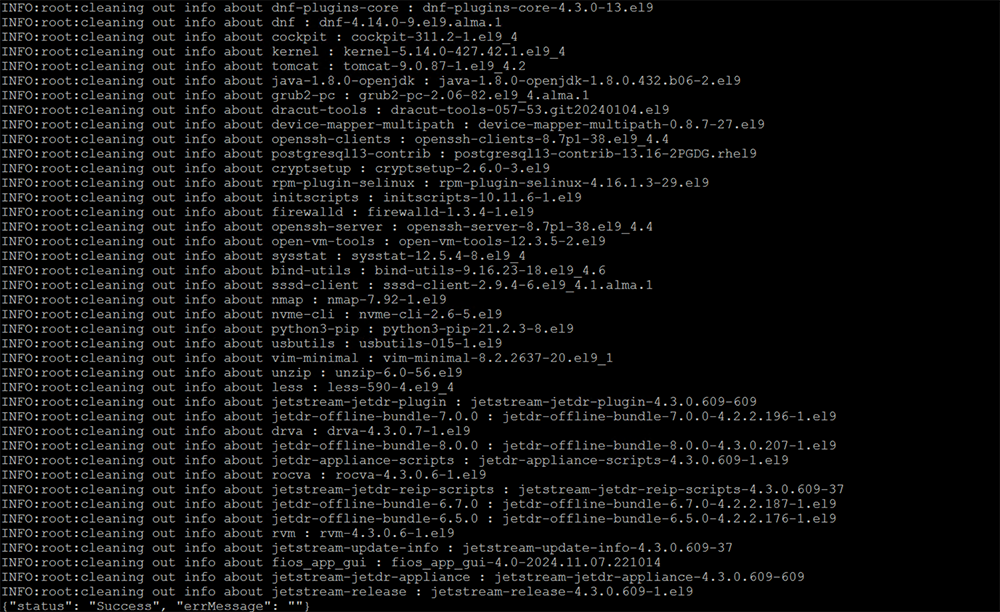
Figure 363: Example of the upgrade being performed from the console.
- Refresh the vSphere client browser to access the upgraded JetStream DR plug-in.
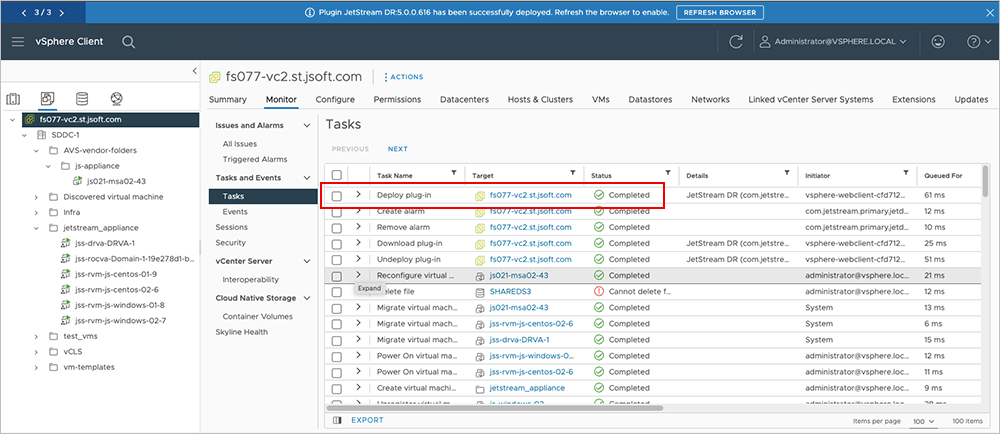
Figure 364: The upgraded JetStream DR plugin has been deployed.
Important: The vSphere client should be refreshed after the JetStream DR plug-in has been upgraded to ensure proper display and operation.
- If the vCenter plug-in does not automatically update to the current version, perform the steps to manually Register the vCenter Server with the Management Server Appliance.
- The option will appear: New plug-in available. To upgrade plug-in on vCenter Click here.
- Click the link to perform the upgrade.
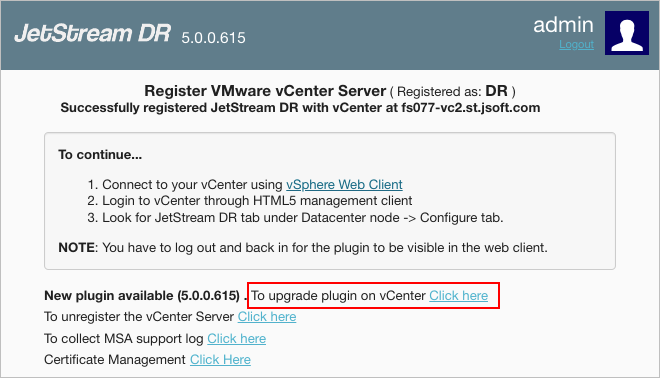
Figure 365: Upgrade the plugin from the registration pop-up window.
Important: The MSA and vCenter plug-in must be upgraded to matching versions, otherwise the GUI may not function correctly.