Import a Protected Domain
After the DRVA has been created, import a Protected Domain to be restored.
Note: Restore is performed at the level of a Protected Domain which includes all the VMs contained within it.
- From the Storage Sites screen, select the object store where the data was protected then click the Scan Domains button.
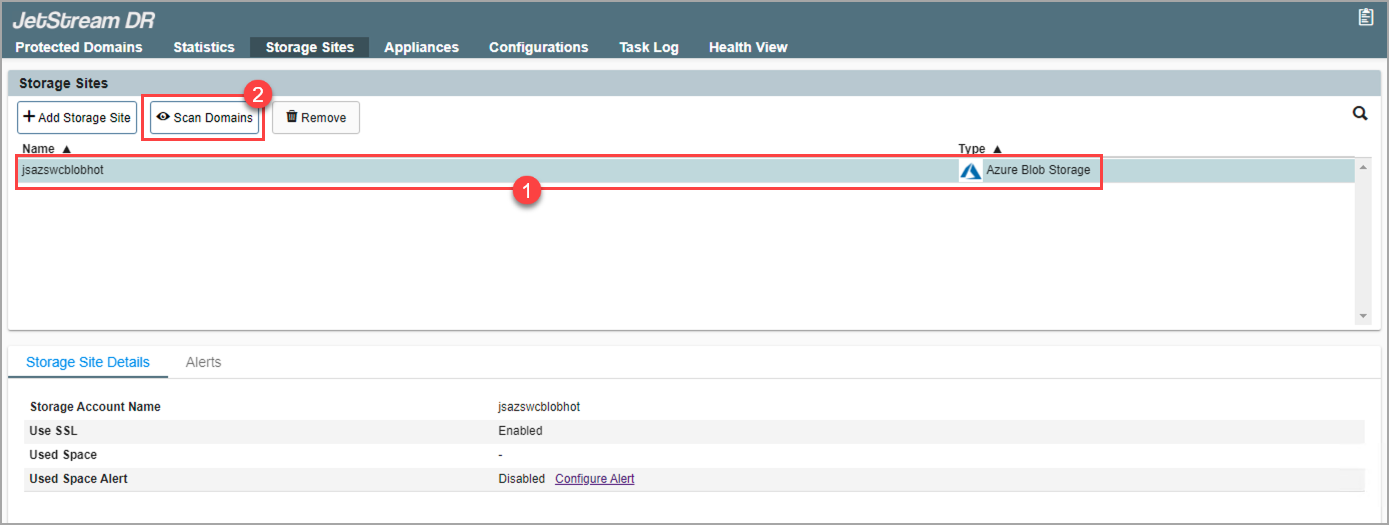
Figure 159: Scan Protected Domains from the storage site.
- In the pop-up dialog window that appears choose the Protected Domain to import and click its Import link.
- The Domain will be imported for recovery.
- This step can be repeated to import multiple Domains, if needed.
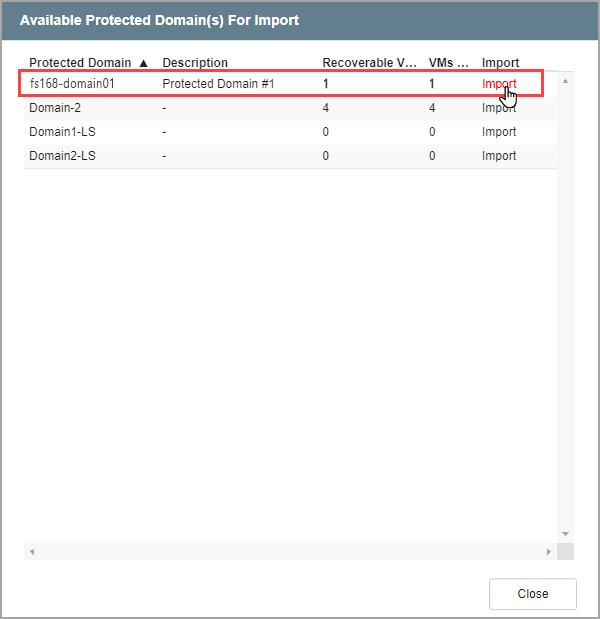
Figure 160: Import a Protected Domain.
- Go to the Protected Domains screen.
- The imported Domain will appear on the Select Protected Domain menu.
- A list of recoverable VMs from the Domain will be displayed on the screen.
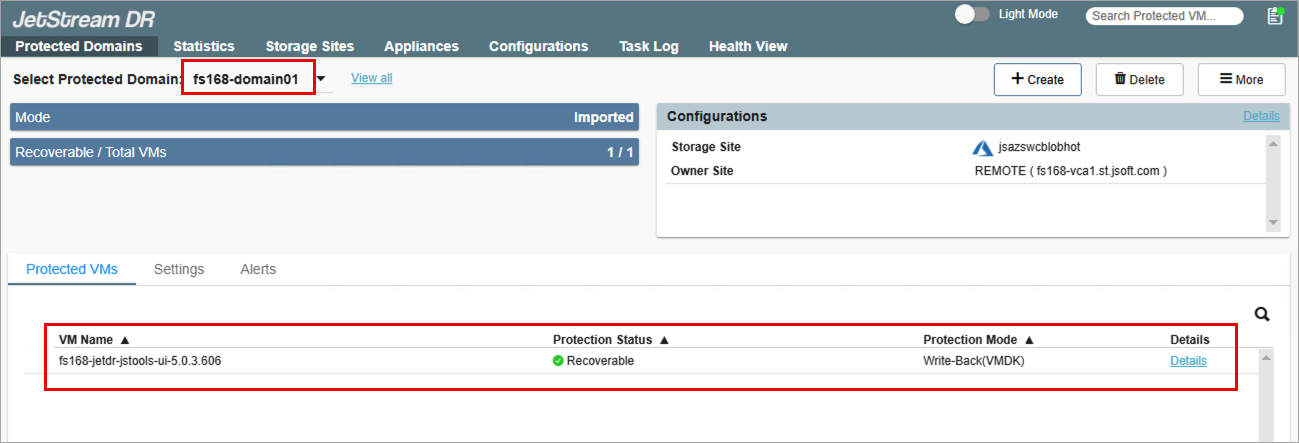
Figure 161: Review VMs of the Protected Domain that can be recovered.
- If multiple Domains were imported, a specific Domain can be selected from the Select Protected Domain menu.
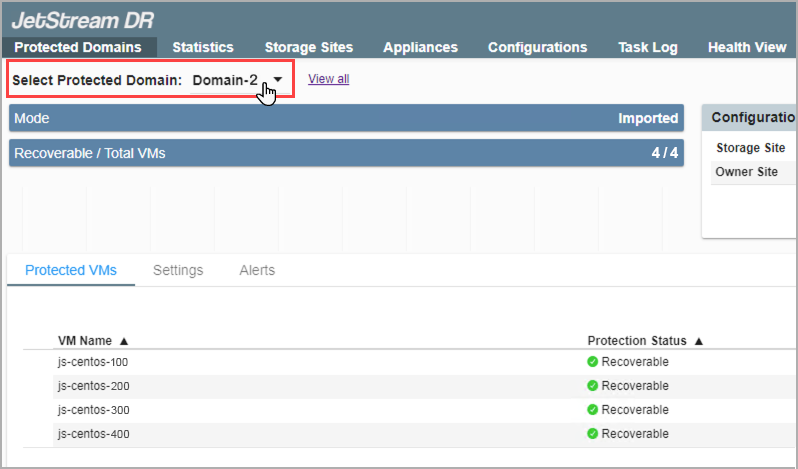
Figure 162: Selecting a different Domain.
Also see:
After the desired Protected Domain has been selected, restore the Domain.