ARO Management Site Portal
Navigate to the JetStream Asynchronous Replication Orchestration (ARO) Management Site portal by either:
- Clicking the Sign up with JetStream Software Inc. button on the subscription pop-up message window.
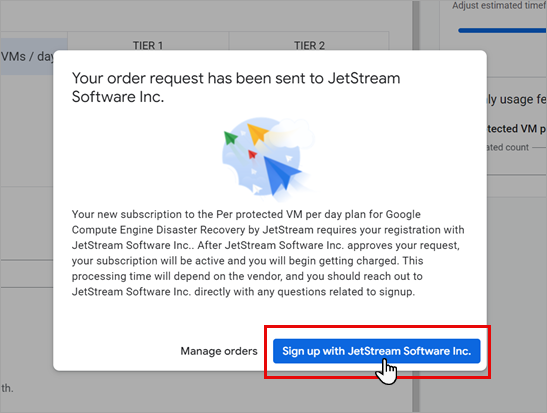
Figure 18: Click the "Sign up with JetStream Software Inc." button.
- Or, return to the Product Details page in GCP Marketplace and click the Manage on provider button.
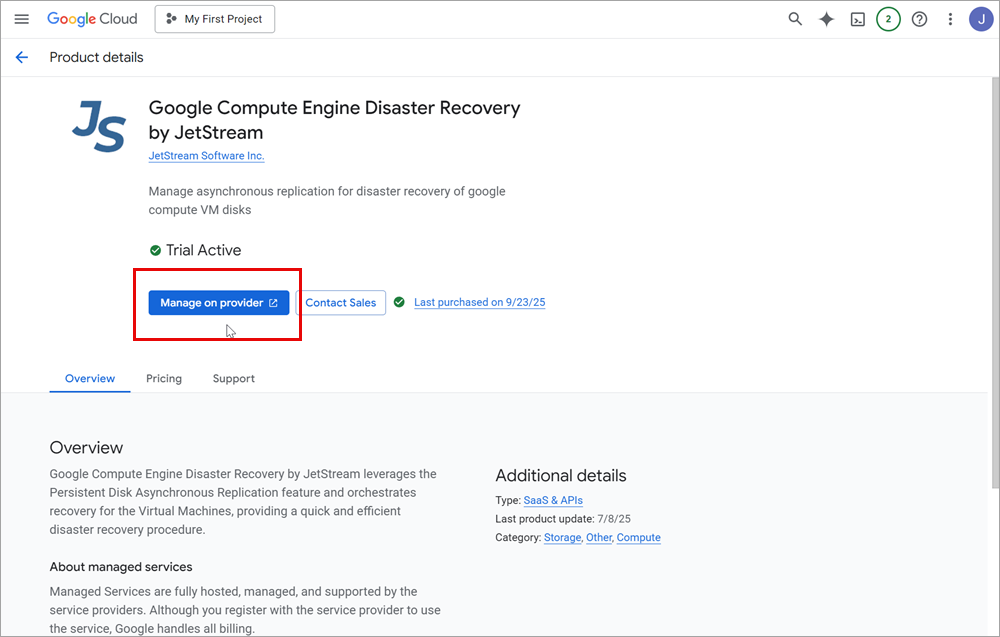
Figure 19: Click the "Manage on provider" button.
Management Site Portal
- Sign in to the Management Site portal with the same Google account used to make the purchase by clicking the Continue with Google button.
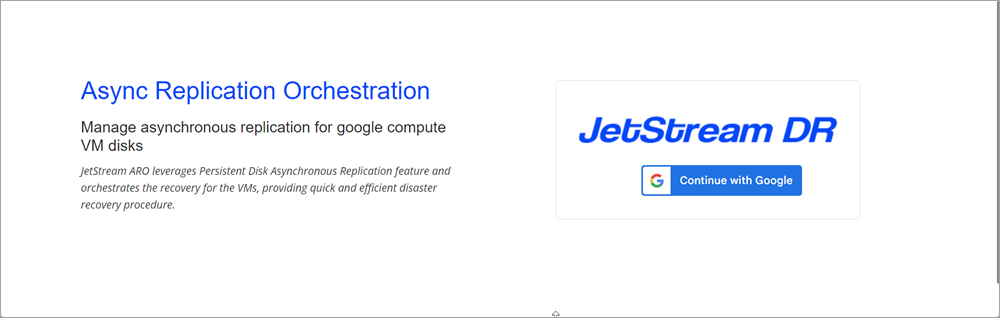
Figure 20: Log into the JetStream ARO management portal.
Order Status Details
After the Management Site portal has been launched it will be possible to view your product entitlement (purchase) history and monitor the current status of orchestration appliances (AROVA).
- The main landing page shows entitlement history.
- Click the View button of an entitlement to view its AROVA details.
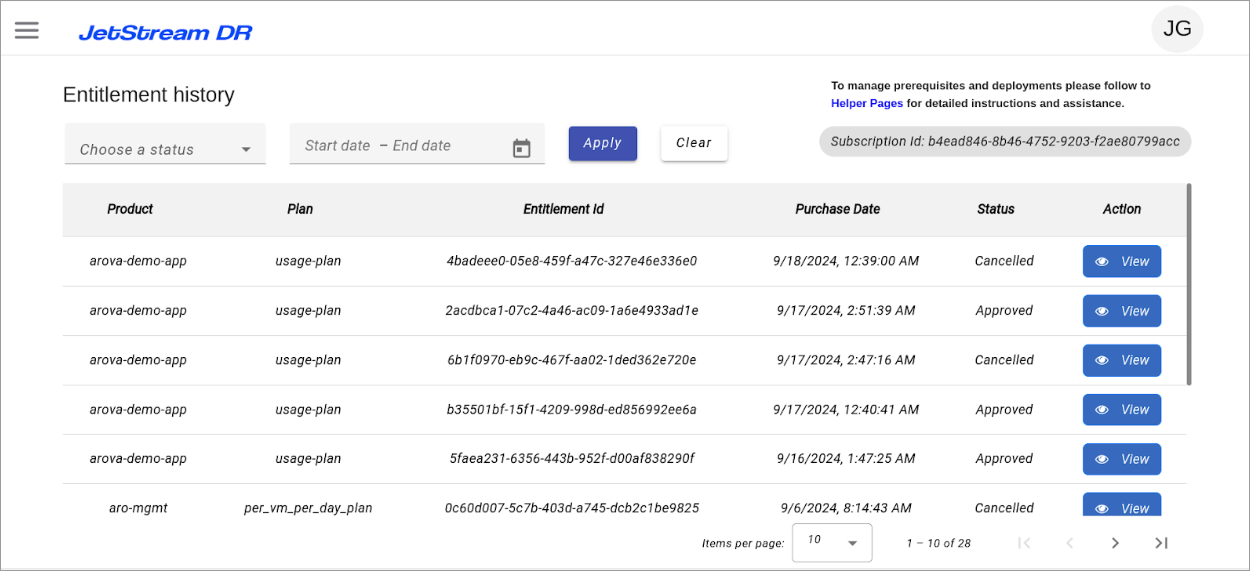
Figure 21: Viewing entitlement history.
- After clicking a View button, the list of orchestration appliances (AROVAs) associated with the entitlement will be displayed. The screenshot below illustrates an active appliance protecting five VMs (in the us-east-1 region) through replication (to the us-west-1 region). Any AROVA appliances that are no longer needed can be toggled to an "inactive" status to stop billing for them.
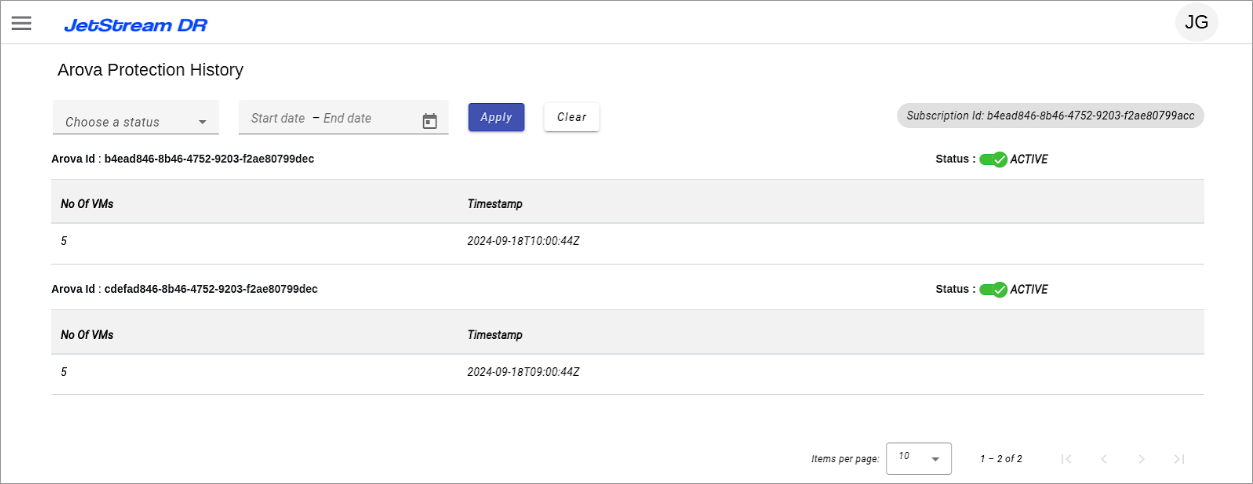
Figure 22: Viewing AROVA status.
Additional Menu Options (Accessing the Helper Utility)
- Click the "hamburger" icon in the upper left corner to expose menu options.
- A link to the Helper can be found in the left hand navigation.
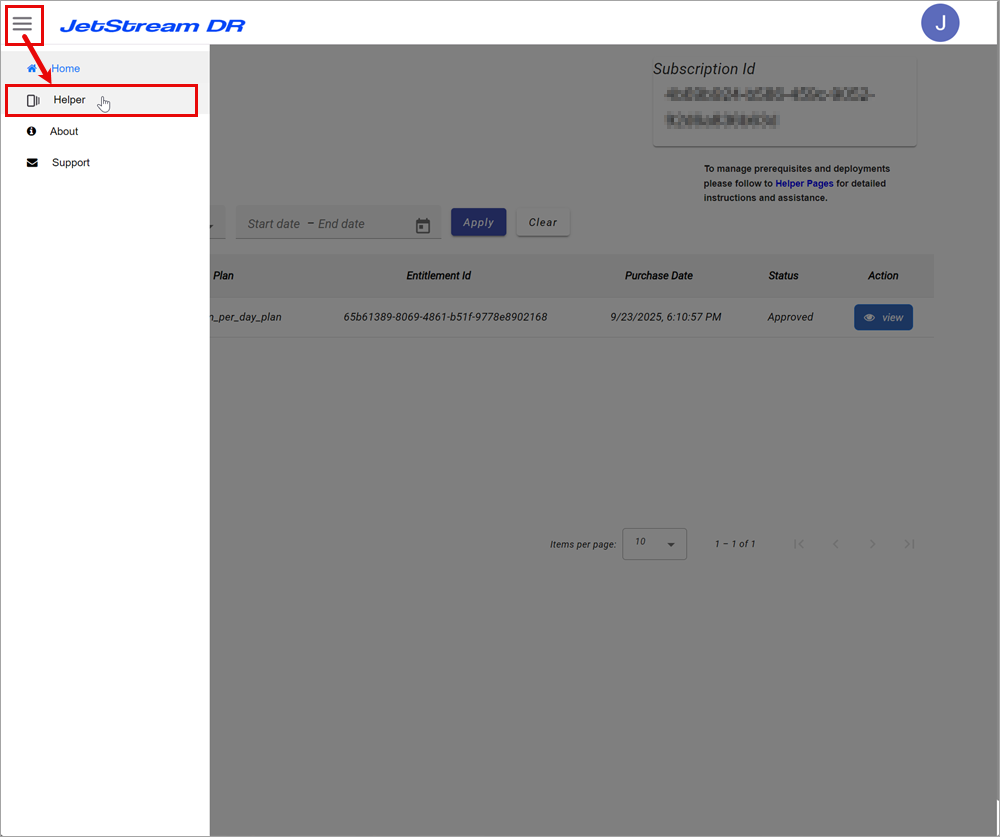
Figure 23: Additional menu options.