Replicate AROVA ACD to the Primary Region
When AROVA is deployed to the secondary region, the deployment script can trigger ACD backward replication of AROVA to the primary region. In a disaster scenario where the primary region remains unavailable, backward replication to the primary region will fail so ACD backward replication must be manually performed after the primary region has been restored. However, if AROVA was deployed gracefully in the secondary region, backward replication will be started immediately upon completion of deployment.
To replicate the AROVA ACD to the primary region:
- Log into the AROVA web UI, navigate to the Configurations screen and click the CONFIG DISK REPLICATION button.
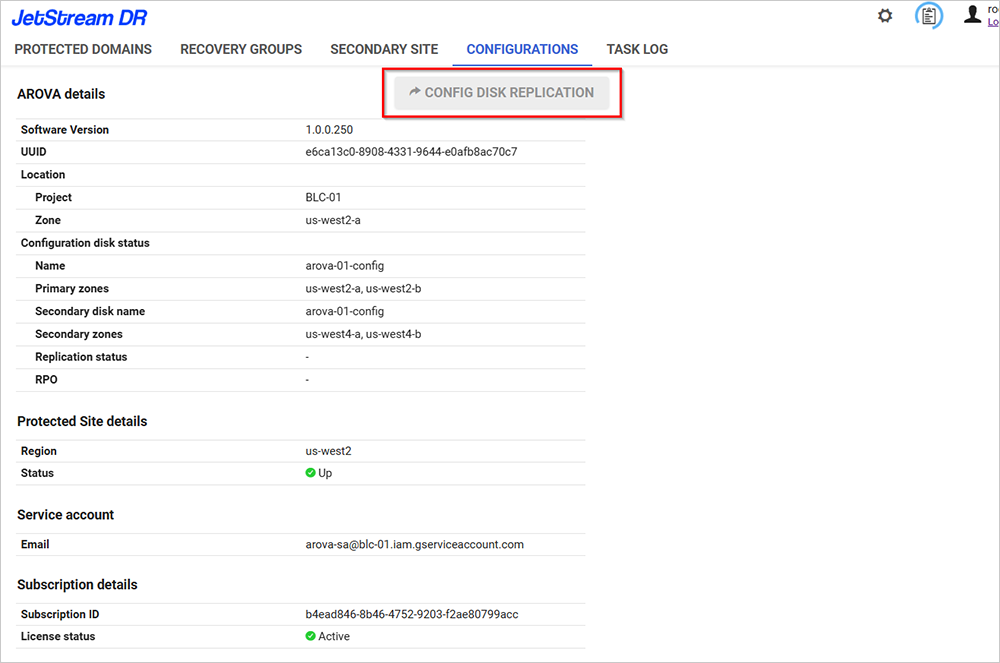
Figure 112: Replicate AROVA back to the primary region.
- In the pop-up window, specify the Configuration Disk Replication zones.
- Click the CONFIGURE button to initiate backward replication.
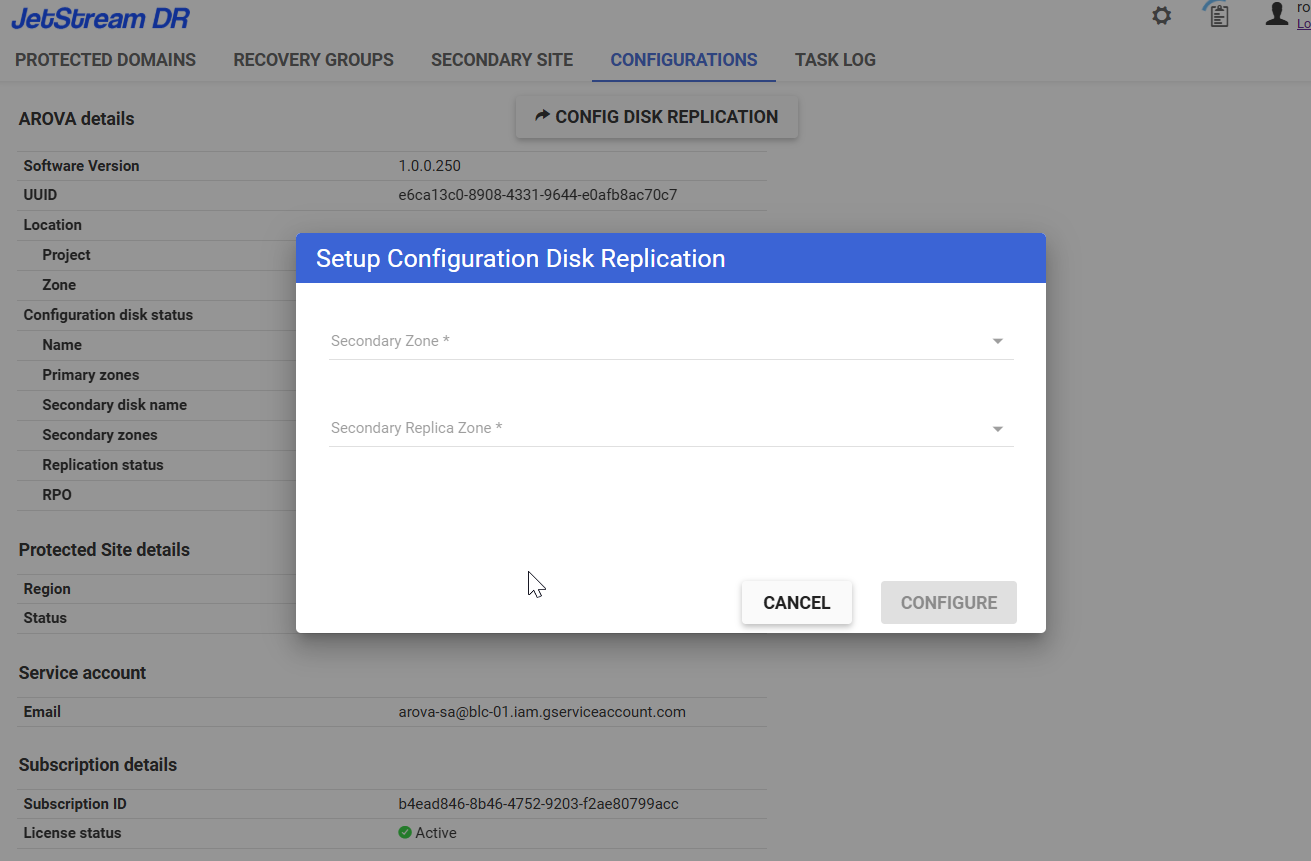
Figure 113: Enter zone details and start backward replication.
- Progress of the replication task to create secondary disks for the ACD can be viewed from the Task Log.
- ACD details and its replication status can be viewed from the AROVA UI under the Configurations tab in the Configuration disk status section.