VM Failback
From the AROVA UI, the user can view a list of Protected Domains and define the order and concurrency of failback operations. Failback is fully automated by AROVA.
Note: The Protected Domain is the fundamental unit of failback. All protected VMs of a Domain will be failed back together as part of the same failback task.
These actions are orchestrated by AROVA during failback:
- Create secondary disks and start replication for all VMs of Protected Domains.
- Complete initial synchronization of RGs and independent VMs.
- The VMs are now recoverable at this stage.
- Stop (power-off) all VMs of the Domain.
- Stop all disk replication.
- Delete all VMs from the secondary region Domain.
- Disks of the VMs will also be deleted even if the deletion rule: "keep disk" is on.
- Create and power on recovered VMs in the primary region.
- If any the properties of any VM are not compatible with the primary region or do not have appropriate resources, the VM will be skipped. This will be handled in a manner similar to that for failover.
- Delete old Consistency Groups.
- Finalize failback (update CDB, cleanup, etc.)
- Start forward replication (protection) for VMs of the Protected Domain according to PDAR design.
Failback a Protected Domain
- Navigate to the Protected Domains screen and select a Domain to view its details screen.
- Click the FAILBACK option.
- AROVA reviews the Protected Domain state and runbook settings, and notifies the user if any settings are missing, incomplete, or are no longer valid before starting the failover operation.
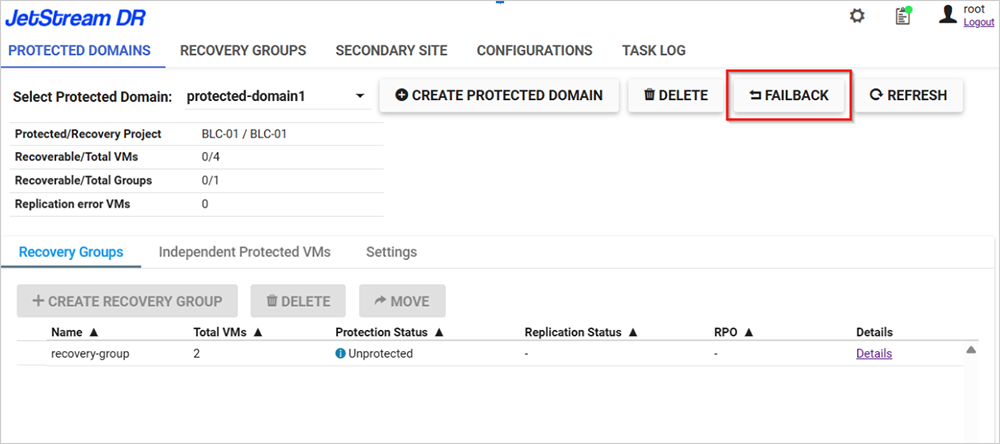
Figure 114: From within the domain, click the Failback option.
- The Failback Protected Domain window will appear.
- Specify secondary zones for the VMs.
- By default, the Auto-complete failback option will not be selected. This means that once existing data replication is complete, the failback task will not automatically switch VMs from the secondary region back to the primary region. It will wait for the user to manually trigger failback completion. Refer to the Controlled Failback section for more information.
- When finished, click the FAILBACK button.
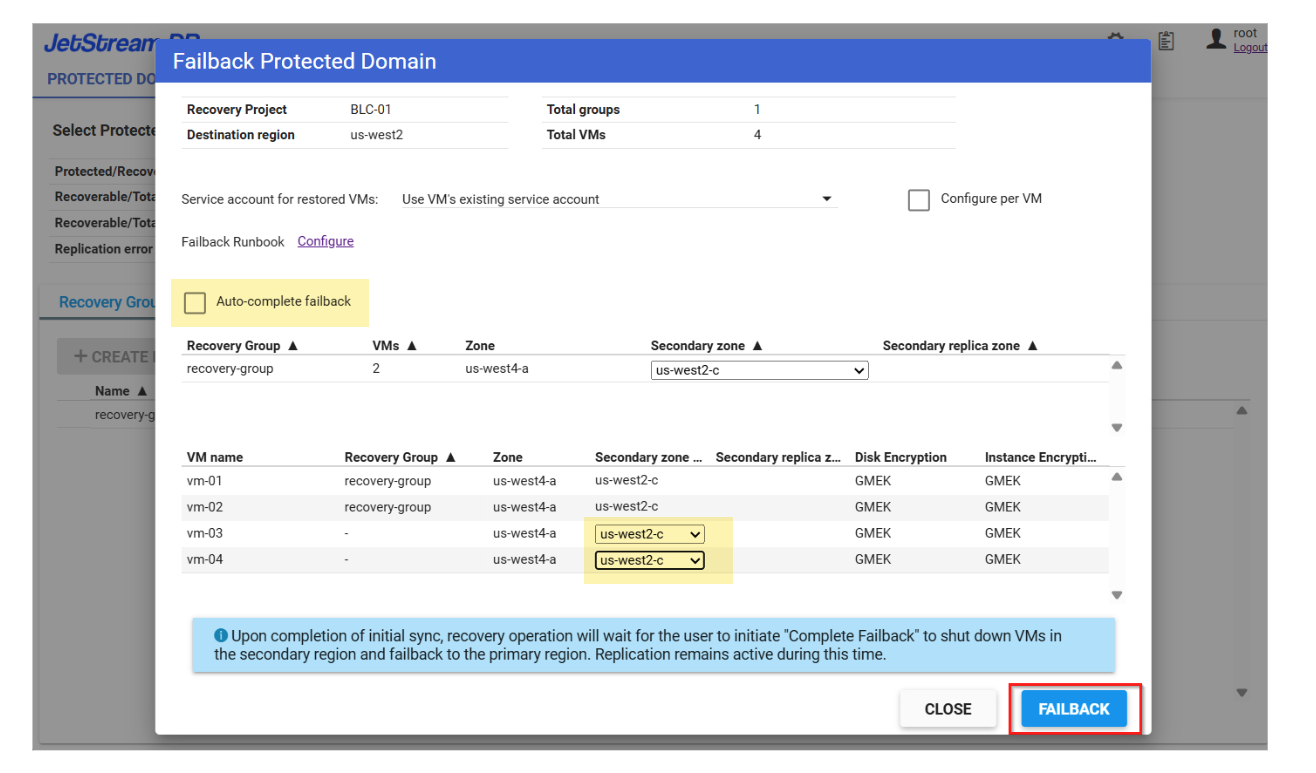
Figure 115: Specify secondary zones for failback VMs.
- While the failback operation is in progress, the UI will display a "Failback in progress" message on the Protected Domains page.
- All activities running in the background and their statuses can be viewed from the Events tab on the Protected Domains page.
- The failback task history can also be viewed from the Task Log tab.
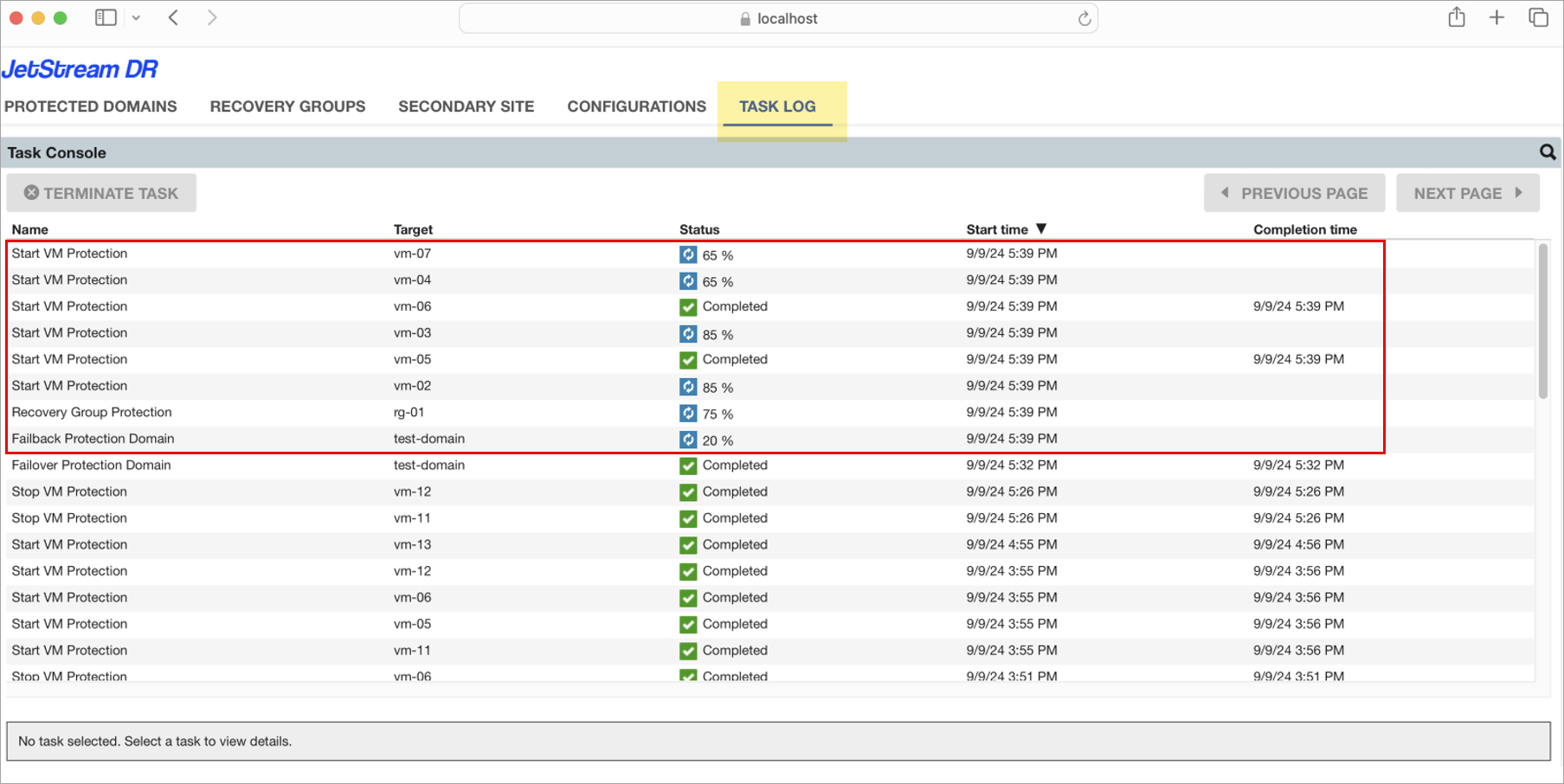
Figure 116: The Task Log displays details of Failback and VM protection jobs.
- Upon completion, an operation result summary will be displayed.
- The VMs will be available in the primary region having been launched and configured according to an applied Runbook.
- It will now be possible to validate workloads, confirm connectivity, and resume operations from the primary region.
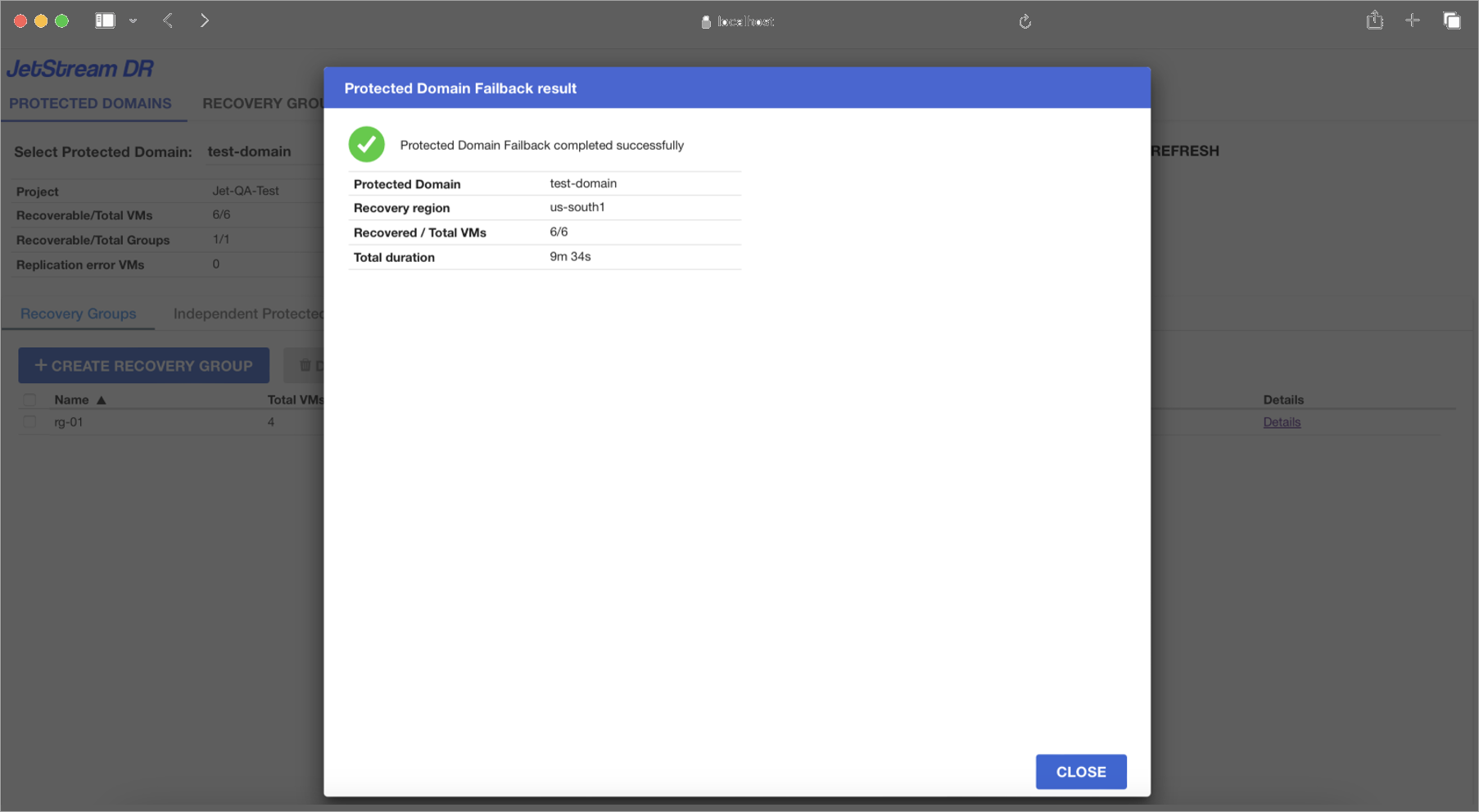
Figure 117: The Failback task is complete.
See: