VM Reservation Assignment
This setting lets you specify a target reservation where the recovered VM will be assigned during a recovery operation.
Note: Ensure that sufficient capacity is pre-allocated for all VMs using this reservation assignment to avoid recovery failures.
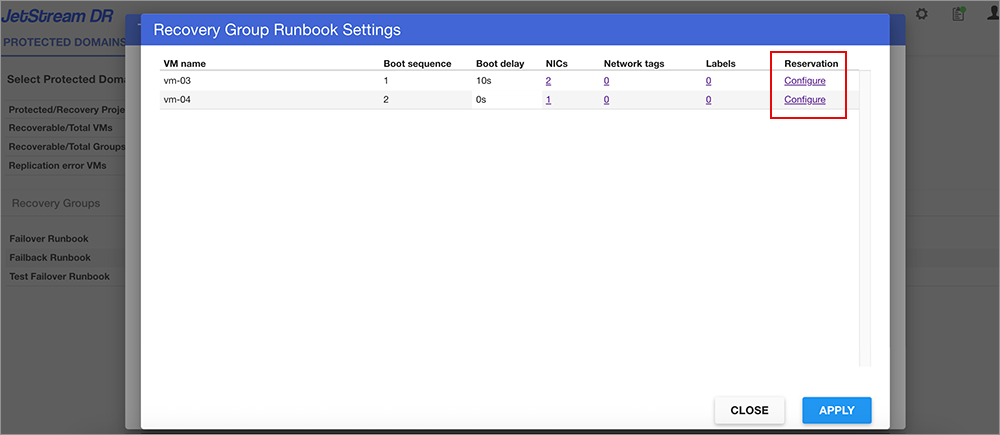
- Navigate to a Runbook Settings page, select a desired Recovery Group or independent VM, then click the EDIT button.
- A Runbook Settings window will open.
- Under the Reservation column, click the Configure link of the VM you want to configure.
- The Reservation Setting window will open.
- Select a reservation option. Three options are available:
- Do not use a reservation.
- Allow GCE to automatically assign one.
- Select a reservation from the list of available options.
Note: A reservation can be applied to a VM only if it meets all the requirements listed here: https://cloud.google.com/compute/docs/instances/reservations-overview#requirements
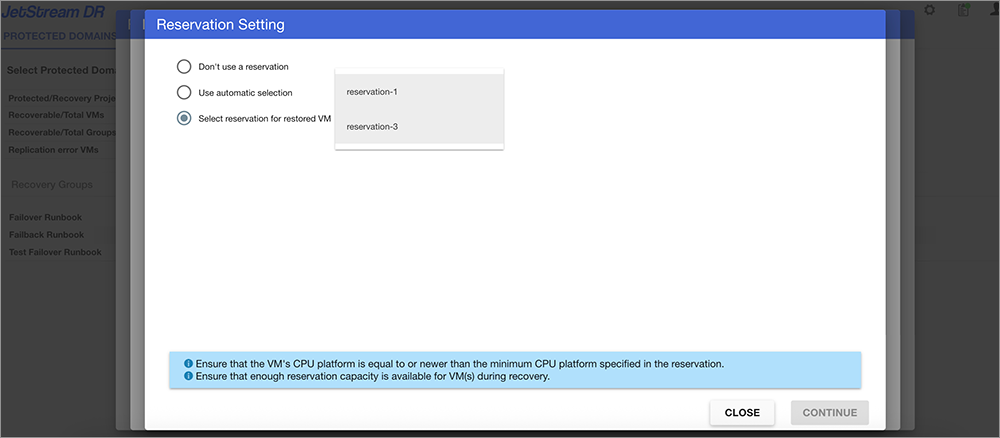
Figure 87: Manage VM label settings.
- Click the CONTINUE button to exit the Network interface settings window then click the APPLY button on the Runbook Settings window to save the change.