Collect vCenter Server Support Bundle
Collect the vCenter Server Support Bundle that contains logs, configuration files, and diagnostic data from the vCenter Server.
Instructions
- Log in to vCenter.
- Right-click vCenter from the Inventory panel.
- Select Export System Logs.
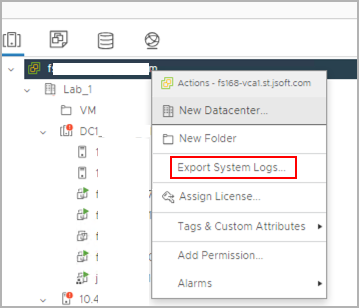
Figure 14: Select the Export System Logs option.
- Select the check box “Include vCenter Server and vSphere UI Client logs” then click the Next button.
- Do not select any specific hosts.
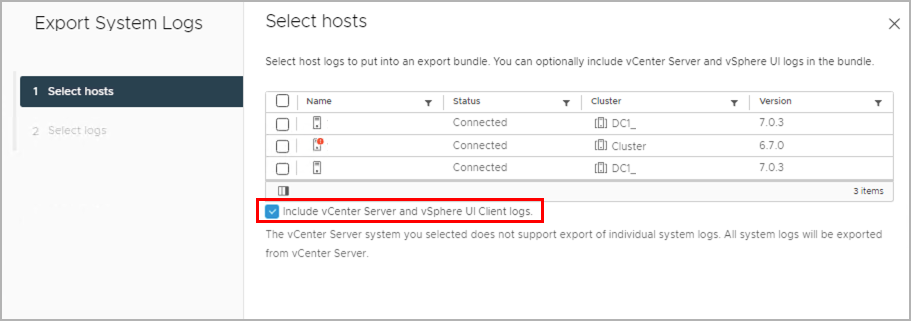
Figure 15: Select the option "Include vCenter Server and vSphere UI Client logs."
- Click the Export Logs button.
- Use the default settings of this screen.
- Do not configure a password for encrypted core dumps.

Figure 16: Click the Export Logs button.
- Monitor progress of log collection form the vCenter Tasks screen.
- After the logs have been collected, provide the log bundle to the JetStream Software support team.