Post-Failover Options
Multiple options are available to control the state of the protected site and ownership of VMs and data after failover has been completed. Failover can be completed in one of three ways: Regular, Planned, or Forced.
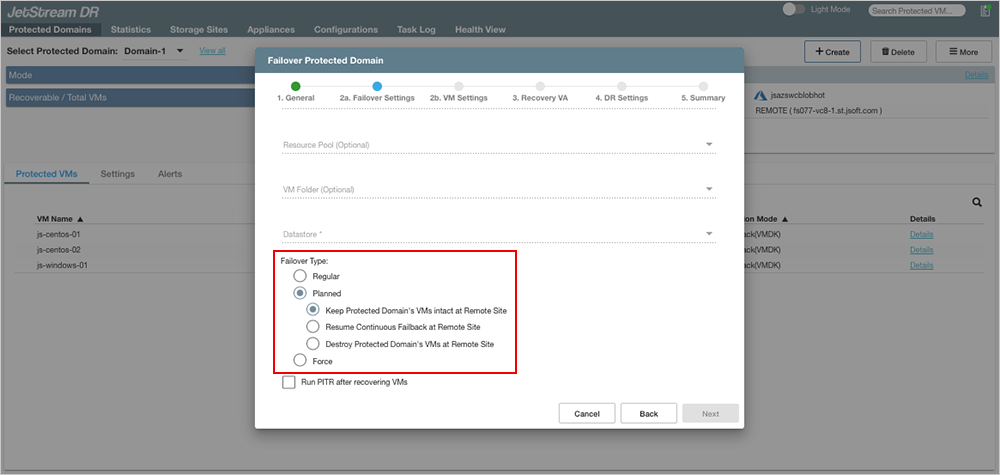
Figure 214: Post failover options.
"Regular" Failover
- Regular failover follows the set course of steps for failover mode.
"Planned" Failover (PFO)
- Planned failover is typically used for non-disaster events such as seamlessly shifting the location of VMs and their workloads while they continue to operate (i.e., migration).
- For example, if an event will occur that is expected to produce a large workload or data burst exceeding the resource capacity of the on-premises site, it may be desirable to permanently shift VMs and their workloads to a cloud services provider capable of meeting the demand to avoid future service problems.
- Another case may be moving VMs and workloads away from an on-premises site before performing major site maintenance that could potentially be disruptive or risky. After maintenance is complete, the VMs and workloads can be non-disruptively “failed back” to the updated on-premises site.
- Planned failover starts recovering data from the object store to the recovery site while VM(s) at the protected site are still operational. It shuts down the VM(s) gracefully at the protected site after most of the data has been recovered and then it stops the Domain. It continues to recover the remaining data, transfers ownership of the Domain to the recovery site, executes runbook (if configured), and then exits the task.
Note: During planned failover, any running VMs will be gracefully shut down by the MSA. VMware tools should be installed on all protected VMs to ensure proper operation of the shutdown process. If any VMs cannot be automatically shut down by the MSA they will need to be manually powered-off and then the task should be re-run to complete the operation. In general, it is recommended to install VMware tools on all VMs that will be protected.
- Planned failover has three sub-options:
- Keep Protected Domain's VMs and section intact at Remote Site
- This option preserves the VMs and corresponding replication log at the remote site after failover is completed.
- The VMs will be unregistered from vCenter to prevent duplication with the protected site.
- Resume Continuous Failback at Remote Site
- Once VMs and data have been failed over to the recovery site, any new data generated there will automatically be “rehydrated” (synchronized in the background) back to the primary site allowing for “near-zero RTO” failback.
- Destroy Protected Domain’s VMs at Remote Site
- This option destroys the VMs and corresponding replication log at the remote site after failover is completed.
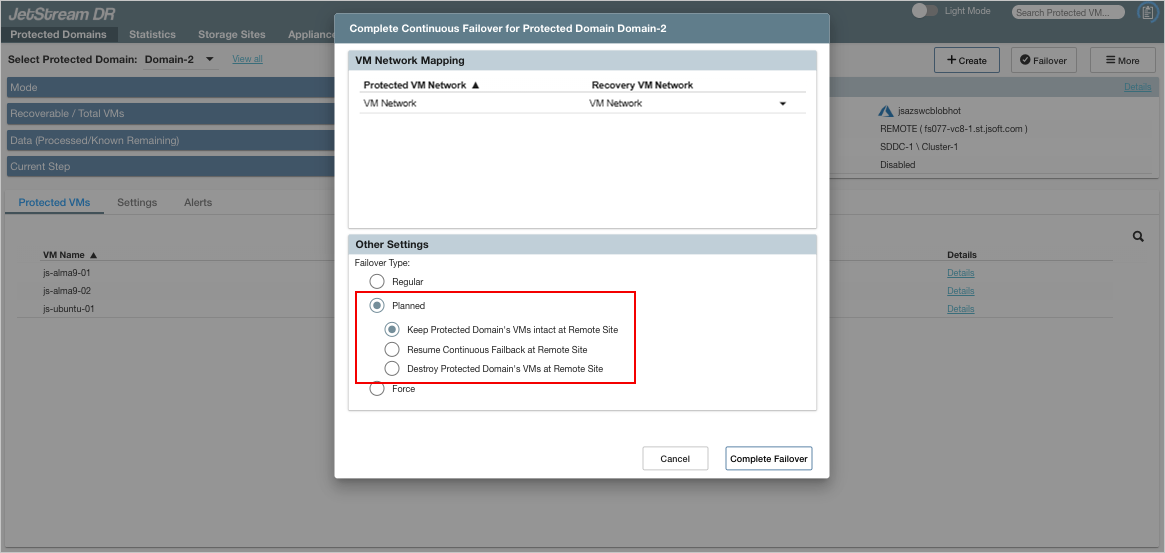
Figure 215: Planned failover options.
- When planned failover is used, an additional option becomes available on the VM Settings configuration step:
- Maximum delay after stopping option: During planned failover, VMs running on the primary site are shut down as final bits of data are transferred prior to switching to the recovery site. Depending upon the amount of remaining data, this process may create some downtime on the VMs. The maximum delay function allows a hard limit to be set on the allowable downtime introduced by this process.
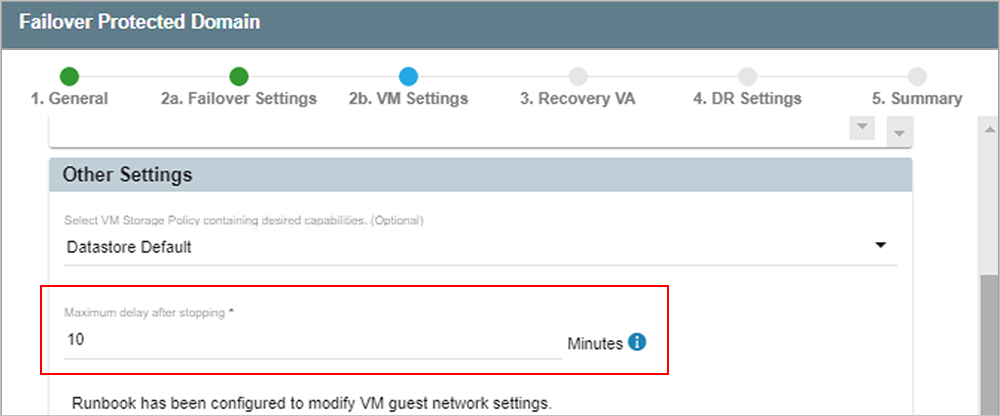
Figure 216: Specify a maximum delay for planned failover.
- If the Keep Protected Domain's VMs and section intact at Remote Site option is selected, click the Show Kept VMs button on the Protected Domains screen to view a list of all VMs that were preserved at the remote site.
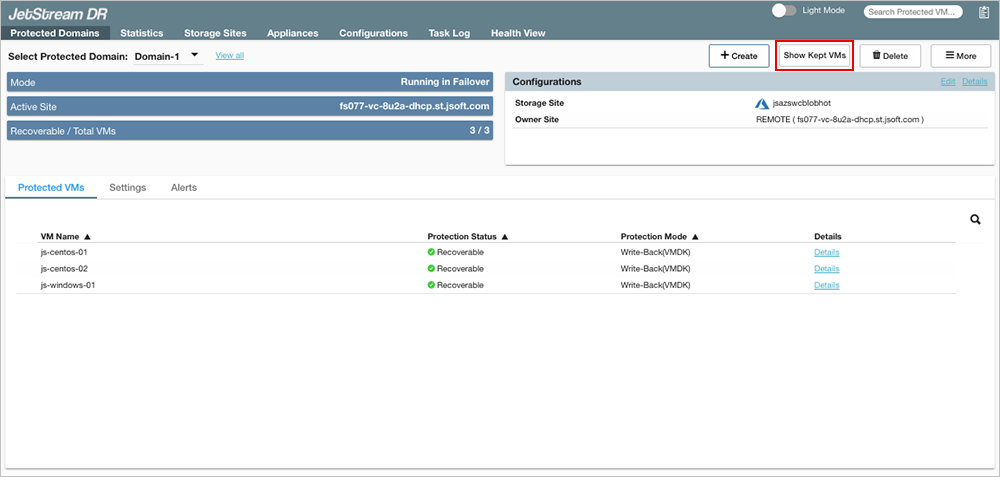
Figure 217: Click the Show Kept VMs button to see the VMs preserved at the remote site.
- If the "Kept VMs" are no longer needed at the remote site, click the Clean Up button delete all the VMs and the corresponding replication log in the DRVA. Cleanup can also be manually performed by the user, if necessary.
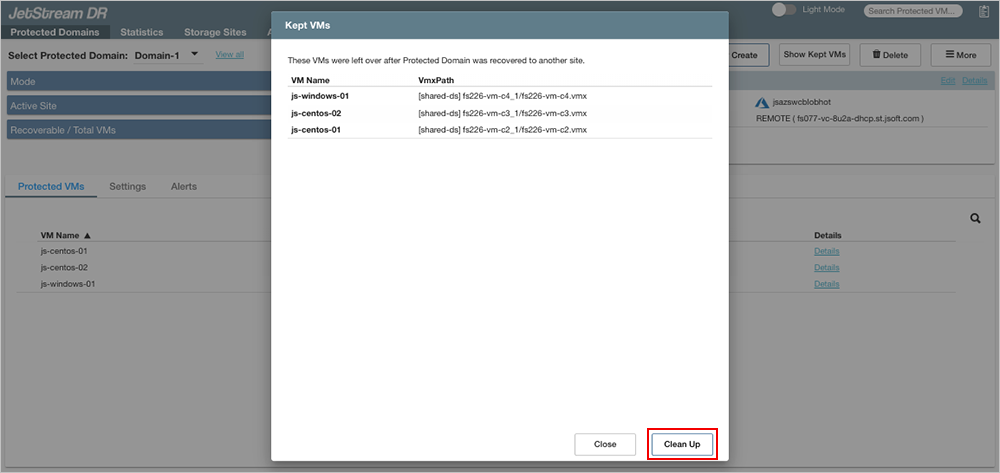
Figure 218: Click the Clean Up button to remove all the Kept VMs from the remote site.
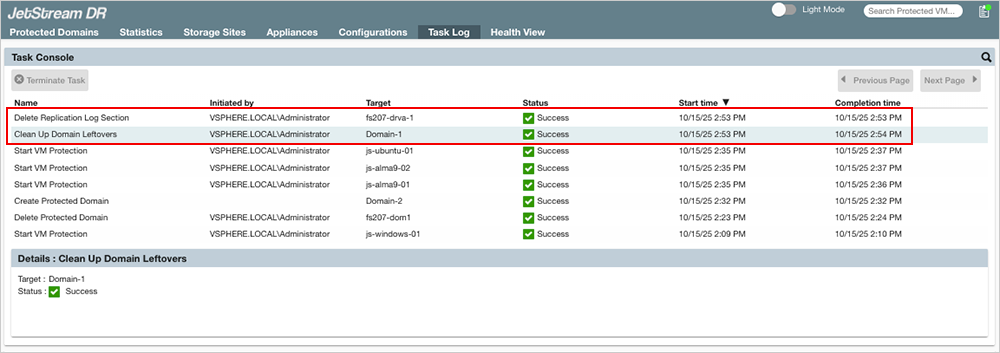
Figure 219: View the Task Log to verify cleanup of Kept VMs.
- The ability to automatically clean up kept VMs will be revoked when a Domain with the Keep Protected Domain's VMs and section intact at Remote Site option is recovered (i.e., failed back). After this point, the system will not remove kept VMs from the remote site and this must be done manually by the user.
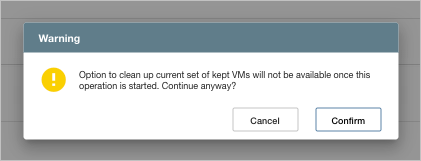
Figure 220: Kept VMs warning message.
- If the Resume Continuous Failback at Remote Site option is selected, certain conditions must be met and are displayed in a dialog window:
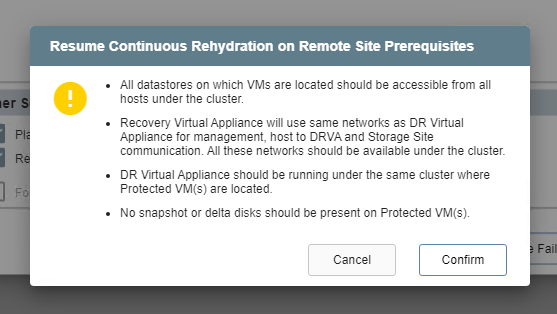
Figure 221: Resume continuous rehydration.
"Force" Failover
- Force failover is used when partial disaster occurs. To illustrate, assume there is a DRVA hosting three Protected Domains. VMs from one Domain become impacted (e.g., the datastore for those VMs goes bad), but VMs in the other Domains continue to run and remain protected. Attempting to failover the impacted Domain will be blocked in this case because ownership of the Domain cannot be transferred while the DRVA continues to operate serving the other good Domains. The Force failover option allows the remote site to "forcefully" take the ownership of the Domain regardless of the state of the DRVA.
- Ownership of the Domain is immediately passed to the recovery site without waiting for graceful release by the protected primary site.
- A dialog window will appear asking the user to confirm that complete ownership of the Domain can be taken over immediately by the recovery site.
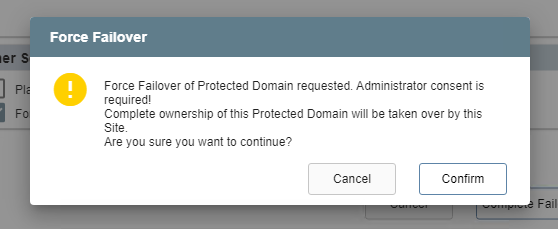
Figure 222: Force failover option.