Failover Due to Disaster
The steps below describe how to failover a Protected Domain in response to a disaster.
Note: Protected Domains can contain full Recovery Groups, multiple independent VMs, or a mix of both. In this example the Domain contains one RG and one independent VM. Both are recoverable.
- Log into the AROVA web UI and select the desired Protected Domain then click the FAILOVER button.
(The FAILOVER button will only appear if the Domain has at least one recoverable VM.)
- AROVA reviews the state of the Domain and its runbook settings and will notify the user if any settings are missing, incomplete or are no longer valid before continuing.
- If any protected VM instances still exist in the GCP inventory, AROVA will display a warning message.
(To proceed with failover, these VMs must first be deleted from GCP. If deletion is not possible, the "Ignore Warning" option can be used to continue. However, proceeding without deleting VMs in the primary region may result in the same VM running in both regions once the primary region or zone is restored.)
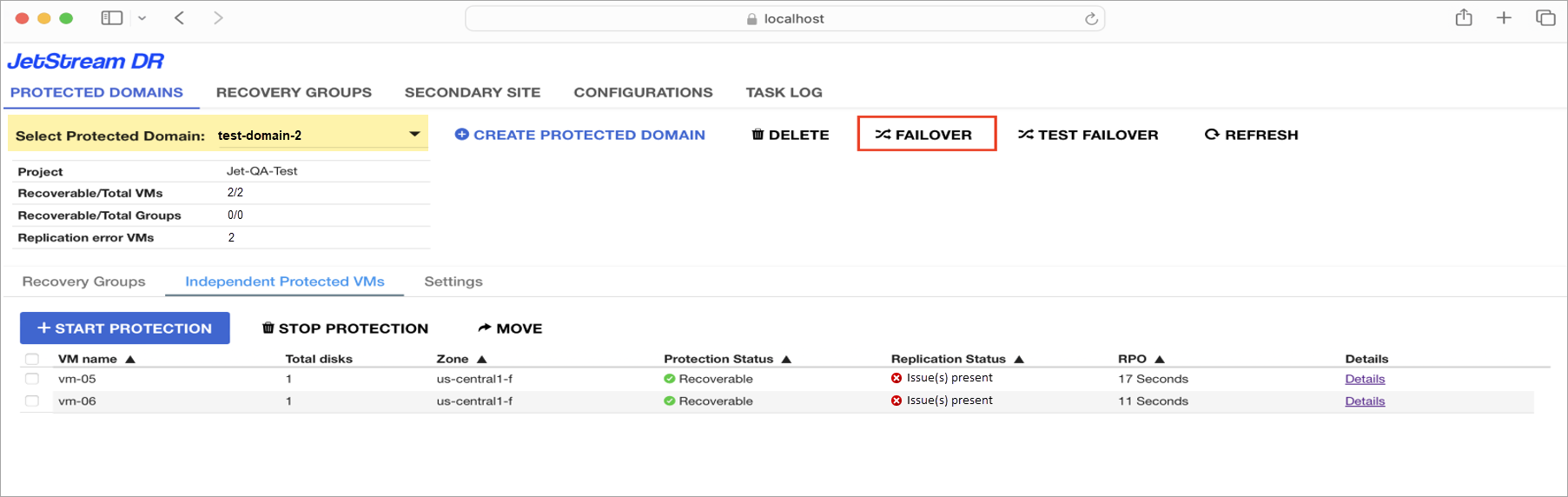
Figure 91: Starting failover of a domain.
- A dialog window will appear displaying details about the Domain and show a message explaining the failover process.
- Click the FAILOVER button.
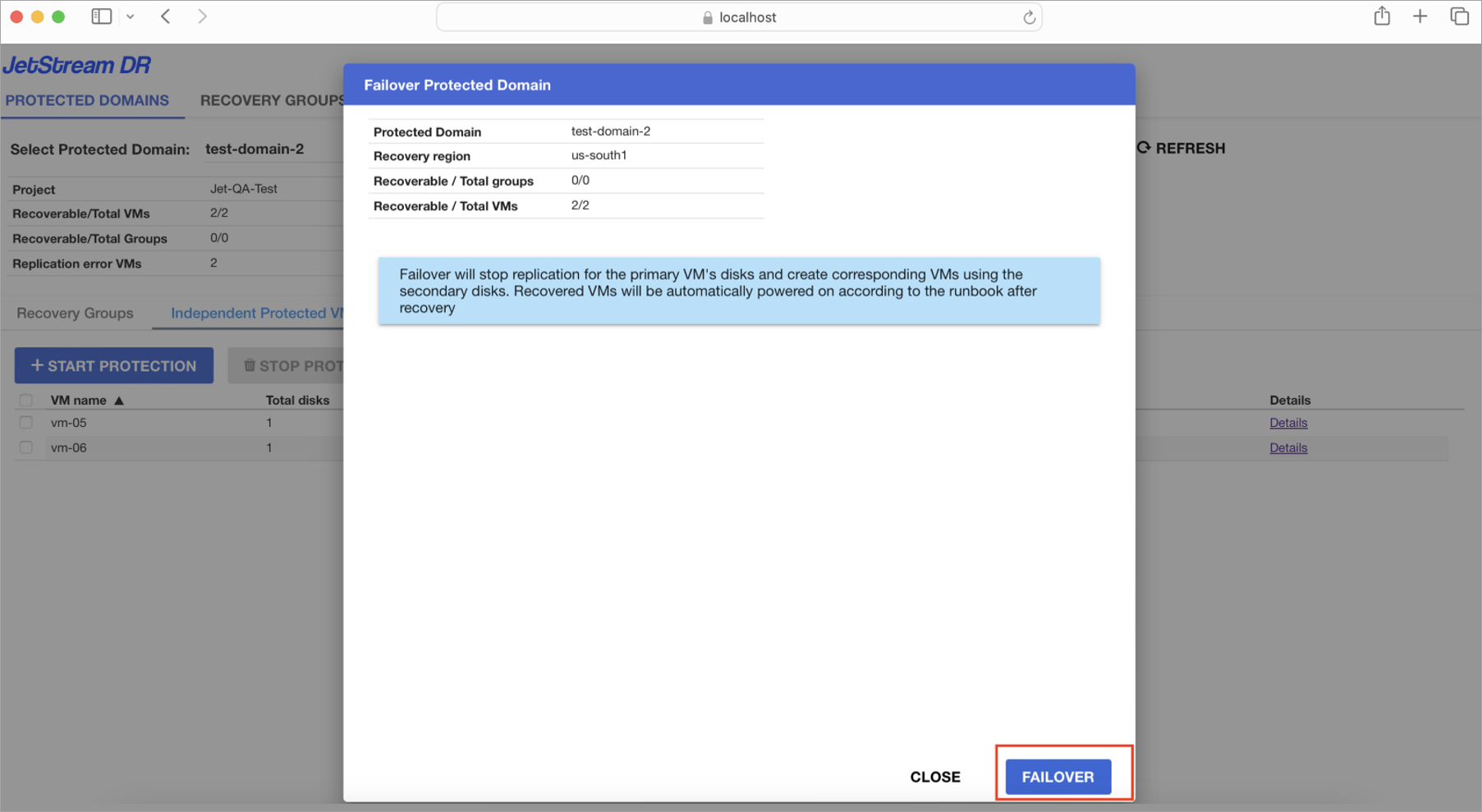
Figure 92: Click the Failover button.
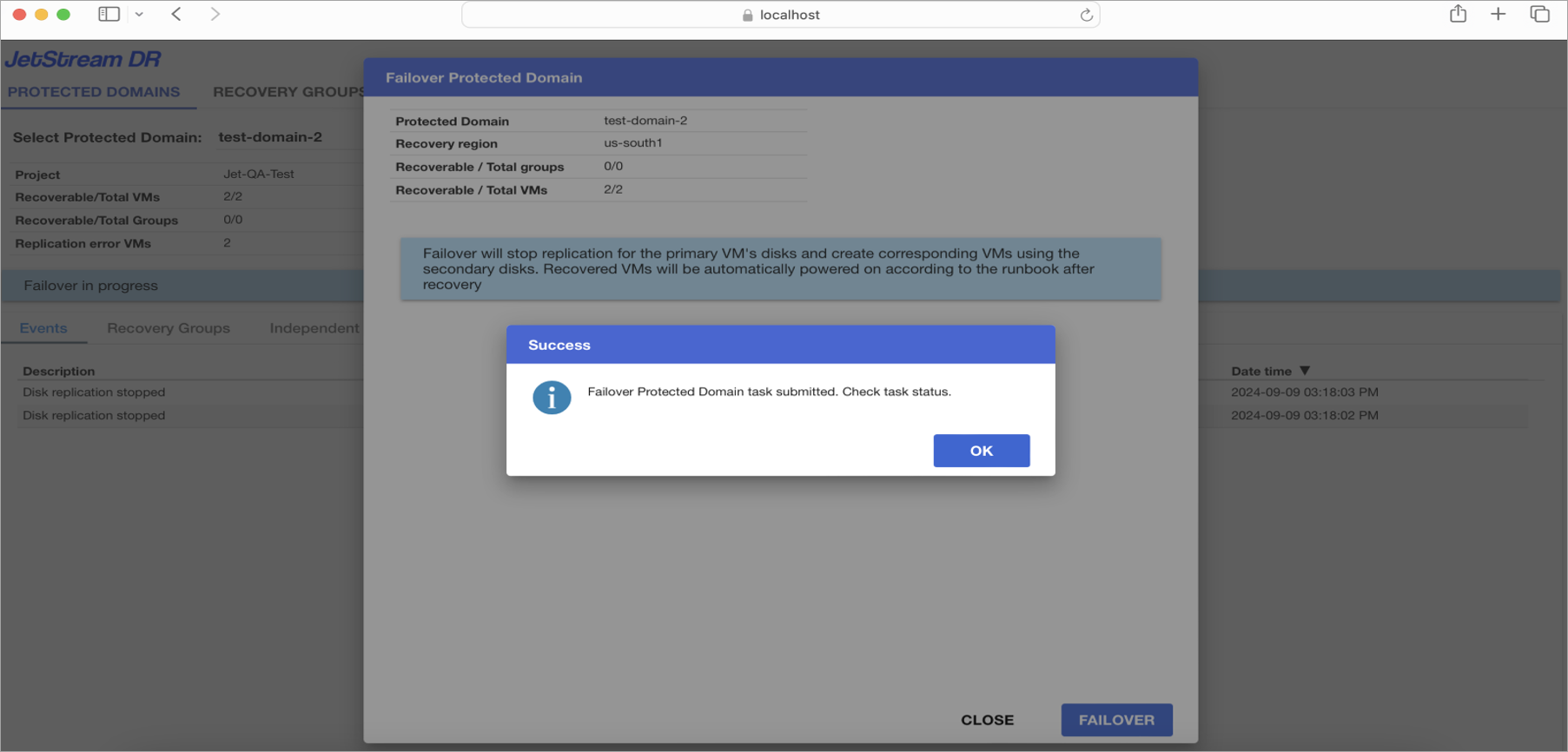
Figure 93: The failover task is started.
- Progress of the failover task can be monitored from the Protected Domain's dashboard screen.
- While the failover operation is in progress, the UI will display a "Failover in progress" message on the Protected Domains screen.
- Click the Task Log tab from the Protected Domains screen to monitor all activities running in the background and their status.
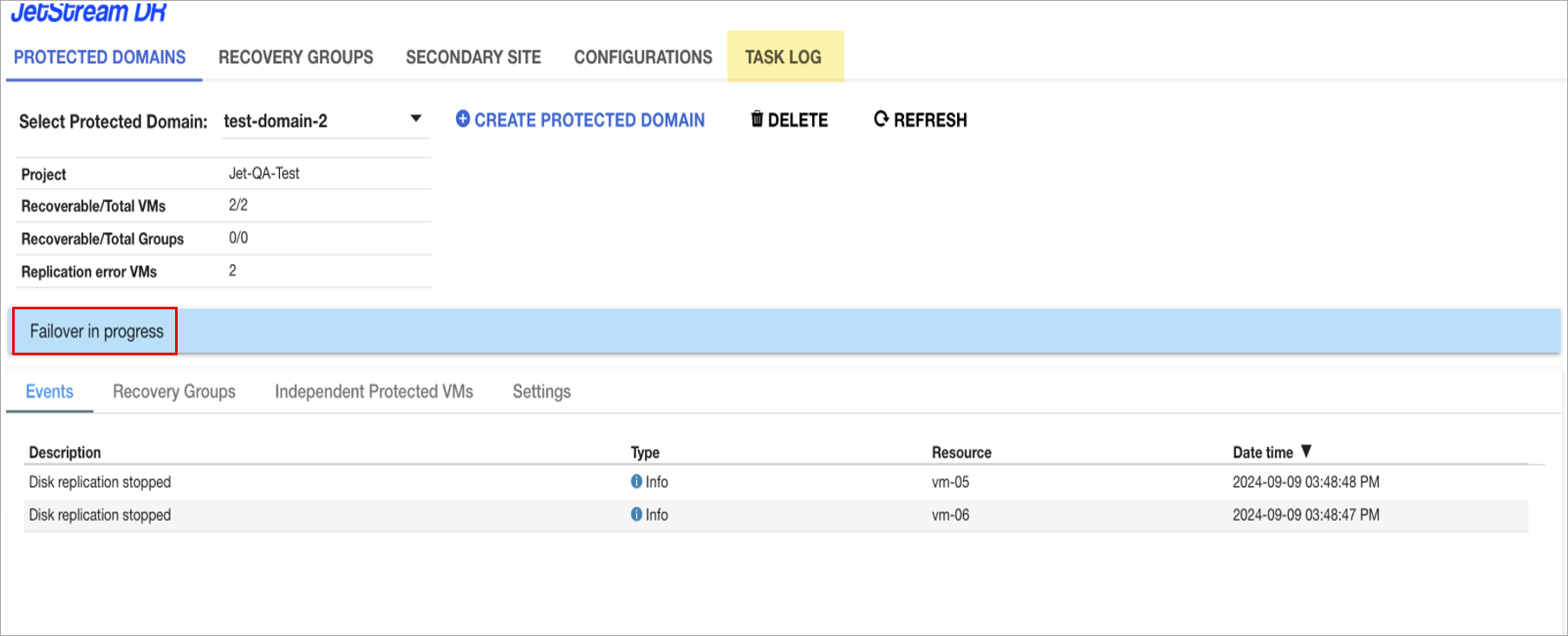
Figure 94: Monitoring failover progress.
- At the conclusion of the failover operation a result summary will be displayed.
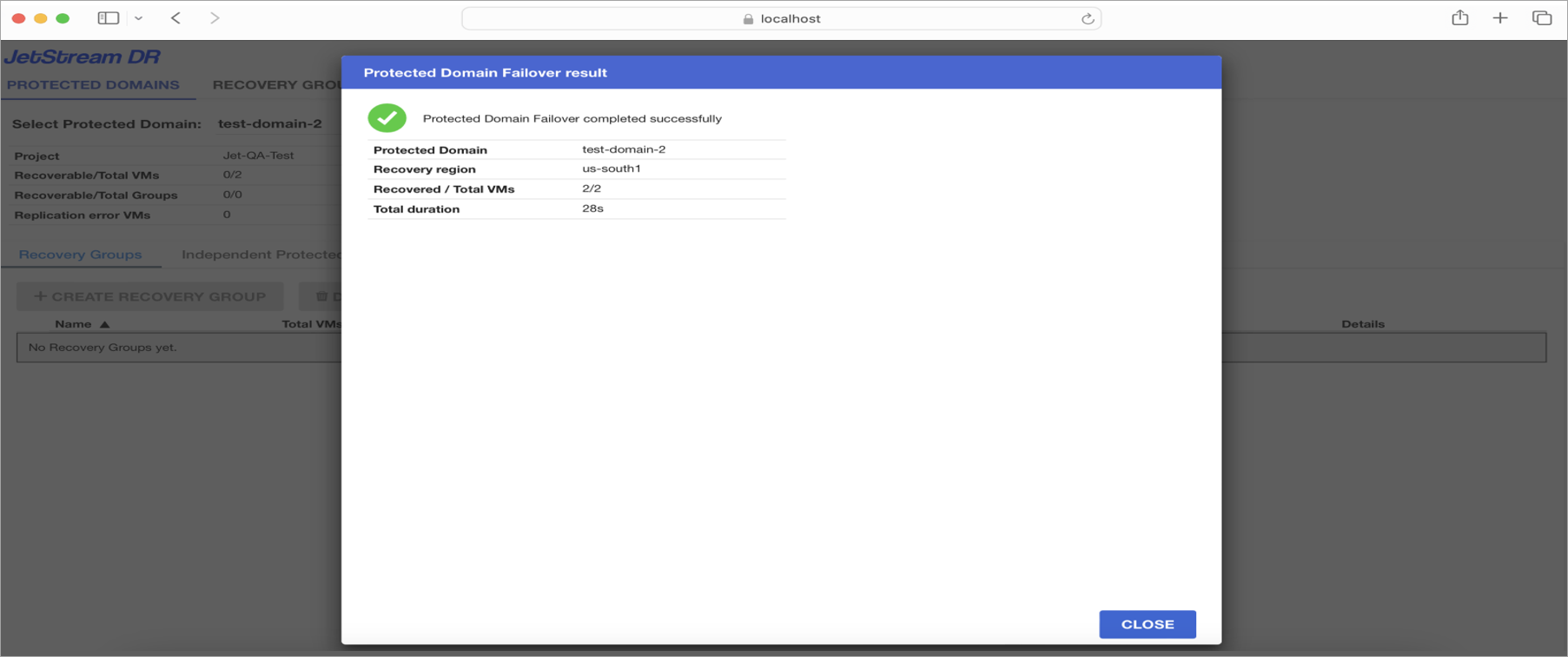
Figure 95: Failover task is complete.
- Navigate to the Task Log screen to review the details and history of the failover task.
- As failover completes, the VMs will become available in the secondary region according to their runbook configuration. At this point, it will be possible to validate workloads, confirm connectivity, and resume operations from the secondary region.
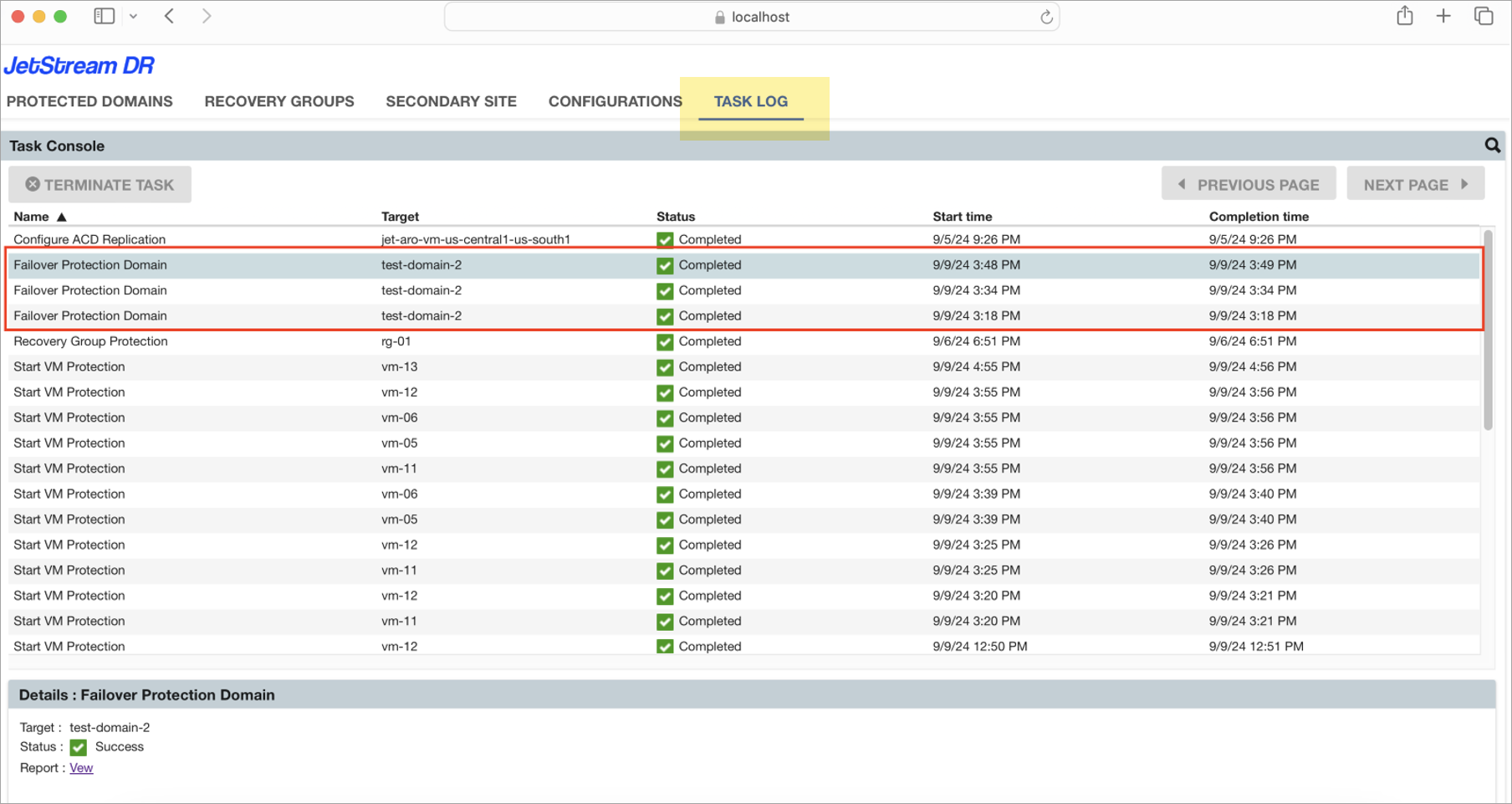
Figure 96: Review full failover details from the Task Log.
Note: After failover, contents of the Protected Domain will be partially frozen – New VMs cannot be added to the Domain; however, VMs can be removed and their properties can be edited.