PITR Session: Manual
A Point-In-Time-Recovery session can be manually started for a PITR-enabled Domain. Use this option if some (or all) VMs are compromised and need to be restored to a specific point in time.
- Go to the recovery site.
- On the Protected Domains screen, open the More menu and select the PITR Session option.
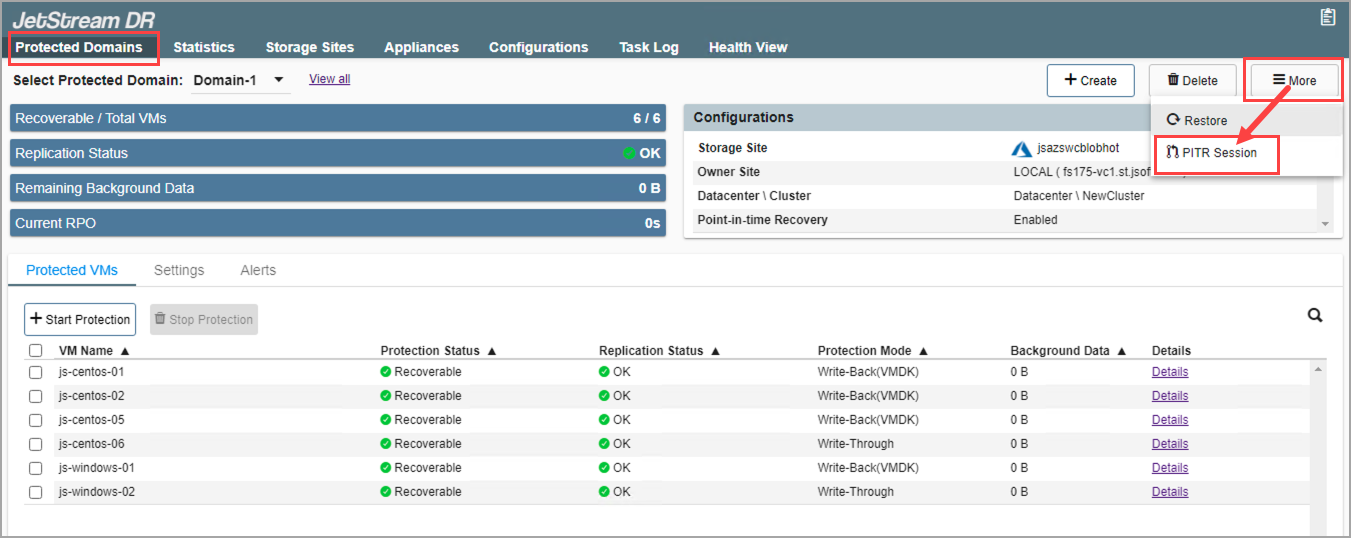
Figure 245: Start the PITR Session.
- Follow the guided steps of the pop-up dialog window that appears.
Step: General
- Review the PITR Protected Domain and storage site.
- Click the Next button.
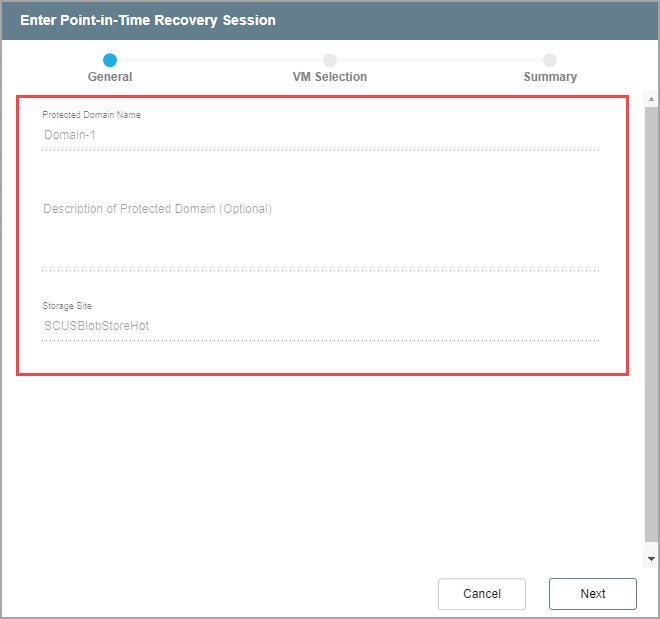
Figure 246: Review details of the PITR protected domain.
Step: VM Selection
- Select a recovery group and/or individual independent VMs from the Protected Domain you are interested in rolling back.
- These choices can be refined later during testing and final selection.
- Click the Next button.
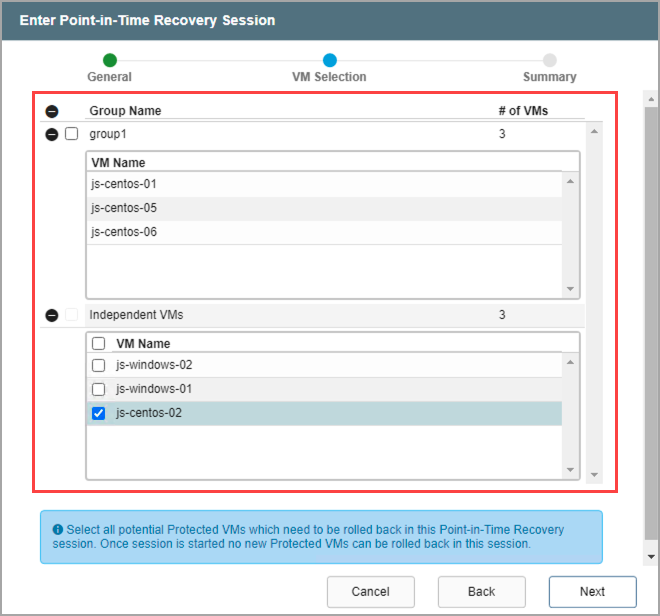
Figure 247: Select a recovery group and VMs.
Note: After a PITR session has been started, additional VMs from the Protected Domain cannot be added to the session for rollback. A new PITR session should be started to access them.
Step: Summary
- Review the selected VMs.
- Click the Submit button.

Figure 248: Review the selected VMs and initiate the PITR session.
- When PITR is started, the selected VMs will be shut down and the PITR session will begin.
- It will now be possible to recover and test the selected PITR VMs.
- Any VMs of the Protected Domain that were not included in the PITR session will continue to operate normally with full protection.
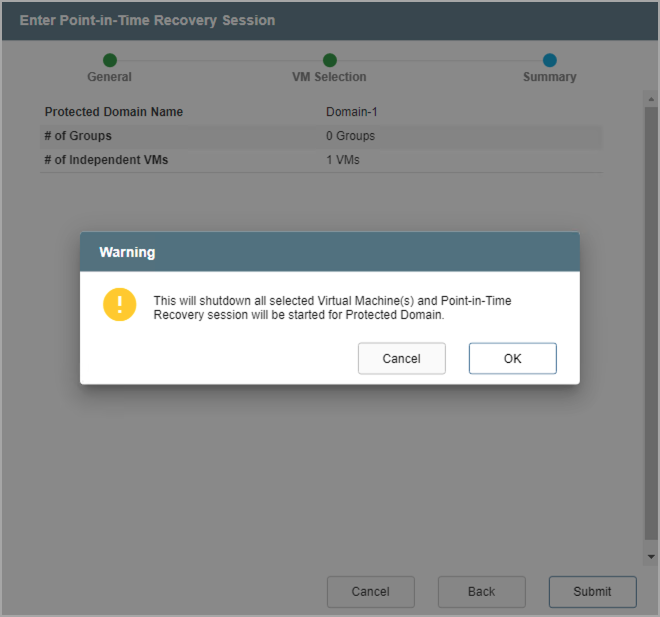
Figure 249: The PITR session will begin for the selected VMs.
Note: While a PITR session is active, protection of the selected VMs is temporarily suspended. It is not possible to failover, failback or restore to any periods of time during which a PITR session was active. Therefore, it is advisable to keep PITR sessions active no longer than absolutely necessary; these periods of time are not covered by DR protection. After a PITR session is exited, all DR protection resumes normally.
- While the PITR session is active, open the More menu then click the option Run PITR to roll back VMs to a specific point in time.
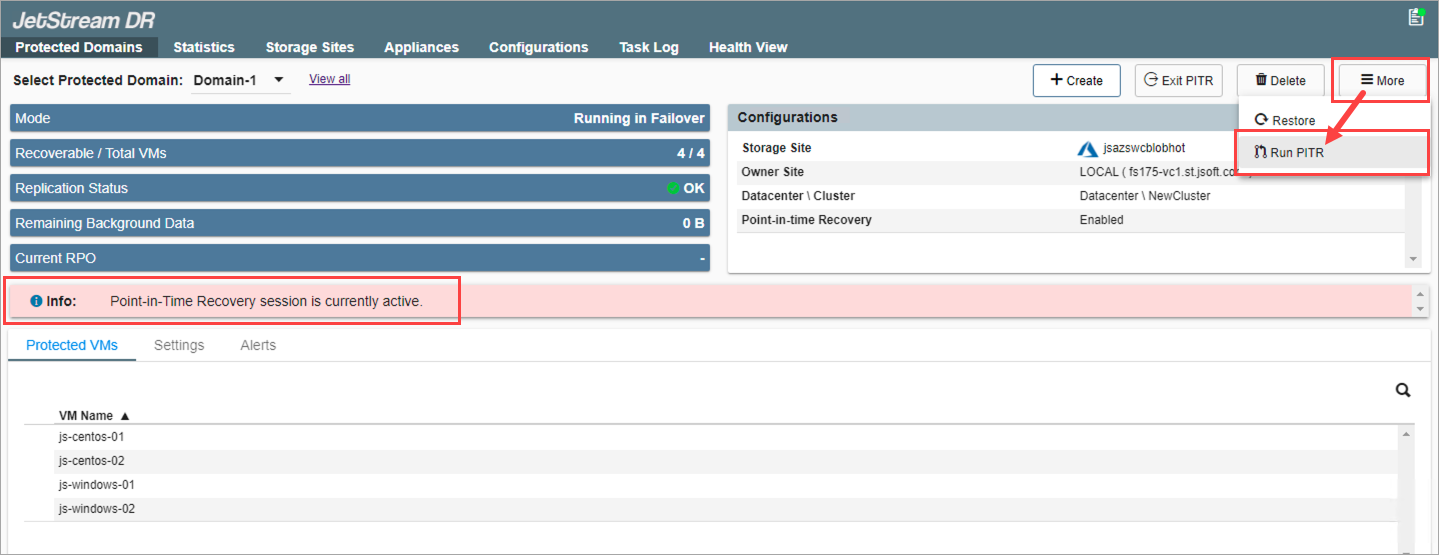
Figure 250: Run PITR to recover protected VMs for checking and restoration.
Note: Until the PITR session is completed, do not perform any VMware events on PITR VMs in the session (including: snapshots, vMotion, cloning, etc.)
Also see: